
If you’ve spent any time emulating older video game consoles, you know the experience can be a mix of joy and frustration. There’s nothing quite like booting up a childhood favorite like Super Mario World or Metal Gear Solid on a modern PC, but the behind-the-scenes setup, multiple emulators, BIOS files, and controller configurations can turn what should be a quick nostalgia trip into a weekend-long tinkering session. I thought that was just the cost of admission to the emulation world. Then I found LaunchBox, and suddenly, it clicked.

EmuDeck just got a big update with more emulators
If you have a Steam Deck, you'll love this new EmuDeck update.
What is an emulator front-end?
When you're emulating retro consoles, each system typically requires a separate emulator (like SNES9x for SNES, PCSX2 for PS2, etc.), and each emulator has its own interface, configuration style, and quirks. An emulator front-end sits on top of those emulators and acts as a unifying launcher. It’s like a personalized library where you can view your games, read about them, organize them neatly, and launch them without needing to open different emulators or dig through folders manually.
Emulating consoles without a front-end
An organizational nightmare
I’ve been emulating for over a decade, starting with the basics back when ROMs were so small, you could fit an entire console’s library on a flash drive. My collection quickly grew from just a handful of favorites to hundreds of titles across multiple systems. At first, I loved the tinkering. Getting a Dreamcast game to run at full speed felt like a victory. But after a while, it became a chore.
It was all functional but chaotic; it had different folders, controller profiles, and hotkeys. Whenever I wanted to show a friend an old favorite, I’d spend more time configuring than playing. I knew about emulator front-ends but hadn’t seriously looked into them. I assumed they were just cosmetic, nice-looking launchers that didn’t really solve anything. But I couldn’t have been more wrong. When I finally gave LaunchBox a try, it didn’t just clean up my setup; it transformed the entire experience.
Enter LaunchBox, an all-in-one launcher
This front-end was a game-changer
LaunchBox started out as a simple Windows-based front-end for organizing PC games and emulators. Still, it has evolved into one of the most polished, powerful, and user-friendly solutions for retro gamers. From the moment I installed it, LaunchBox felt like the missing piece. The interface is sleek and intuitive, but more importantly, it understands what retro gamers need.
You can add games manually or scrape entire folders of ROMs. LaunchBox will automatically pull in box art, descriptions, fan-made videos, release dates, developer info, you name it — no more mystery filenames or browsing through generic folders. Suddenly, my library felt like a real collection.
A surprisingly smooth setup
You might expect a tool this powerful to be overwhelming to set up, but LaunchBox guides you through the process effortlessly. I was able to import thousands of games in an afternoon. LaunchBox handled the artwork and metadata and even suggested emulator pairings where needed. It also supports virtually any emulator you can think of; RetroArch, MAME, Dolphin, PCSX2, and even newer ones like Ryujinx or Cemu for Switch and Wii U. You’re not locked into a specific ecosystem; LaunchBox is about flexibility and control, while still making it feel like a unified experience.
RetroArch integration without the headaches
If you’ve ever used RetroArch, you know it’s powerful, but not exactly beginner-friendly. The menus are dense; the jargon is thick, and the configuration can be a maze to navigate. LaunchBox took that complexity and streamlined it. Once I linked my RetroArch installation to LaunchBox, everything became easier. Want to launch Chrono Trigger with a CRT filter? LaunchBox handles it. Want to use save states, fast-forward, or shaders? All there, just assigned to the controller or keyboard shortcuts. By letting me use RetroArch’s power without needing to wrestle with its UI, LaunchBox gave me the best of both worlds.
If you're looking for more, try Big Box mode
Emulation with a modern console experience
One of LaunchBox’s most impressive features is Big Box Mode, a full-screen interface built for couch gaming. Think of Steam’s Big Picture mode, but tailored for retro games and fully customizable. I hooked up a controller and launched Big Box, and it was like I had built my own custom game console. No keyboard required, no mouse-clicking through emulator windows, just a clean, controller-navigable menu that lets me browse, select, and launch games effortlessly.
And the presentation? Gorgeous. With video previews, animated transitions, and custom themes that evoke the aesthetics of various gaming eras, Big Box gave my setup a true “living room console” vibe. Friends who didn’t know anything about emulators could scroll through my collection, recognize the box art, and be playing within seconds. It was simple, elegant, and most of all, fun.
Customization and Community
What really makes LaunchBox stand out is the level of customization it allows. You can organize your collection by genre, platform, release year, region, however you want. You can even create custom categories like "Co-Op Games" or "Favorites from Childhood." And the community is just as passionate as the software itself. There are tons of user-created themes, startup videos, controller configs, and tutorials. Want a Nintendo Power-style theme? Done. Want Big Box to play the startup chime from the original PlayStation when you boot it? There’s a plugin for that.
LaunchBox has optimized emulation for retro gamers
For years, I accepted the clunky, fragmented nature of emulation as just part of the deal. I thought manually juggling ROMs and emulators was the price we paid to preserve gaming history. But it doesn’t have to be that way. It took my scattered, messy setup and turned it into a seamless, gorgeous, console-like experience, without sacrificing control or customization.
Whether you’re a casual retro gamer or a full-on collector, LaunchBox can completely change how you interact with your games. If you’ve been emulating for a while but feel like the experience is missing that spark, or if you’re just getting started and want to do it right from the beginning, do yourself a favor and check out LaunchBox. It’s the front-end that made it all click.
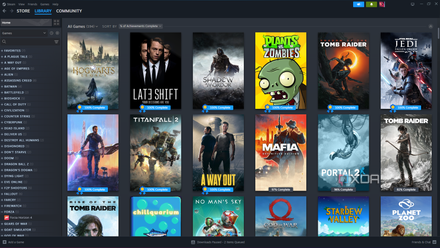
6 best game launchers to organize your game collection
Tired of scrolling through dozens of launchers to find a game you want to play? use one of these apps to store your entire collection in one place