
By default, Amazon locks your device down to its curated ecosystem. This means you miss out on powerful media players, custom launchers, and niche streaming tools.
However, buried deep within the settings menu lies a single, hidden toggle that strips away these restrictions and unlocks the hardware’s true potential.
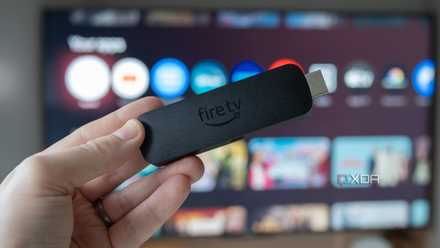
My Fire TV Stick stopped feeling sluggish after I changed this setting
It's something you should do periodically for the best performance
The default experience is insufficient for power users
The walled garden
Out of the box, you are completely restricted to the official Amazon Appstore. If an app isn’t hosted there, as far as your Fire Stick is concerned, it doesn’t exist. This ‘walled garden’ approach means Amazon gets to act as the ultimate gatekeeper of your entertainment. If an indie developer builds a game-changing media player, an advanced file manager, or a lightweight, ad-free video client, you can’t have it.
If an app competes too closely with Amazon’s own paid services, or if the developer simply didn’t want to jump through Amazon’s corporate hoops, it gets barred from the store. For me, the tipping point was the default home screen. It’s cluttered, aggressive, and constantly pushing sponsored content and recommendations I have zero interest in.
I wanted to install a clean, minimalist custom launcher. But Amazon obviously doesn’t host apps that let you hide their ads. It frustrates me to no end because, underneath all that heavy Amazon skin, the Fire TV Stick is just running a modified version of Android.
The solution is buried in settings
Toggle a setting in the Amazon Fire TV Stick
To break out of that frustrating sandbox, you don’t need to hack your device or do anything illegal. You just need to flip the switch that unlocks it. Because Fire OS is built on top of Android, it uses standard Android application files (called .apk files). Sideloading is just the act of manually downloading one of these .apk files via a web browser or file manager and installing it directly.
To Amazon, an ‘unknown source’ isn’t necessarily a dangerous one; it’s simply any source that isn’t the official Amazon Appstore. Go through these steps.
- Head to Fire TV Stick Settings and scroll down to My Fire TV.
- Click About.
- Click the Fire TV menu seven times.
- The system displays a message No need, you are already a developer.
- Move back to the My Fire TV
- You should see a new option called Developer Options. Open it.
- Select Apps from Unknown Sources and confirm your decision from the following menu.
That’s it — you're all set to sideload apps from other sources. The trick above is compatible with most Fire TV Stick devices. However, if you have a Fire TV Select running Vega OS, you won’t find the developer options menu.
The benefits and a word of caution
Bypassing limitations
Now that we have unlocked the system gates, it’s time to talk about how we actually get those apps onto the device. Depending on how you like to manage your files, there are several methods to get .apk files onto your TV. The easiest method is via the Downloader app. You can search for it on the Appstore and install it in no time. Once you open it, you get a simple web browser with an address bar. You just type in the direct URL of the .apk file you want to download (or use a shortened numeric code if the developer provides one). The app downloads the file and immediately prompts you to install it.
If you already have a library of installation files saved on your computer or cloud storage, you can use a third-party file manager on Fire TV Stick, connect it to the cloud storage, navigate to the saved .apk file, and let it install. When you download apps from the official Amazon Appstore, you are paying for peace of mind. Amazon constantly scans those apps for malware, data-logging scripts, and stability issues.
Because these apps don’t go through Amazon’s strict vetting process, downloading a corrupted or malicious .apk file can put your data and home network at risk. I would advise downloading apps from trusted, verified open-source repositories or official developer websites only.
Unlock savings on streaming gear: TV & entertainment deals
I have seen way too many people get excited about ‘free streaming’ apps, click on a sketchy link from a random forum or shady YouTube video description, and accidentally wreck their setup. It only takes one compromised .apk file to turn your Fire TV Stick into a sluggish, overheating nightmare. Also, be careful when streaming unlicensed content, as it may land you in legal trouble in the future.
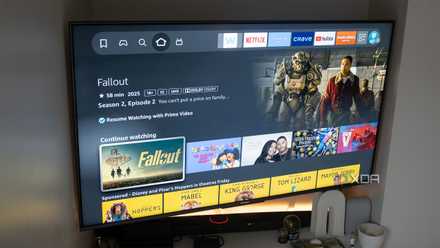
4 often overlooked Fire TV Stick features that are super useful
Some of these features are more obvious than others, but they’re all handy.
Unlock the full potential of Fire TV Stick
Flipping this single switch completely changes the game, transforming your Fire TV Stick from a restricted streaming device into a powerhouse. Suddenly, you have the freedom to curate your own entertainment setup exactly the way you want it. That said, you need to be careful here. While sideloading opens up endless possibilities, stepping outside Amazon’s walled garden means you are now your own digital security guard.
If you are new to a Fire TV Stick, check out these essential features for smarter streaming.