
One of the Amazon Fire TV Stick's most significant issues is how full of ads it is.
Seriously, they're everywhere and pretty much inescapable. I've tried adjusting simple settings, such as disabling autoplay ads, but this hasn't resolved the issue. After doing a bit of research, there seem to be two clear options if you're looking to remove intrusive ads from your Fire TV Stick.
You can install an ad blocker of some sort — which reportedly doesn't work that well and only removes some ads — or ditch Amazon's crowded Fire OS home screen entirely for a far cleaner-looking third-party launcher like Wolf Launcher. I went with the latter option, and while the installation is a bit more involved than I initially expected, custom launchers allowed me to completely eliminate ads from my Fire TV Stick 4K Max.
This method should be compatible with all modern Amazon Fire TV Sticks, including the Ultra, Plus, and HD. It won't work with the Fire TV Select, as it runs Vega OS rather than Fire OS. I'm unable to get my Fire TV Stick 4K Max to boot directly to Wolf Launcher because I'm running the latest version of Amazon's official Fire TV Stick firmware. If you haven't updated your firmware and auto-updates are turned off, you might be able to make it work with apps like Launcher Manager.
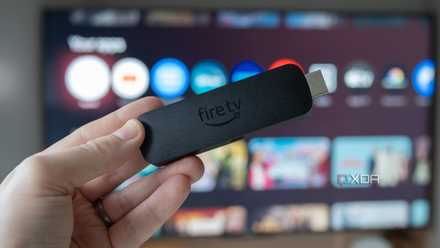
4 settings I changed right away on my new Fire TV Stick 4K Max
Amazon's relatively cheap streaming stick has several settings turned on by default that can be frustrating.
Make sure you turn on Developer Options first
Welcome to the wild world of Fire TV Stick side-loading
There are a lot of Fire TV Stick launchers out there that can be side-loaded onto the streaming device, including Leanback Launcher, HALauncher, Project Ivy Launcher, and more. I chose Wolf Launcher because it offers a clean look that removes all ads from my Fire TV stick, which is exactly what I'm looking for.
To get Wolf Launcher up and running on your Fire TV stick, you first need to enable Developer Options. Here's how to make that happen:
- Turn on your Fire TV Stick with the Power Button and navigate to the Home Screen with the Home Button on the remote. After you've done that, click on the Settings icon on the right side of the user-interface.
- Next, find My Fire TV under Settings and click on About. Now, click on the Fire TV option seven times to enable Developer Options.
- You'll see a message that says "No need, you are already a developer" when you tapped the option enough times. You should also get click number updates as you tap the button. Now you know for certain that Developer Options have been enabled.
- Click the Back Button on your remote, and you should see a new Developer Options menu item. Click on it and turn on Install Unknown Apps. If you don't yet have any apps from outside Amazon's app store installed on your Fire TV, you'll need to dive back into this menu once you do (for some reason Amazon won't let you enable it unless you meet that requirement).

Amazon’s Fire TV line won’t fully switch from Fire OS to Vega OS anytime soon
The Linux-based OS won't land on every Fire TV streaming stick -- at least not yet.
It's time to get the Downloader app and install Wolf Launcher
You're almost free from the clutches of Amazon's ads
Now that you've enabled Developer Options, it's time to get Downloader, a simple app that allows you to easily install apps from outside Amazon's store. It allows you to browse and download files through a built-in web browser, either by typing in a URL or a code that directs you to an Android APK installer. Once you've completed this step, all you need to do is install Wolf Launcher.
Below are steps to install Downloader and Wolf Launcher:
- Navigate to Search on the Home Screen. Type Downloader and select Downloader app from the list in the Amazon app store (surprisingly, Amazon hasn't removed the app from its official app store). Tap Download and wait for Downloader to install.
- Now, click Open, and OK. You should now be in Downloader.
- In the Search Bar, enter the download code 250931 and select Go. A browser window will pop up alongside a circular cursor. Scroll down the Troypoint download list until you find the latest version of Wolf Laucher (tech resource community Troypoint is a reliable source for third-party Fire TV apps).
- You'll now be redirected to the Install Unknown Apps screen under Settings. Click it and flip Downloader to On. Next, navigate back to the Downloader app to finish the installation of Wolf Launcher (you may also need to repeat the above steps related to Developer Options if Install Unknown Apps doesn't show up automatically: My Fire TV > Settings > Developer Options > Install unknown Apps > On).
- Click Install. You can now select Delete under the Downloader APK screen if you don't want the installation file on your Fire TV Stick.
- Head back to the Home screen by clicking the Home Button on the Fire TV Stick remote. You'll now find Wolf Launcher in your app library.
Say goodbye to all of your Fire TV Stick's ads
I wasn't able to get the streaming device to boot directly to Wolf Launcher
Once you've completed the above steps, Wolf Launcher's clean interface is installed and available on your Fire TV Stick. While it used to be possible to have Wolf Launcher start up as soon as you turned on your Fire TV Stick, Amazon has repeatedly blocked this from working.
I'm still hunting down a solution to this issue and have tried dozens of apps, including Launcher Manager and remapping one of the remote's buttons (this isn't supported by every Fire TV Stick remote, unfortunately), but I haven't been able to find a method that works with my updated 2nd-gen Fire TV Stick 4K Max.
...it gets the job done until I'm able to find a way to get my Fire TV Stick 4K Max to boot directly to Wolf Launcher.
Instead, I've just pinned Wolf Launcher to the top and immediately click on it when I turn on my Fire TV Stick. Here's how to do that:
- Highlight Wolf Launcher and click the Three Lines menu button on the remote.
- Next, click Move and drop it into the top row.
This isn't an ideal solution, given that Wolf Launcher takes a few seconds to boot, but it gets the job done until I can find a way to get my Fire TV Stick 4K Max to launch directly into the third-party launcher (which likely isn't possible right now).

I stopped my smart TV from tracking everything by changing this one setting
Disabling ACR on your TV is a simple process that protects your privacy.