
Summary
- Here are ten tips to improve your gaming handheld experience:
- Exit saving changes: Save your game progress regularly to avoid losing progress in case of battery drain or sudden shutdowns.
- Change the TDP: To save on battery life when playing less demanding titles, you can change the TDP of your gaming handheld. This reduces the power going to the processor, which limits performance but is not as much of a hit as you'd think.
You've done it. You have decided on a new gaming handheld, waited anxiously for it to ship, looked at your video doorbell every hour to see if the delivery van was pulling up, opened that box in record time, put the console on charge, and now you're wondering what to do with it. Well, whether you bought the Steam Deck, the Lenovo Legion Go, the Asus ROG Ally, or any other great handheld, we've got some tips to get the best out of your handheld gaming experience. I've personally used these tips on my own handhelds, smoothing out some of the minor irritations of the form factor to be able to keep gaming longer, which is kind of the point.
10 Increase the VRAM allocation
Your frame rates will thank us
By default, most gaming handhelds allocate a paltry amount of the shared memory to the graphics card. You'll want to increase the VRAM allocation to get better performance out of your gaming handheld. Here's how on the most popular consoles:
Steam Deck:
- Power off your Steam Deck.
- Press and hold the power and plus buttons until you hear the beep.
- Select Setup Utility from the menu.
- Navigate to Advanced.
- Find UMA Frame buffer Size.
- Hit A to select, choose the 4G option.
- Select Save and Exit, then confirm with Yes.
Some games (Red Dead Redemption 2, for example) will have issues with the 4GB VRAM allocation. For a few titles, you'll need to switch it back to the 1GB default.
ROG Ally:
We've got a dedicated guide for increasing the VRAM on the Ally, and it should be one of the first things you set up when you get your new handheld. Just be aware that however much you allocate to VRAM is subtracted from the total of 16GB for the device. We recommend 4GB as a happy medium between GPU and CPU performance.
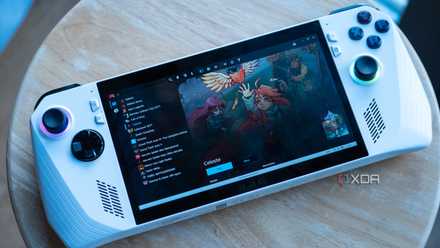
You should increase the VRAM of your Asus ROG Ally for better performance
If you have an Asus ROG Ally, you can increase the VRAM from the settings to get better performance in some of your favorite games.
Legion Go:
- Turn off your Legion Go.
- Press the volume down, volume up, and power button simultaneously.
- When the Novo Button Menu appears, use your fingers and tap on BIOS Setup.
- Tap on More Settings.
-
Tap on Configuration, then tap the drop-down next to UMA Frame Buffer Size and choose your VRAM amount.
The Legion Go also has 16GB of total memory for the system, so we recommend 4GB of VRAM allocation, which gives you 12GB for the CPU and background tasks.
- Tap Exit, then confirm by tapping on Exit saving changes.
9 Change the TDP
You don't need to be running at full speed all the time
To save on battery life when playing less demanding titles, you can change the TDP of your gaming handheld. This reduces the power going to the processor, which limits performance but is not as much of a hit as you'd think.
Steam Deck:
On the Steam Deck, press the ... button to bring up the quick menu, tap the performance tab, and select the toggle next to TDP. I've been using 11W most of the time on my LCD Steam Deck and haven't really noticed a difference in performance compared with keeping it on full. The big difference is in thermals, where I notice less fan noise and the back of the console is noticeably cooler.
ROG Ally:
Press the Command Center key on the ROG Ally to open it, then tap on Operating Mode. Changing this to Manual will give you sliders for controlling SPL (7 to 30W), SPPT (15 to 43W), and FPPT (15 to 53W). Changing all three to 18W is a good starting point, but you'll have to tweak it a bit to find the sweet spot for your individual Ally.
Legion Go:
Press the Legion R button (the angled one at the top of the right controller) to open the Legion Space quick menu. Select the Performance tab (the top one that looks like a speedometer) and select Custom from the Thermal Mode (TDP) section. You can adjust this from 5 to 30W. I've been using 15W on mine, which is fine for platformers and other less graphical-intensive titles.
8 Turn off distracting notifications
Your screen real estate is precious, silence the annoyances
The smaller screen of handheld consoles means every pixel is precious for your games. On Windows handhelds, while on the desktop, tap in the bottom-right corner to open the notifications area, then tap on the sleeping bell icon to put your handheld into do not disturb mode. That should silence most of the annoyances, but you could also go to System > Notifications and turn off some or all notifications.
The Steam Deck also has a way to limit notifications, and I recommend you turn them all off. Press the Steam button, select Notifications, then toggle Hide non-critical notifications when in game. Or better yet, turn off every single notification toggle on that page.
7 Install alternative game sources
Your console is only as good as the games it has installed
The Steam Deck isn't only for Steam games, so load it up with the Epic Games Store or your favorite game launchers to get the most out of your handheld. The Legion Go and ROG Ally are slightly easier to get games onto, as they run Windows, so it's a simple process of downloading and installing the launcher. The only issue is that most game launchers aren't optimized for the smaller screens of handheld consoles, so it can be harder to navigate around and install games.

Hands-on: The Xbox app's updated Compact Mode will make your Windows handheld more like a Steam Deck
Xbox’s new Compact Mode is neat, but it’s really only helpful if you’re a heavy PC Game Pass user.

How to install and play games from the Epic Games Store on Steam Deck
In addition to Steam, you can also install the Epic Games Store and play games from there on the Valve Steam Deck. Here's how to do it.
6 Make use of button shortcuts
The major gaming handhelds all have additional buttons for quick menus and other functionality, and button combinations can unlock even more functionality. The Steam Deck, for example, will take a screenshot when the Steam button and R1 are pressed together. On the ROG Ally, screenshots can be taken by holding M1 or M2 and the A button. And for the Legion Go, it's Y3 and R. Get yourself familiarized with the combinations you think will be useful, and you will enjoy your time more. Our guide for the Steam Deck is below, and Asus and Lenovo have their respective reference pages.

These are all the Steam Deck shortcuts
Want to save some time when using your Steam Deck? Why not consider some shortcuts for closing games, screen brightness, and more.
5 Enable offline mode
Don't get stuck not being able to play your games away from Wi-Fi
Owners of handhelds that run Windows will want to enable offline mode, so they can play any games they have installed from the Microsoft Store. This includes any Game Pass titles, so it's well worth enabling. Open the Microsoft Store, select your account avatar, then select Settings. You'll see an option for Offline permissions, make sure the toggle next to it is to the right, so it's colored in and enabled.
You can also set this up on the Steam Deck, so your installed games don't need to be validated online. The difference is that it's a temporary workaround on the Steam Deck that resets when the console is rebooted. Press the Steam button and select Internet, then turn on Offline Mode. It's worth testing the games you want to play away from Wi-Fi before you leave, as some titles might have issues. If you notice any games not loading, reboot your Steam Deck and play those titles for 10–15 minutes so they can validate your ownership, then try Offline Mode again.
4 Install some emulators
Emulation is a perfect use for gaming handhelds
Gaming handhelds' smaller screens and lower-powered processors make them great candidates for playing retro games. Our favorite emulator is EmuDeck, which works on Windows-based handhelds or the Steam Deck, so whatever hardware you own, you can get in on the retro gaming goodness. It's fairly easy to install and covers most retro consoles.

How to use EmuDeck on the Asus ROG Ally
If you want to emulate titles on the go, then EmuDeck on the Asus ROG Ally is one of the best ways to do that.

How to install EmuDeck on your Steam Deck to emulate your favorite games
If you want to play older games from the past that you loved, then EmuDeck might be the answer to playing some of those older titles on the go.
3 Get some thumbstick covers
Protect your joysticks and give your thumbs more control
The thumb sticks on every gaming handheld are kind of short and are a pain to replace if damaged. You can fix both issues by putting some thumb grips over them. You'll gain more control over in-game movement while protecting the joysticks from damage. It's a win-win situation, although you might need to remove them for transport, depending on your case.
Skull & Co. Skin Thumb Grips for Steam Deck and ROG Ally
2 Limit screen refresh rate to optimize battery
Higher refresh rates use more power, so lower them if battery life is your primary concern
One of the primary draws on the battery life on any handheld is the screen, and the higher the refresh rate, the higher the power draw. You can limit the refresh rate on any current handheld, whether the Steam Deck or the Windows-based ones, but it's a slightly different process on each.
Steam Deck:
To change the refresh rate on the Steam Deck, tap the ... button at the bottom right of the screen to open the quick access menu. You should already be in the Performance Settings, but if not, tap on the battery icon to switch to the correct tab. You'll see options for limiting framerate and, just below that, for limiting the refresh rate. We recommend Steam Deck OLED users set this at 45Hz and 40Hz for LCD owners. If you want the full refresh rate for some games and less for others, use the toggle next to Use per-game profiles, which lets you set individual profiles for every game you play.
Legion Go:
- Press the menu button above the ABXY cluster on the right controller to open the Quick Settings overlay.
- Tap the hexagonal gear icon, then select 60Hz on the Display Refresh Rate section.
ROG Ally:
You should use a different method to reduce power consumption on the ROG Ally. That's because the screen's Variable Refresh Rate (VRR) feature is only active at 120Hz. Instead of reducing the refresh rate, use Armory Crate SE to limit the FPS of your games to 60 FPS. To open the Command Center quick menu, tap the triangle button at the top left of the screen. You should see an option called FPS Limiter, and that's the one you want. Set it to 60, and enjoy longer battery life while still getting the smooth frames of VRR.
1 Enable hibernate on Windows handhelds
Make your PC handheld behave a little bit more like a Steam Deck or Nintendo Switch
One of the best features of gaming handhelds like the Steam Deck or Nintendo Switch is how games can hibernate when you switch away from them. You can't quite get the same seamless level of pausing on Windows-powered handhelds, but you can get pretty close with a combination of Windows features and some third-party software. First, enable Windows hibernation mode, which lets the whole operating system freeze when you're not using it.
- Launch the Start menu and search for Control Panel.
- From the Control Panel menu, click Hardware and Sound.
- Under Power Options, click Change what the power buttons do.
- You'll see the Hibernate option at the bottom, but you might not be able to click on it to change it. To interact with the grayed-out settings, click Change settings that are currently unavailable.
- Select the box next to the Hibernate setting, then click Save changes.
Even with Windows hibernation set up, sometimes all you want is to be able to pause a game and do something else on your handheld. You can do this, but you'll need to download and install an app called Nyrna, which allows you to suspend games or apps to free up performance resources. This app works even on games that don't have an inbuilt pause function, like Dark Souls or Elden Ring, so that you can return to your gaming session later on.
Nyrna
Nyrna aims to make your gaming handhelds running Windows feel more like a true gaming console. It brings the popular sleep and suspend functions from the Nintendo Switch and PlayStation to your PC handheld, making it easy to pause apps and games.
There are tons of other device-specific tweaks you can do as well
These are just ten of the best quality-of-life tips I've found while using gaming handhelds. They're all simple to implement, but pay increased dividends in the added enjoyment you'll get from your console. The Legion Go has some specific tweaks that will improve things, and all the Windows consoles can benefit from the right programs and apps. Adding the right mix of accessories can even make them into desktop replacements. The Steam Deck has a much wider range of software tweaks to install. As people build more specific programs for individual handheld gaming consoles, this will only make them better to use.