
Summary
- Advanced calibration improved print quality significantly with less warping and stringing issues.
- Preheating presets save setup time and prevent temperature-related mishaps for smoother prints.
- Filament runout sensors and fan speed controls enhance consistency and finishing quality in prints.
When I first started 3D printing, I had no idea how many hidden features were waiting to be discovered in my machine. These functionalities have transformed my workflow and saved me from countless misprints. Looking back, I realize how much time and frustration I could have spared if I had known about them earlier. Let me share seven valuable features I wish I had discovered sooner to make your own 3D printing experience smoother.
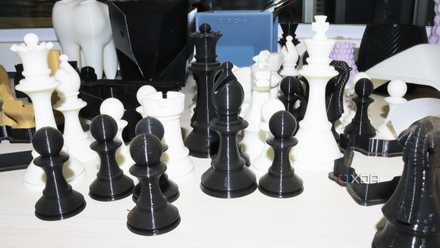
5 ways I use my 3D printer to upcycle broken stuff
Save the environment with 3D printing
7 Advanced calibration for improved print quality
How these overlooked tweaks revolutionized my final prints
I used to think a quick bed-leveling session was enough to guarantee flawless prints, but I was mistaken. Advanced calibration options like extruder steps, jerk control, and z-offset made a more considerable difference than I ever imagined. The moment I started fine-tuning these details, my prints showed fewer issues, like warping and stringing. I wish I had discovered this feature sooner, as it drastically raised my success rate.
Calibrating every small detail doesn’t have to be daunting if you approach it step by step. I started by focusing on one element, such as adjusting my flow rate or the nozzle distance from the bed. Logging my changes helped me quickly revert or move forward without confusion. Eventually, I got more confident and began experimenting with different filament types, improving each print with targeted tweaks.
Some 3D printers even offer built-in calibration wizards that walk you through these steps, which I found incredibly helpful. Setting aside time for periodic calibrations has become part of my routine to maintain print quality. These advanced adjustments let me tackle complex designs with greater ease. Once I embraced this hidden gem, I unlocked a new level of consistency in my final products.
6 Preheating presets for faster start times
How I trimmed precious minutes from every print session
Preheating presets was a feature I completely overlooked when I got my printer. Creating custom temperature profiles for materials like PLA or ABS drastically reduced my setup time. By selecting a preset, my nozzle and bed heat up to the right temperature while I gather my other materials. This simple trick streamlines my workflow and helps prevent temperature-related mishaps.
I no longer waste time guessing the correct temperatures or adjusting them repeatedly. Whenever I use a preheating profile, I’m confident my printer will behave exactly as expected. That consistency has saved me from countless botched first layers and early print failures. I definitely wish I had known to set up these presets much earlier.
Configuring custom presets in your printer’s onboard menu or slicing software is surprisingly easy. I labeled each profile according to filament brand and type, making it simple to recall which temperatures work best. Over time, I found specialized temperature combos that yield remarkably smooth prints for specific filaments. Tapping into these presets has been among the most practical time-savers I’ve discovered.
5 Filament runout sensors and smart notifications
Why I’m no longer anxious about surprise spool endings
I used to dread the moment my filament would suddenly run out in the middle of a significant print. That abrupt stop often wasted hours of work and left me with half-finished parts. Those frustrations nearly vanished once I discovered my printer’s built-in filament runout sensor. Now, whenever I’m close to running out, my printer pauses and alerts me to swap in a new spool.

Every maker should know about these 5 free 3D printing websites
If you're a 3D printing enthusiast, these sites can provide you a wealth of models to print or draw inspiration from
Turning on this feature was as easy as checking a box in my printer’s settings menu. I also connected it to notifications on my phone, so I’m always in the loop about print progress. Getting these warnings has saved me from unwittingly extruding nothing but air. Knowing I won’t return to a heartbreaking, half-done project is a relief. Some models even have extra failsafes that pause printing if filament feeding becomes jammed. Routine cleaning of my extruder, combined with these sensors, keeps my printer running smoothly. Because of this hidden functionality, I’ve confidently tackled larger, more ambitious prints. I genuinely wish I had known about these handy sensors before losing time and materials on incomplete jobs.
4 Adjustable fan speed controls for filament cooling
How I improved bridging, overhangs, and overall surface finish
Controlling the cooling fan’s speed was another potent trick I discovered long after my first prints. When printing with materials like PLA, I learned that strong airflow helps each layer harden more quickly for sharper details. For ABS, though, I dial back the fan to avoid warping or cracks caused by abrupt cooling. Adjusting fan speeds feels like having an extra layer of customization I never knew existed.
I started experimenting by changing fan speeds in small increments, observing how it affected bridging and corner sharpness. It amazed me how much of a difference a slight tweak could make in the final appearance. Over time, I discovered unique cooling settings that work wonders for each filament type. It’s one of the first parameters I adjust when beginning a new project.
Some printers let you manage multiple fans separately, which allows for even more precise control. Others allow you to toggle fan speeds directly from your slicer or onboard interface. Mastering fan control helped me solve issues I once chalked up to bad luck or subpar filament. If I had known about this sooner, I would have tackled complex prints more confidently.
3 Onboard file management for better organization
Why storing designs locally keeps everything simple and accessible
I used to juggle SD cards and USB drives whenever I wanted to print something new. Eventually, I realized my printer had onboard memory to save multiple project files. This feature makes managing my designs much easier, especially when I reprint the same item frequently. Knowing this from the start would have prevented a lot of wasted time searching through folders on my computer.
Now, I keep a handful of my favorite models in the printer’s memory and label them clearly. If I decide to tweak a design, I just rename it or store a new version without cluttering my workspace. A built-in file manager means I can hit print whenever inspiration strikes, even if I’m not near my computer. I also share the printer with friends, and this system helps us avoid confusion over whose file is which.
Some machines offer additional options like file previews or folder management, which I found extremely convenient. It’s worth checking your printer’s documentation to see precisely how this functionality works on your model. Since I adopted this method, I’ve wasted far fewer hours on tedious file transfers. It’s one more hidden gem I’m glad I finally discovered.
2 Power loss recovery for uninterrupted progress
Safeguard your prints from unexpected electrical interruptions
Power outages used to spell disaster for my lengthy print jobs. The sudden stop would often waste hours of work and leave me with half-completed designs I couldn’t salvage. I felt a massive sense of relief once I realized my printer offered power loss recovery. This handy feature stores essential data about the ongoing print so the machine can pick up where it left off when the power returns.
Activating power loss recovery is usually straightforward, requiring just a quick setting change in your printer’s menu or firmware. Some printers do this automatically, recording progress after each completed layer. Combining a reliable power supply with this feature gave me extra peace of mind during multi-hour prints. Now, I no longer worry that a random flicker of electricity will ruin my final masterpiece.
It's wise to test your printer’s power loss recovery capabilities with a small trial print. Start a short job, turn off the power, and then restore it to see if your machine picks up where it left off. This can save you frustration when working on critical projects. Once you confirm it works, you’ll wonder why you ever printed without it.
1 Automatic bed leveling for consistent adhesion
Improve first layers and streamline setups with auto-calibration processes
Manual bed leveling was one of my earliest frustrations, especially as a beginner. I’d spend ages turning knobs, only to find an uneven first layer that wrecked the entire print. Eventually, I discovered that my printer supported automatic bed leveling, and it changed my setup routine dramatically. A small sensor or probe checks multiple points on the build surface, instantly compensating for minor height differences.
This upgrade spared me the guesswork of constant calibrations. With one click, the printer ensures the nozzle is perfectly distanced from the bed, and I can start printing without fuss. It drastically reduced early print failures and improved my overall success rate. Automatic bed leveling might be the best choice if you want to invest in a single hardware improvement.
Installing or enabling automatic bed leveling can vary depending on your printer. Some models ship with this feature pre-installed, while others require an aftermarket sensor. Consult your printer’s manual or community forums to see if a compatible upgrade is available. Once it’s set up, you’ll never want to return to manual leveling again.
Remember to explore every hidden printing potential
Looking back, I realize how much time and energy I could have saved by discovering these features from the start. Each one helps me achieve smoother prints, fewer errors, and a far more enjoyable printing process. I encourage you to explore your printer’s settings and community resources to uncover more capabilities. Taking full advantage of every hidden gem will elevate your 3D printing experience beyond what you ever thought possible.