
While digital media options have surpassed the popularity of old-fashioned printed materials, you'll still find plenty of reasons to use physical documents and images. With the price of printers going down in recent years, it's easy to grab a solid printer that’s equipped with cutting-edge features at bargain prices.
However, if you bought a printer a few years ago, chances are it might not feature wireless functionality. Fortunately, you’re not doomed to physically connect your computer to the printer via cable every time you want to use it. If you have a Raspberry Pi, you can install the CUPS package to convert the SBC into a network-wide printer server that can print documents from any device on your home LAN, even ones coming from your mobile phone or tablet.

Best Raspberry Pi alternatives
The Raspberry Pi is just one of many great single-board computer options available for a variety of projects.
What you’ll need to have handy
As you have probably already guessed, a Raspberry Pi and a printer are the core components of the print server project. Although you can go for any mainline RPi model, you’ll need a USB-to-Ethernet adapter if you plan to use it with the non-Wi-Fi version of the Raspberry Pi Zero board.
You could also go for a cheaper microSD card if you want to save some money. I recommend getting one with at least 8GB of storage, as you’ll need to install the CUPS package on top of the operating system.
Speaking of the OS, this article will assume you’ve already flashed the operating system files onto the microSD card. I’ve used the Raspberry Pi OS for this tutorial, but you should be able to set up the printer server using other Debian-based operating systems, such as Ubuntu. If you’re new to the RPi ecosystem, we have a guide on how to install Ubuntu on the SBC, and the entire procedure is almost the same if you’re attempting to install the flagship RPi OS. I say almost the same, because you still have to replace Ubuntu's ARM with the Raspberry Pi OS image when writing the operating system files using Balena Etcher.
-
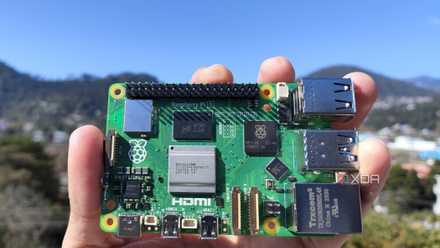
Raspberry Pi 5
- CPU
- Arm Cortex-A76 (quad-core, 2.4GHz)
- Memory
- Up to 8GB LPDDR4X SDRAM
- Operating System
- Raspberry Pi OS (official)
- Ports
- 2× USB 3.0, 2× USB 2.0, Ethernet, 2x micro HDMI, 2× 4-lane MIPI transceivers, PCIe Gen 2.0 interface, USB-C, 40-pin GPIO header
- GPU
- VideoCore VII
- Starting Price
- $60
-
SanDisk 256GB Ultra microSDXC card
Installing the CUPS package
After you’ve flashed the Raspberry Pi OS and booted into the operating system, you can install the CUPS package right away.
1. Open the Terminal app.
2. Install the latest version of the CUPS server package by running the following command:
sudo apt install cups -y
3. Grant your default user the privilege to access the printers with the help of the usermod command:
sudo usermod -a -G lpadmin user_name
Note: Be sure to replace the user_name string here with the username you specifically chose when setting up the Raspberry Pi OS for the first time.
4. If you’re planning to configure the print server from another device besides the Raspberry Pi, execute this command:
sudo cupsctl --remote-any
5. Restart the CUPS server using the systemctl command:
sudo systemctl restart cups
Accessing the CUPS interface
With the CUPS server up and running, it’s time to launch its web interface. Although you can also open it on your Raspberry Pi, we’ll primarily focus on accessing the web UI from another device.
1. Since you’re already at the terminal, run the ifconfig command to find out the IP address of your Raspberry Pi.
ifconfig
The number next to the inet field is the IP address of your Raspberry Pi.
2. Switch to your PC and open your favorite web browser.
3. Type the IP address of your Raspberry Pi followed by a colon and the port number 631.
Alternatively, you can type https://localhost:631 into the web browser when accessing the print server from your Raspberry Pi.
4. Inside the CUPS homepage, click on the Administration tab.
5. Click on Add Printer, and wait for your browser to reload the page.
6. When the web browser displays the Privacy Error, hit the Advanced button and select the Proceed to Raspberry_Pi_IP_Address (unsafe) link.
7. Press Add Printer once again, and enter the Raspberry Pi Username and Password when CUPS UI asks you for the login credentials.
8. Pick an option from the local printer and press Continue.
9. Enter the Name, Description, and Location of the printer.
Be sure to enable the Share this printer checkbox before tapping the Continue button.
10. Choose the Make of your printer and hit Continue.
11. Select the Model of your printer and press the Add Printer button.
If you followed the steps correctly, the newly configured printer will show up inside the Printer tab, and you're free to pair it with the devices on your local network.
Connecting to the Raspberry Pi print server
Finally, it's time to connect the printer to your computer. We’ll use a Windows 11 machine to showcase the procedure, though the overall steps are similar regardless of your operating system.
1. Right-click on the Start button and select Settings.
2. Navigate to the Bluetooth & devices tab and select Printers & scanners.
3. Choose the Add Printer option.
4. The Settings app should show the name of the printer followed by @ Raspberry Pi, and you can click on the Add Printer button to pair it with your PC.
5. Click on the printer once it has been paired with your device.
6. You can verify whether the print server is working properly by selecting the Print test page option.
Printing documents with your Raspberry Pi print server
The best part about the CUPS package is that it's compatible with all types of devices (even phones/tablets) and a wide variety of printer models, so you shouldn't encounter issues when adding yours to the web interface. The Jobs tab is another neat feature of CUPS, as it lets you keep track of all the documents and images you've printed using the Raspberry Pi print server. All that being said, also keep in mind that CUPS only works with traditional printers. So, if you're a 3D printing enthusiast, you can look into apps such as Octoprint if you want to create 3D models with the help of your tiny SBC.
There's also a lot more you can do with your Raspberry Pi besides using it as a print server. If you're curious, we have plenty of Raspberry Pi projects here on XDA, ranging from simple emulation machines and surveillance cameras, to a complex NAS and powerful network firewalls.
Raspberry Pi 5 review: The holy grail of DIY projects got even better (and rarer)
The Raspberry Pi 5 is one of the most powerful consumer-grade SBCs out there. Sadly, its limited stock means you'll have a hard time finding one.