
With an abundance of malware on the Internet, securing your network is more crucial than ever. Setting up a firewall is a great way to protect all your computing devices from network-based cyberattacks. For the uninitiated, a firewall refers to a security tool that utilizes rules and policies to filter traffic and prevent external threats from compromising your system.
If you have a Raspberry Pi, you can set up a network-wide firewall on the palm-sized SBC with the help of OpenWrt. This process can be slightly cumbersome for a newcomer, so we’ve compiled a thorough guide to help you protect your home network with this miniature device.
Raspberry Pi 5 review: The holy grail of DIY projects got even better (and rarer)
The Raspberry Pi 5 is one of the most powerful consumer-grade SBCs out there. Sadly, its limited stock means you'll have a hard time finding one.
What you’ll need
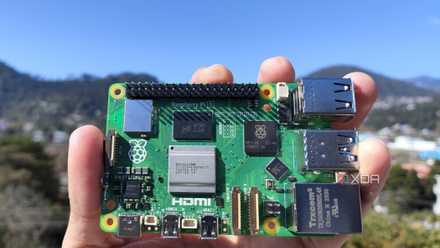
For obvious reasons, you'll need a Raspberry Pi as the foundation of this project. Although I used a Raspberry Pi 5 when creating this guide, you can follow along on older RPi boards. A blank microSD card is also needed, though you can go for a cheap 1GB card because the OpenWrt operating system doesn't take up a lot of space.
Since OpenWrt requires you to connect your Raspberry Pi to both your router and PC, you’ll need access to two Ethernet ports. Unfortunately, all mainline Raspberry Pi boards are only equipped with a single RJ45 socket, so you’ll have to purchase a USB-to-Ethernet adapter.
-
Raspberry Pi 5
- CPU
- Arm Cortex-A76 (quad-core, 2.4GHz)
- Memory
- Up to 8GB LPDDR4X SDRAM
- Operating System
- Raspberry Pi OS (official)
- Ports
- 2× USB 3.0, 2× USB 2.0, Ethernet, 2x micro HDMI, 2× 4-lane MIPI transceivers, PCIe Gen 2.0 interface, USB-C, 40-pin GPIO header
- GPU
- VideoCore VII
- Starting Price
- $60
-
SanDisk 256GB Ultra microSDXC card
-
TP-Link USB to Ethernet Adapter
$13 $15 Save $2
Flashing the OpenWrt firmware
OpenWrt, or Open Wireless Router, is an operating system that offers plenty of settings to customize your network. It’s also the easiest way to make a Raspberry Pi-flavored firewall for your home network.
- Start by heading to Balena Etcher’s official website and downloading the portable version of the app.
- Open OpenWrt’s firmware selector web page, choose your Raspberry Pi model from the list and click on the DOWNLOAD (SQUASHFS) button. If you’re rocking an older Raspberry Pi board, you can also switch from the nightly Snapshot build to a more stable version of OpenWrt.
- Run the Balena Etcher executable app as an admin.
- Click on Flash from file and choose the SqashFS firmware image before selecting the Open option.
- Click on Select target, pick the microSD card where you want to flash the image, and hit the Select button.
- Press the Flash button and wait for Balena Etcher to write the OpenWrt files on the microSD card.
Launching the LuCI web interface
Unlike most of our Raspberry Pi projects, where you switch to the SBC to view the output, you can access the network settings via OpenWrt’s LuCI interface from the web browser of your PC.
- Using the Ethernet-to-USB adapter, connect your Raspberry Pi to your router.
- Plug one end of the second Ethernet cable in your Raspberry Pi's RJ45 socket and the other end into your PC's RJ45 port.
- Power on your Raspberry Pi.
-
Head back to your PC and launch the LuCI interface by typing the following address into your web browser:
192.168.1.1
- Enter root as the Username and Password and click on Login.
- Once the web interface boots up, it’s a good idea to set a secure password by clicking on the Go to password configuration… option.
- Select the Save button after entering your new password.
Configuring the firewall via OpenWrt
With OpenWrt’s web interface now ready to use, you can tweak the firewall settings to your heart’s content. There are mutliple firewall options available on OpenWrt, but we'll only go over three of the most important sections.
- Hover your cursor over the Network tab and click on Firewall.
- On the General Settings page, you can tweak the input, output, and zone forwarding settings for individual zones and zone pairs. You can also add new zone rules, and toggle the Drop invalid packets and Enable SYN Flood Protection options from this tab.
- If you want remote devices to be able to access your home network, you can also navigate to the Port Forwards tab. Once you're there, select the Add button and enter the Name, External port, and other settings for the new port forwarding rule.
- Finally, you can modify the packet rules for all traffic via the Traffic Rules tab. By default, this section contains several rules, which you can Edit or Delete as per your needs. You can also set new rules by clicking on the Add button.
Be sure to click on Save & Apply after editing the firewall settings for each tab.
(Optional) Launching the OpenWrt CLI
If you’re more familiar with command-line interfaces, you can use the Unified Configuration Interface (UCL) using SSH. Although we have a dedicated article for setting up SSH on the Raspberry Pi, it’s much simpler on OpenWrt. All you need to do is the following:
- Download PuTTY from this link and install it on your PC.
- Enter 192.168.1.1 as the IP address and ensure that Port 22 and SSH are selected before clicking on Start.
- Accept any warnings should PuTTY display them.
- Type root when PuTTY prompts you to enter a username.
A neat aspect of UCL is that you can paste any command from the Firewall Configuration page on OpenWrt’s website instead of navigating through a multitude of toggles and options inside the LuCI web page.
A Raspberry Pi-flavored firewall to keep threats at bay
That’s it for this guide! The traffic and zone rules will depend entirely on your use case and requirements. For example, you might not want to access HTTP requests. In this case, you can modify the traffic rules to reject all incoming, outgoing, and forwarded packets from Port 80.
Sadly, a firewall won't be enough to protect your system from all types of malware, and that's why you should look into antivirus software if you want an additional layer of security for your devices. Conversely, if you only care about getting the highest Wi-Fi speeds, you’re better off investing in a premium router instead.

Best Wi-Fi 7 routers in 2025
Ready for faster Wi-Fi? Get the right Wi-Fi 7 speeds without going overboard.