
The tiny Raspberry Pi boards are perfect for all sorts of cool projects, ranging from retro-gaming systems to all-in-one media servers. While many of these projects are simple to create, they require you to connect a keyboard, mouse, and monitor to the Raspberry Pi for the initial setup. But what if you don’t have access to any of these components?
Fortunately, you can easily configure your Raspberry Pi from your PC — and even access it from any computing device over a local network.
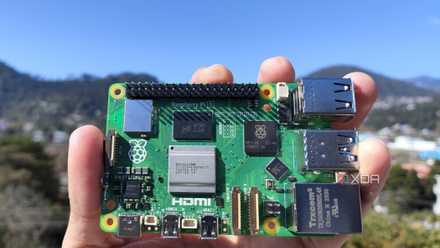
Raspberry Pi 5 review: The holy grail of DIY projects got even better (and rarer)
The Raspberry Pi 5 is one of the most powerful consumer-grade SBCs out there. Sadly, its limited stock means you'll have a hard time finding one.
Flashing the OS files
Unlike typical image flashing tools, the Raspberry Pi Imager simplifies the procedure of setting up a headless Raspberry Pi server by providing multiple OS customization options. So, instead of manually creating configuration files on your microSD card, all you have to do is:
1. Download the Raspberry Pi Imager from the official link.
2. Install the tool and run it with administrator privileges.
3. Press the Choose Device button and pick the Raspberry Pi model you wish to use in this project.
4. Click on Choose OS and select the operating system of your choice.
We’ll go with the 64-bit version of the Raspberry Pi OS for this tutorial.
5. Hit Choose Storage, click on your microSD card, and tap Next.
6. Click on Edit settings when the tool prompts you to use the OS customization options.
7. Enable the checkbox adjacent to Set hostname, and enter the name you wish to use when connecting to your Raspberry Pi over SSH.
8. Enter the username and password of the Raspberry Pi, and make sure the checkbox next to Set username and password is enabled.
9. Toggle the Wireless LAN setting, and type in the SSID, Password, and Wireless LAN Country.
10. Enable the Set locale settings header, and configure the Time zone and Keyboard layout options.
11. Navigate to the Services tab and make sure the Enable SSH and Use Password authentication boxes are checked before pressing Save.
12. Hit Yes when the Raspberry Pi Imager prompts for confirmation, and wait for the tool to finish writing the OS files.
Connecting to the Raspberry Pi via SSH
With the operating system ready, it’s time to access the Raspberry Pi over the local network using SSH. We have a dedicated tutorial on how to SSH into your Raspberry Pi, but here’s the short version:
1. Insert the microSD card into the Raspberry Pi before powering it on. If you didn't enter the Wi-Fi details before flashing the microSD card, connect the SBC to your router via an Ethernet cable.
2. On your PC, download PuTTY from the official link.
3. After installing PuTTY, run its executable file as an admin.
4. Type the hostname you set earlier in the Host Name box.
5. Ensure that Port 22 is selected and SSH is enabled, and tap Start.
6. Enter the username and password of your Raspberry Pi.
Setting up VNC on the headless Raspberry Pi
Enabling VNC in the Raspberry Pi Software Configuration Tool
After connecting to the Raspberry Pi using SSH, you'll notice that you're limited to the command-line interface. For those who want to access the GUI, you’ll need to set up a service called Virtual Network Computing (VNC) to remotely access the graphical user interface of the Raspberry Pi OS.
1. Inside PuTTY, open the Raspberry Pi Software Configuration Tool by entering this command:
sudo raspi-conf
2. Open the Interface options.
3. Click on the VNC setting and tap Yes when prompted to enable VNC.
Setting up RealVNC on the Raspberry Pi and PC
RealVNC is my preferred VNC application, and it's installed by default on the Raspberry Pi OS. But since it's incompatible with the Wayland backend used by the newer Bookworm releases of the operating system, you'll have to X11 if you wish to set up RealVNC on the SBC.
1. Open the Raspberry Pi Software Configuration Tool once again.
2. Navigate to the Advanced Options.
3. Click on Wayland.
4. Select X11.
5. Switch to your PC, download RealVNC Viewer from the official link, and install the app.
6. Launch RealVNC Viewer on your PC.
7. Enter the Raspberry Pi’s hostname in the VNC Server and press OK.
8. Type your Username and Password, and click on OK.
Building Raspberry Pi projects straight from your PC
With that, you’re free to operate the Raspberry Pi using your daily driver! The best part about a headless Raspberry Pi is that you can access it from any device, including a laptop, tablet, or even your smartphone!
Now that you've created a headless Raspberry Pi server, you might want to build some simple projects with the palm-sized system. I recommend checking our tutorials on turning your Raspberry Pi into a Steam Link machine and building an AirPlay receiver from the SBC.

Best Raspberry Pi alternatives
The Raspberry Pi is just one of many great single-board computer options available for a variety of projects.