
The Raspberry Pi is a technological chameleon. This miniature motherboard is designed to teach users the ways of computer engineering and computer science. You can use the device to practice installing operating systems, create a custom gaming console, or power a miniature piano. However, while the software you put in the Raspberry Pi determines its functions, all potential projects rely on the device’s underlying firmware. Even if an installed Windows 11 OS is bug-free, if something goes wrong with the firmware, you’re going to need to fix it to get your Raspberry Pi up and running again. And usually, the best way to fix a firmware fault is through an update.

This genius turned a kalimba into a MIDI piano with a Raspberry Pi Pico
Ever heard of a heavy metal kalimba? Now you have.
Here’s how to update your Raspberry Pi’s firmware.
What is firmware and why you should update it
Before you update firmware, it’s a good idea to understand what firmware even is. Essentially, firmware is a form of low-level software that instructs hardware on how to operate and interact with other devices and components. For instance, firmware tells a computer to turn on when you press the power button, and it also tells a Raspberry Pi how to read micro-SD cards and USB drives.
Depending on what you do with your Raspberry Pi, you might never need to update its firmware. Aside from the occasional bug fix, you only have to update your Raspberry if you upgrade a project with new processors, memory chips, or printed circuit boards. You probably won’t need a firmware update if you only use the Raspberry Pi to power a mini RC rover, but if you feel like adding a bit more processing power to a device running Windows 11, you’d better install new firmware.
How to update Raspberry Pi firmware along with everything else
Arguably the easiest way to update a Raspberry Pi’s firmware is to download an upgrade for the whole kit (and caboodle). Doing so will install the latest updates for the Raspberry, and if a firmware improvement is available, that upgrade will be bundled into the download.r
Here’s how to update Raspberry Pi as a whole:
- Make sure your Raspberry Pi is connected to the internet.
- Open your Raspberry Pi’s Terminal by clicking the Terminal icon at the top of the screen (the one that looks like a small Windows Command Prompt with “>_” inside).
- Type sudo apt update into the Terminal and wait for your Raspberry Pi to finish scanning for update packages. The command line pi@raspberrypi:- will appear when finished.
- Type sudo apt full-upgrade into the Terminal and wait for your Raspberry Pi to finish downloading the updates. Once again, the command line pi@raspberrypi:- will appear when finished.
- Type sudo reboot into the Terminal to restart your Raspberry Pi and finalize the update.
You can also install pre-release firmware updates, but these patches are untested and unreliable. Depending on your luck, a pre-release firmware update can leave your Raspberry Pi unstable or brick the system. Unless a Raspberry Pi engineer tells you otherwise, avoid using this technique.
If you’re feeling brave, follow these steps:
- Create a backup of your current system.
- Open your Raspberry Pi’s Terminal.
- Type sudo rpi-update into the Terminal. The window will show you a message that the update will “bump” your Raspberry Pi.
- Type y, press the Enter button, and let the installation finish.
- Type sudo reboot into the Terminal.
The above functions only upgrade the Raspberry Pi itself, not installed operating systems or accessories. But since you are trying to update the firmware, that shouldn’t be a problem.
How to update Raspberry Pi firmware only
While you can build custom systems using a Raspberry Pi and then mod them to your content, these projects generally run on unmodified Raspberry boards. If you install Windows 11 onto a Raspberry Pi, you’re technically not using a Windows 11 device but a Linux device running a Windows 11 partition. However, like all Linux computers, you can modify your Raspberry Pi’s base OS. While this makes for an excellent project to hone your computer engineering skills, it prevents updaters from properly recognizing the Raspberry Pi. If you customized your Raspberry’s OS and need to update its firmware, you’re going to have to do things manually.

Follow these steps to update a modified Raspberry Pi’s firmware:
- Manually download firmware files from GitHub (you can also download them here).
- Unzip the folder.
- Open the boot folder onto the image of the operating system you want to update.
- Look through the OS’ files and see which start.elf and fixup.dat files appear in both the image and the unzipped folder.
- Copy the shared files from the extracted folder and paste them over the OS image’s files.
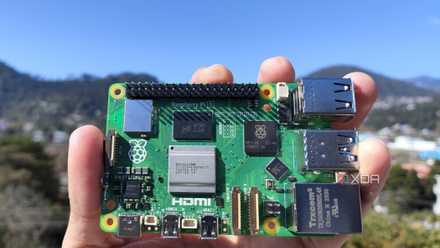
Best Raspberry Pi kit
Looking to choose the right Raspberry Pi kit? Here are our picks.
Once you have completed this process, your custom Raspberry Pi should be fully updated.
Revert Raspberry Pi to a previous version
Sometimes updates go wrong. You install the latest graphics driver for your GPU, but instead of improving framerates, games run slower than ever and can’t render shadows properly. Likewise, updates can cause problems with a Raspberry Pi’s firmware. When this unfortunate occasion strikes, you have to downgrade your device by reverting its firmware to a previous version. The older copy might not run flawlessly, but at least it’s stable.
Here’s how you revert Raspberry Pi firmware to a prior version:
- Open the Terminal.
- Type sudo apt update into the Terminal and wait for the program to finish.
- Type sudo apt reinstall raspi-firmware raspberrypi-kernel raspberrypi-bootloader -y into the Terminal.
- Type sudo reboot into the Terminal to restart the system.
If all goes according to plan, your Raspberry Pi should now have working firmware. Granted, if everything truly went according to plan, the update would have worked, but issues like these are why computers let users revert programs to prior versions.