
Summary
- Upgrading storage on a desktop PC is generally easier than a laptop.
- Determine your budget and compatibility for upgrade options.
- Consider your needs: photo backups may not need the fastest drives, whereas if you're storing 4K videos, you may want a faster drive.
Storage is just one of those things you can never seem to have enough of. One way or another, we manage to fill our storage drives, which, in most cases, means we have to delete old programs and files to free up storage. However, most PCs and even laptops can have their storage upgraded, and it's generally not as hard as you might think.
With laptops, you may have to replace your old storage drive with a bigger one. This means you will have to clone the drive if you want to keep your files and take the laptop apart. While some laptops allow access to the storage drive quite easily, some can be an absolute pain and may be more of a job than the average person wants to tackle. However, not all hope is lost, even in these cases.
It is generally much easier to upgrade your storage drive in a desktop computer than a laptop. Also, with desktop PCs, you can likely add another storage drive rather than having to replace the one already inside. This makes it much easier, and also means that you won't have to clone your hard drive, you can just add an extra one.

3 reasons you should be using Storage Spaces on Windows
This little-known feature can be very useful
Finding out what type of storage you already have
The first port of call
There is more than one way to find out what type of storage you are using. However, I find the quickest and easiest way is by going to My Computer / This PC folder if you are using Windows. From here, right-click your Local Disk (C:) drive and select properties. A popup should appear with a few tabs, click the Hardware tab, and it should then show you all the disk drives currently in your PC. You will likely need to look up the model on the manufacturer's website to see what type of storage drive it is, but this is a good starting point. From here, you can then go back to the General tab and see the capacity of the drive. Windows will also tell you your drive is smaller than it is. For instance, my 2TB NVMe drive shows up as 1.86TB in Windows. Yes, this is annoying, but it is what it is, unfortunately.
Another way to check your drive is to go to Task Manager and click on the Disk tab. It will likely have a number like 0 or 1 and a letter such as C or D to help let you know which drive it is. When on the disk tab, at the bottom, it should tell you the capacity of your drive and if it is an HDD or SSD. If it is an SSD, it won't mention if it is SATA or M.2 so, again, you may want to look up your drive's name on the manufacturer's website (or Google) to learn more about the kind of SSD you have. In the case of modern laptops, you will most likely have some kind of M.2 SSD, but some cheaper models may still use SATA.

Here are the 6 best tools for testing your storage drives
Is your storage drive acting up? These 6 tools can tell you what's wrong
Figuring out what your upgrade options are
Compatibility is key
For this article, we are going to look at things as if we are upgrading the storage on a desktop computer. Some of these will work with laptops as well, but things will vary a bit. Since we already know what drive is in our PC now, we can look for similar drives that are faster and offer a larger capacity. However, we may also be able to upgrade to better drives, but first, we need to figure out what will be compatible with our PC.
The easiest way to do this is to find out what motherboard you are using. You can do this by going into the BIOS and checking what motherboard is listed. You can also check in Device Manager or even by downloading CPU-Z and checking the mainboard tab. Once you know what motherboard you have, you can go to the product page on the manufacturers' website and look at what storage drives are compatible with your system.
One thing to note is that if you are adding another SATA drive to your PC, you will need a SATA cable. Your motherboard or case may have come with some spares, but you will want to check this to be sure.

I stopped using Dropbox and used these 5 free cloud storage solutions instead
Dropbox can be good, but you've got plenty of other options with a better storage capacity on the free tier.
A brief look into the different types of storage
SATA, PCIe, M.2, and NVMe
Now that we know what our options are, let's take a quick look at the different types of PC storage and find out which one is best. Of course, there is more to consider than just finding the fastest drives out there. We need to consider our motherboard compatibility and, of course, our budget. What may be best overall may not quite be best for now.
- SATA is used by both HDDs and SSDs and has different versions, such as SATA 2 and SATA 3 that can output different speeds. SATA 3 is going to be the fastest at 6Gb/s (600MB/s) and can be found on both laptop and PC hard drives. In most cases, SATA drives have two connections, one for power and one to connect the drive to your motherboard. SATA drives are much slower than the rest of the drives we will mention, but still have plenty of uses. SATA drives also come in both 2.5"(laptop) and 3.5"(desktop) sizes. While you can fit a laptop drive in a desktop, you cannot fit a desktop drive in a laptop. Laptops have dedicated areas for these drives and can generally just be plugged into an existing connector that is already connected to the power and motherboard sources. Desktops are a bit different and while cases generally have a dedicated area for drives, you will need to manually connect them to your power supply and motherboard via the correct SATA cables.
- PCIe (Personal Computer Interconnect Express) is a newer protocol for communication between PC components, and it's much faster than SATA. As with SATA, PCIe also has versions such as PCIe 3, 4, and 5. PCIe Gen 5 allows SSDs to reach speeds of up to 14,000MB/s. PCIe SSDs will also plug directly into your motherboard in most cases without the need for any extra cables.
- NVMe is a specification designed for handling communication with storage devices (usually SSDs) over PCIe, allowing them to utilize much faster speeds than their SATA counterparts.
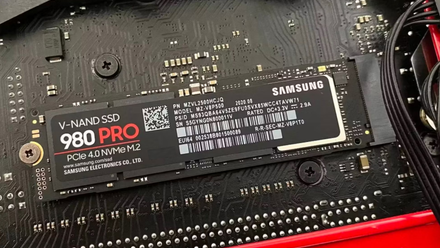
- M.2 is actually an expansion slot that can be used for multiple devices, not just storage. You can have both SATA and PCIe M.2 slots on the same motherboard. SATA M.2 drives will still be slower than the PCIe M.2, but you can plug a SATA M.2 SSD directly into the motherboard without the need for extra cables, unlike a standard SATA drive, and they only require a screw to hold in place (though some motherboards use tool-less mechanisms to secure an M.2 SSD). M.2 drives are also much smaller than standard hard drives.
As you will have noticed, we have not mentioned PATA or older standards. In 2024, while some systems may still use them, SATA is the oldest standard that you will find on consumer PCs and laptops.
How much storage does your PC have?
I have a lot of drives, amounting to roughly 10TB of storage, 5TB of which is actively in my main PC right now. I don't really use much of it, but it's nice to have, and I don't have to worry about game storage. What about you?
External drives are useful as well
Portable storage on the go
If you are not a fan of opening your PC or laptop or want a bit of portable storage, then external drives can be something to consider as well. There are many different types, and you can even get proper desktop docking stations that fit multiple HDDs, or small handheld drives that will fit into your bag when on the go. Best of all, you can get external hard drives (HDDs) or external SSDs. You can even just get the dock without the drive, so you can use a drive which you already own.
Similar to the internal storage drives, you will need to check the compatibility with your system. As most external drives connect via USB, you will want to see what USB interface your PC has and make sure that the drive you get is both compatible and not overkill. You wouldn't want to waste money on an expensive USB 4.0 external drive if your PC can only handle USB 2.0.
You could always consider a NAS as well. A NAS is Network Attached Storage and instead of just upgrading one PC or laptop, you will add the storage to your network so all of your devices can make use of the NAS. This is great if you need to transfer files between devices or if you just have multiple devices that could all use a bit of storage. A NAS is also a great way to back up the storage from your existing devices, so if anything happens to your laptop or PC, you have a backup ready to go. Going with a NAS also means you would not have to mess about figuring out what type of storage you need, and you also wouldn't have to open your laptop or PC to add it. You could just add it to your network and start making use of it across all your devices.
Which is best for you?
This is going to come down to a few factors, the biggest of which is probably your budget. If you have a budget constraint, that can make your life a bit easier as you can find what drives are compatible, then just look at those within your budget. However, if you have no real budget, then you may need to do a bit of extra work to figure out what you need. Make sure to consider compatibility, speed, and even the longevity and warranty of the drive you are considering. All of these play a big factor in helping you choose the best drive for you.
While there is an abundance of different drives to choose from, think about what it will be doing. Consider what you will be using it for to help you determine the best drive for you. If you are storing photo backups, you may not need the fastest drive, so you can save yourself some money. However, if you are using it to help store 4K video files for rendering, you may need a bigger and faster drive. Take some time, weigh out your options, and see what feels best for you. There really is no right or wrong, it all comes down to your own individual needs.
All in all there are plenty of upgrade options available when it comes to PC storage. As mentioned, consider your use case and your budget first, and then you can begin to make an informed decision on which type of storage upgrade is best for you.