
If you’re a stock market veteran, you might use a price ticker when researching your next investment instrument. However, there’s no need to run multiple stock price analysis websites or apps on your trading machine when you can just build one yourself! You can take this DIY price tracking tool to the next level by setting it up on your tiny Raspberry Pi.
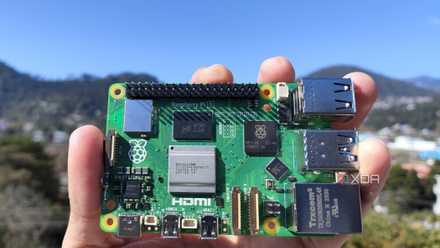
Raspberry Pi 5 review: The holy grail of DIY projects got even better (and rarer)
The Raspberry Pi 5 is one of the most powerful consumer-grade SBCs out there. Sadly, its limited stock means you'll have a hard time finding one.
What you’ll need
The stock market price ticker is one of the easiest and least demanding projects you can build with your Raspberry Pi. So, you can expect decent performance if you build the price ticker using any of the mainline RPi boards.
You also don't need a blazing-fast microSD card, and any old 8GB card will be more than enough for the project. However, we’ll assume you’ve already set up an operating system on your Raspberry Pi. We have a detailed guide on how to set up Ubuntu on the SBC, which you can use as a reference if you haven’t already installed the OS. I’ll be going with the Raspberry Pi OS, but you shouldn't have any issues with Ubuntu.
Although optional, you can make the ticker even more useful by purchasing a tiny Raspberry Pi-compatible display. But if you're not keen on the idea of purchasing more peripherals, you can also set up a headless Raspberry Pi to access the DIY price-tracking SBC.
-
Raspberry Pi 5
- CPU
- Arm Cortex-A76 (quad-core, 2.4GHz)
- Memory
- Up to 8GB LPDDR4X SDRAM
- Operating System
- Raspberry Pi OS (official)
- Ports
- 2× USB 3.0, 2× USB 2.0, Ethernet, 2x micro HDMI, 2× 4-lane MIPI transceivers, PCIe Gen 2.0 interface, USB-C, 40-pin GPIO header
- GPU
- VideoCore VII
- Starting Price
- $60
-
SanDisk 256GB Ultra microSDXC card
-
GeeekPi 7 Inch Capacitive Touchscreen for Raspberry Pi
Setting up the terminal-based price ticker
From simple terminal codes to more complex projects where you’ll need to compile and edit multiple Python scripts, there are several stock market price ticker utilities you can set up on the Raspberry Pi. Unfortunately, most of these are either centered around LED breadboard display setups or require RGB matrix display HATs.
To keep things simple, we’ll be going with the Tickrs package created by developer tarkah. This convenient tool uses Yahoo Finance’s API to display live prices of your favorite stocks inside the terminal. So, you can even install it on a lightweight CLI-based operating system, such as Raspberry Pi Lite.
Installing the Cargo package manager
Although the official Tickrs repository provides different means to install the app, the easiest method involves using Cargo, the official package manager of Rust. Since it's not available by default on Ubuntu/Raspberry Pi OS, you'll need to install it alongside other Rust libraries.
1. Open the terminal app.
2. Download the Rustup installer using the curl command.
curl https://sh.rustup.rs -sSf | sh
3. Press Enter to proceed with the standard installation.
Configuring Tickrs
Once you’ve set up the Cargo environment, it’s time to install Tickrs.
1. Run the following command to install the Tickrs package:
cargo install tickrs
This process could take a while because Cargo will install several other dependencies that are necessary for Tickrs.
2. Launch the stock market price ticker by running this command:
tickrs
3. Enter the ticker name of your preferred stock and press Enter.
4. Press ? when you want to add another stock.
You can switch to the newly added stock by hitting the Tab key.
5. If you’re into options trading, you can also press the O key to reveal the prices of the call and put instruments.
6. You can switch between different time frames with the arrow keys.
Although the default interface is well-equipped with all the things you’ll need on your trading journey, you can also modify the Tickrs configuration file to customize the behavior of the app. To do so:
1. Open the File Manager.
2. Click on the View button and enable the Show hidden files option.
3. Navigate to the /home/profile_name/.config/tickrs directory.
Be sure to replace profile_name with the name of the user.
4. Inside this folder, you'll find the conf.yml file, where you can modify the default tickers, update interval, chart type, and other settings.
A Raspberry Pi-powered price ticker for all your trading needs
With that, your stock market price ticker is ready for use! While it won't guarantee any profits, it's a neat little addition to your trading workspace.
But if you're not too fond of trading, we have plenty of guides you can check out to put your Raspberry Pi to good use. From highly-secure surveillance systems to tiny data-hoarding NAS setups, you're bound to find a project that fits your use-case.

10 simple Raspberry Pi projects for beginners
You don't need to be a DIY god to create these projects with your Raspberry Pi