
Photos can hold very special memories, and setting up a slideshow is a great way to relive them and look back at great times in your life. There's no shortage of ways to set up a slideshow, and Windows 11 makes it easy to do it in a wide range of ways. Whether you want to actively display your photos or have them shown on the desktop, let's take a look at some of the tools for creating photo slideshows on Windows 11.
Regardless of the method you follow below, we recommend putting all your photos in the same folder beforehand. You can store them locally on your PC or use OneDrive so more photos can be added automatically from other devices.

How I turned my laptop into a digital photo frame
Repurpose your old laptop and add some life to your home space by turning it into a frame for your favorite photos.
View photos in a slideshow using the Windows 11 Photos app
If you're actively trying to show off photos in a slideshow, Windows 11 Photos is arguably the best way to do it. This app lets you choose the photos to view, adjust transitions, play music, and more. Here's how to use it:
- Open the Photos app. You can find it in the Start menu.
- If your pictures are in a specific folder, use the Folders option on the left to navigate to the photos you want to show off.
-
To start a slideshow with all the pictures in a folder, click the Start slideshow in the menu bar at the top or press F5 on your keyboard.
- To use only selected pictures for the slideshow, click the checkbox in the corner of each picture you want to use before starting the slideshow.
- Once the slideshow starts, click the Slideshow options button (it looks like a music note) to change the music, transitions, and whether the slideshow should loop after showing all the photos.
- The bar at the top can also be used to pause the slideshow, change the volume, or minimize the slideshow.
- To quit the slideshow, move the mouse over the top right corner of the screen to show the Close button.

Complete guide to the Windows 11 Photos app
Windows 11 has a new Photos app with new features and a brand-new look. Here's everything you need to know about the new app.
View a photo slideshow as a desktop background
If you want photos to constantly display as a slideshow on your desktop background, you have that option, too. This makes it so that your favorite pictures are always visible at a moment's notice. Here's how:
- Open the Settings app. You can find it in the Start menu.
- Click Personalization in the menu bar on the left.
- Click Background.
- Next to Personalize your background, open the dropdown menu and choose Slideshow.
- Click the Browse button to find the folder you want to use for your slideshow.
- Click Choose this folder once you have the right one.
-
You can use the Change picture every option to change how often pictures should cycle. You can choose from a few options from 1 minute to 1 day. The default is 30 minutes.
Changing the picture every minute may impact the performance of older and low-end PCs.
- You can change additional settings like shuffling the picture order or choosing how images should behave to fit the desktop if the aspect ratio doesn't match.
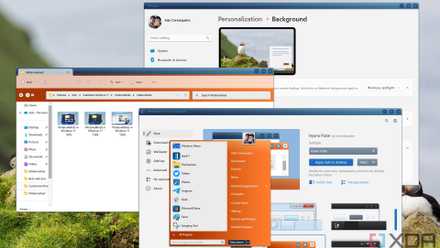
You can make Windows 11 feel like home — here's how to customize it
Windows 11 is a great operating system, but not everyone has to like how it looks out of the box. Here's how you can change
View photos as a lock screen slideshow
If you'd like to have a slideshow playing on the lock screen when your PC is inactive or see a different picture whenever you turn on your PC, that's also an option:
- Open the Settings app.
- Click Personalization in the left-side menu.
- Click Lock screen.
- Next to Personalize your lock screen, open the dropdown menu and choose Slideshow.
- Click Browse to find a folder to pull pictures from. You can add multiple folders, but only one at a time.
- If you want to remove a folder, click Remove next to its name.
- You can customize Advanced slideshow settings to further tweak the slideshow. This includes the option to show the lock screen when your PC is inactive rather than turning off the screen, so the lock screen acts more like a screen saver.
Create a slideshow screen saver
Yet another option available to you is using the screen saver feature that's been in Windows for ages. This is actually the best way to go about it if you want to have your computer act as a digital photo frame, since the images have no icons or other elements overlaid on them. Here's how to use this feature:
- Open the Start menu and search for Screen saver.
- The first result should be Change screen saver from the Control Panel. Select it.
- Use the dropdown menu to choose Photos.
- Click Settings.
- Click the Browse button to choose the source folder for images to be used.
- You can use the Slide show speed option to change how quickly photos transition, too.
- Click OK and then Apply to save your changes.
Note that for this to work as intended, you'll also need to go into the Settings app to disable screen timeouts, so the slideshow doesn't get interrupted.
View photos as a slideshow in Google Photos
If your photos are stored in Google Photos, you can also view them as a slideshow online. The easiest way to do this is to create an album if you haven't already.
- Open Google Photos in your browser.
- Click the Upload button near the top right corner to choose pictures to upload (if they're not already on Google Photos), and then choose Computer (or another source).
- Choose the pictures to upload and click Open.
- Select the photos you uploaded by clicking the checkmark in the top left corner of each one. You can select all photos with the same date using the checkmark next to the date header.
- Click the + (plus) button and then click Album.
- Click New album to create a new album with your photos.
- Enter a name for the album.
- Click the checkmark next to Edit album to save your changes.
- To start a slideshow, click the three-dot button in the top right corner then choose Slideshow.
- The slideshow will begin.
You can see your existing albums in the sidebar on Google Photos, so you can always jump straight there to view a slideshow again.
Make a video slideshow with Clipchamp
If you want to get deeper into it and make a video slideshow you can share with others as a video file, you can use Clipchamp (or another video editor) to create a video from your photos. Here's how it works:
- Open Clipchamp on your PC. It should be in the Start menu, but you can also use it in your browser.
- If you haven't yet, log in or create an account.
- Click Create a new video.
- Click Import media to choose photos to add to your slideshow.
- Click the + (plus) button next to each image to add it to the video timeline. Alternatively, you can drag and drop them in the order you want.
- On the timeline, click and drag the edge of each image to adjust how long it should be in the video.
- Click the space between images to add a transition effect.
- To change the transition style, click the transition icon on the timeline and then click Transitions on the menu on the right.
- Choose a transition style from the list.
- You can also add music to the video using the Import media option or the Content library on the left side to use stock music.
- The Text option on the left lets you add custom text to the slideshow, too.

How to use Clipchamp, Microsoft's free video editor
Microsoft has a free video editor included in Windows 11, and it's actually quite good for basic edits. Here's how to use it.
Slideshows can help you relive your favorite memories
If you're trying to show off pictures to friends or family, we'd argue the Photos app is the best way to create a slideshow. It shows off the pictures in all their glory, it applies some fun transitions to keep things lively, and the music can really help create some ambiance. It's the best option for intentionally viewing a slideshow without the hassle of creating a whole video.
The other options on this list are also good if you want to just have the pictures go by in the background while you do something else, so you can look at them every now and then.