
While I haven't made the full jump from Plex to Jellyfin, I've spent the last few days experimenting with the free, open-source media hosting platform.
It still isn't quite as user-friendly or feature-rich as Plex, but it's getting pretty close in terms of library organization, streaming options, and the increasingly sleek look of its user-interface. That said, remote streaming didn't work right away for me with Jellyfin, and I found that I needed to spend a few minutes adjusting various settings to watch my self-hosted library outside my home, mainly on my iPhone 17 Pro.
I don't find I use remote streaming very often, but it's still nice to have in case I decide to finish streaming a TV show or movie on the go, especially since my M4 Mac mini-hosted Jellyfin library is always running. I can also see remote streaming becoming necessary if I start sharing my Jellyfin library with friends and family in the future.
At a basic level, streaming my Jellyfin library remotely requires port-forwarding to access it from outside my local area network (LAN). While port-forwarding isn't inherently insecure and is relatively easy to set up if you're familiar with your router's settings, it still exposes your device and Jellyfin server to the broader internet. With that in mind, I started looking for alternative,secure solutions.
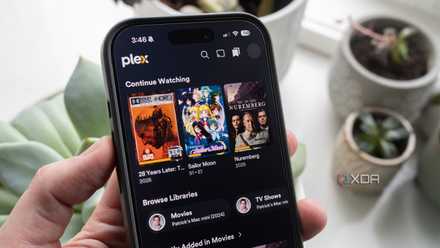
3 simple Plex settings that instantly fixed my buffering issues
If you're self-hosted TV show and movie collection is lagging, there are a few settings you can change to solve the issue.
If you want more secure remote Jellyfin streaming, Tailscale is a great option
I set up the VPN app in just a few minutes
This is why I opted to take the Tailscale route for Jellyfin remote streamign. The app allows me to securely access my media from anywhere without opening ports on my router. It's also arguably easier to set up port-forwarding on a router, especially if you aren't familiar with accessing your specific router's settings, and it can be done in just a few minutes.
If you haven't heard of Tailscale before, it's a zero-configuration mesh VPN service that lets your devices connect over a private, encrypted network, even when they're on different internet connection. This makes it far more straightforward to remotely access things like home servers, NAS devices, and apps like Jellyfin. Before diving into Tailscale, make sure your Jellyfin server is set up to allow remote streaming. To make this happen, open your server, then select Networking and check Allow Remote Connection To This Server.
First up, I made sure Jellyfin is running on my M4 Mac mini, the device I host my server on (usually this is at http://localhost:8096/web/#/dashboard/networking). You can also click on the Jellyfin icon in the top-right corner of the screen and select Launch (if your server is working, a browser window will pop open with your library). Now, download Tailscale and install it on your Mac (you'll need to confirm macOS extension permissions). Next, create a Tailscale account with a username and password.
Now, click the Tailscale icon in the Mac menu bar (it's several dots) to see your Tailscale IP, and take note of it. Now, open the Jellyfin app you want to use remotely, whether it's in your browser, the iOS app, the Android app, or a third-party Jellyfin client like Reefy for the Apple TV 4K, and enter your Tailscale IP address followed by Jellyfin's port (by default it's likely 8096, unless you've changed it). It should look something like this: http://100.x.y.z:8096).
While I set up Tailscale on my Mac mini running macOS, there's a Windows 11 version of the VPN app. If you change the above steps to their Windows 11 counterparts, you'll be able to use Tailscale with Jellyfin on Microsoft's operating system.

I thought I needed a NAS, then I used this device for Plex instead
If you're just getting into self-hosting media, it's okay to start small.
Make sure you also install Tailscale on the device you want to stream from
Enter your Jellyfin server's IP address and port
You, of course, also need to install Tailscale on the device you want to connect to. In my case, that's an iPhone 17 Pro and probably at some point, my Pixel 10 Pro, too. Tailscale has an app for macOS, Windows 11, Linux, iOS, and Android. With iOS and the iPhone, you'll need to allow Tailscale to install its VPN configuration and sign into your account.
Next, I opened the Jellyfin app, entered the IP address and port above, and logged in to my account. After all these steps, Jellyfin remote streaming worked perfectly, moving me one step closer to ditching Plex.