
Running Linux on a Windows machine means two things. You either need to create a virtual machine that can share the system resources and run a Linux distribution inside it. Or, you can avoid Type 2 hypervisors and dual-boot Linux alongside Windows. Both of these methods let you learn the Linux way, although dual-booting means direct access to the system kernel and hardware.
WSL introduced a somewhat different design from these two methods, and with WSL 2, running Linux distributions has become incredibly convenient. So, I tried using WSL as a Linux machine, as I do on most of my Linux servers. It was a better experience than I initially expected, and from a Windows user's standpoint, you get the best of both worlds.
WSL doesn't introduce hurdles
Quick and effortless setup
Using Linux alongside Windows requires a sacrifice. You have to either ditch the Windows OS and boot into Linux or learn to use a hypervisor. For a seasoned user, it's not a problem, but for a beginner who just wants to experience Linux and learn the ropes, it can be slightly confusing.
WSL eliminates this initial hurdle: just search for a distro and run the WSL command in a Terminal window to set up a Linux system. You don't need to do anything else, like installing drivers, setting up storage, or worrying about managing the hypervisor updates. All of these aspects make it possible to spin up a lightweight Linux system in a few minutes.
There are plenty of distros available for creating a WSL machine, but I use Ubuntu most of the time and choose it for a fresh installation. When the installation completes, you can query the terminal to see the list of available machines with the wsl -l -v command. It’ll also show a Start menu entry and will appear in the File Explorer navigation pane.
Microsoft is baking Linux containers into Windows, and it might end my reliance on Docker Desktop
Linux containerization is now a default feature
The WSL experience
Lightweight and snappy
Using a distro without a desktop environment means you must do everything via the terminal. I wanted to set up a new Paperless-ngx server with an AI LLM, which required configuring Docker and a few containers before building the stack. On a Windows machine, I need Docker Desktop to make it happen, but WSL eliminates the need for a different tool.
It's more convenient to just create a new Linux machine inside WSL and build the system via CLI, as I do on other machines. I installed Docker after setting up the correct repositories, and it took like five minutes to get the setup live with a couple of containers. I then used Dockge to deploy and manage the whole Paperless-ngx stack and also set up Ollama LLM to power the Paperless AI tool.
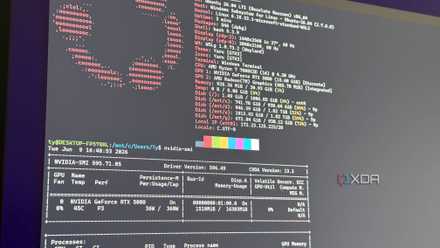
There are two crucial areas where WSL is more convenient than a traditional VM. For an LLM to work and deliver the performance I need, it needs to have GPU pass-through support. In WSL, I didn't need to specify it to use my Nvidia RTX graphics card; it automatically recognized and enabled it on the Ubuntu machine.
So, I only needed to install a local LLM model, and then my WSL machine could use it for AI-related tasks. However, WSL GPU pass-through works exceptionally well for AI tasks that rely on CUDA cores, and my Paperless AI tool needs exactly that to function and generate quick responses. Since WSL creates a lightweight virtual machine, there’s less resource overhead compared to a Type 2 hypervisor.
A WSL machine doesn’t use complete hardware emulation and offers better integration with the storage and other system resources. I found it incredibly easy to move files between the Windows and Linux systems when necessary. It can also utilize the near-native NVMe speed of my SSD, at least in the home directory, which is rare in Type 2 hypervisors. Even resource allocation is dynamic, which means one less problem to worry about.
Cross-platform tools
Running GUI apps from Terminal
Using Linux tools on Windows is very easy with WSL. I can invoke any available Linux tool by typing wsl “linux tool name” and then use it without manually launching the Linux machine (WSL handles that in the background). Similarly, I can use Windows tools inside Linux, all from one single terminal. I can run File Exploreror PowerShell, or open Notepad directly on the Linux machine.
This kind of cohesiveness is hard to get when you run a Type 2 hypervisor virtual machine. You must swap windows to use tools, and you don’t get the cross-platform freedom. Similarly, a dual-boot setup will completely isolate one OS environment, making it impossible to use anything.
Another cool feature implemented with WSL 2 is WSLg. It can run GUI apps within a WSL Linux machine without installing a desktop environment. I can launch any graphical tool like the Disks app, a very useful utility for disk mounting and formatting, or RealVNC for remote access and management, and configure it without dealing with the terminal. It’s a nice feature to have for some use cases, and running them without a desktop environment makes it more appealing.
In a traditional VM setup, I cannot use any GUI app without a desktop environment. I need to use additional system resources to install and run a desktop environment, and that makes the whole setup heavy and slow. I didn’t need to deal with GUI apps for this experiment, as most tasks required Docker, and the rest worked with the web portal for the locally hosted tools. But it's nice to have when you need it.
Linux on Windows finally makes sense
With WSL, running Linux on Windows doesn’t feel like a different experience. Microsoft improved WSL to the point where it can minimize its resource footprint and handle complex tasks like GPU passthrough, drivers, cross-platform apps, and more. All of this runs inside a lean, efficient Hyper-V virtual machine without a desktop environment, yet it can still launch GUI apps. There’s no better way to learn or use Linux on Windows than WSL, unless you want unfettered access to the hardware and kernel. Dual-booting makes more sense for such demands.
A tool tp create a lightweight virtual environment to run Linux distros in minimal mode.