
Server-grade hardware may be ideal for home lab projects, but you don’t need to spend an exorbitant amount of money on the rigs (and electricity prices) to get your experimentation hub up and running. Depending on the scope of your DIY projects, you can go for cheap N100 mini-PCs and x86 Single-Board Computers, and still expect reasonable performance. Better yet, you can even repurpose old, worn-out systems into solid server nodes.
Back in 2025, I installed Proxmox on a cheap laptop from 2014, and while it was a great way to breathe some new life into a dinosaur machine, it could only run LXCs and would conk out the moment I tried going for GUI virtual machines. So, I figured the situation wouldn’t be very different if I used a gaming laptop from 2017 instead. But to my surprise, the laptop performed better than most entry-level PCs for moderate home lab workloads.

I spent less than $150 to build a Proxmox home server with an SBC
No, it's not the Raspberry Pi
My gaming laptop can run plenty of VMs simultaneously
And not just CLI Linux distros, mind you
Before I go over my VM misadventures, let me preface that the laptop in question is an Acer Predator Helios 300 (G3-571-77QK) from 2017 – an era of machines that are typically not compatible with Windows 11. Aside from its GTX 1060 GPU and 16GB of DDR4 memory, it has an i7-7700HQ processor, which is one generation behind the minimum specs required by Microsoft’s flagship OS. If you’re wondering why I keep bringing up Windows 11, it’s because I wanted that to be the first VM I ran on this makeshift PC instead of a lightweight Linux distribution.
So, once I’d installed Proxmox 9.1.1 on the laptop and executed the PVE First Boot script from the Proxmox VE Helper-Scripts repo, I uploaded the Windows 11 and VirtIO ISO files to the laptop. Then, I went through the VM creation wizard to deploy a virtual machine, installed the drivers during the initial Windows 11 setup screen, and finished the OOBE configuration. Within half an hour, the Windows 11 virtual machine was operational on my laptop… and it ran pretty well considering that I’d only allocated four v-cores (out of eight) and 8GB of memory to the VM.
Just to stress test the system, I deployed Debian inside a separate machine, though I only allocated half the v-cores and one-fourth of the memory of the Windows VM to my vanilla Linux instance. Then, I deployed two CLI virtual machines – one running Ubuntu Server and Alpine Linux – on the laptop, and it chugged along just fine, and we’d already crossed the point where most budget-friendly mini-PCs would encounter performance issues. Just to overprovision the memory, I spun up a Q4OS virtual machine, and my gaming behemoth of yore was able to handle it while delivering a responsive experience.
But since I don’t run that many VMs simultaneously anymore, I quickly turned off some of them (and no, not the Windows 11 instance). Since I prefer using Home Assistant as a virtual machine instead of a container, I spun it up with a script. Then, I deployed Vaultwarden, Cosmos Cloud, and a couple of slightly-taxing LXCs, and they ran fine even with the Windows 11 virtual machine siphoning resources in the background.
GPU passthrough was kinda finicky
I could only use the iGPU in my virtual guests
Considering that my laptop has an Intel UHD Graphics 630 as the iGPU and a GTX 1060 as the discrete graphics card, I figured I could leverage both of them in my server experiments. Unfortunately, things didn’t really go the way I planned. I started things off by running the Proxmox Enhanced Configuration Utility script, which mentioned that IOMMU wasn’t enabled. But aside from Intel Virtualization Technology (which I’d already enabled), I couldn’t find any settings related to it in the BIOS. Either way, PECU detected both GPUs and agreed to blacklist the Nvidia drivers within the config files.
Once PECU had done its magic, I switched to my Windows 11 VM and passed the GTX 1060 to it. This is where things went horribly wrong, as all attempts to install the GPU drivers ended in the package failing to detect the "appropriate hardware.” What’s more puzzling is that running the lspci command on the host caused the Nvidia GPU to show up, but I couldn’t pass it to my VMs even after removing PECU’s configs and attempting the GPU passthrough steps manually.
Since an Ollama LXC can auto-detect the GPUs, I used it as a last resort to troubleshoot the problem. Apparently, my GTX 1060 was detected by the LXC, but it was lacking the right packages, modules, and drivers. Meanwhile, my Intel UHD Graphics unit was detected just fine, though I couldn’t install the GTX 1060 drivers even on the host machine.
A little bit of research (and makeshift solutions such as connecting another display to the HDMI port) later, and I figured this problem might be due to the unholy combo of a muxless design and the lack of proper IOMMU implementation.
My laptop node needs a couple of tweaks to become battle-ready
Running multiple virtual guests causes the thermals to hit the danger zone
Aside from the laptop’s shenanigans when I attempted GPU passthrough, it had some other issues. For example, the fans would whir like crazy when I attempted to run more than a few VMs – to the point where they screeched louder than the fans on my Xeon system! Since I don’t want the laptop to combust mid-operation, I installed the pve-mod-gui-sensors to add real-time temperature monitoring to my Proxmox dashboard. A quick glance at the newly-added temp statistics confirmed that the laptop’s idle CPU temps were past the 50°C mark, and these would hit the 80°C range under load – all while the ambient room temperature was 5°C.
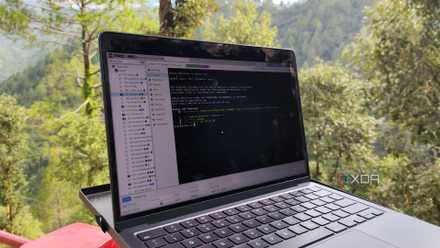
I added real-time temperature monitoring to my Proxmox dashboard, here's how
An easy way to keep tabs on the system temps from the PVE web UI
My guess is that the thermal paste has started to dry out after all these years. I’m also willing to bet the fans have become clogged with dirt, especially since I don’t remember cleaning them after I stopped using the laptop in 2022.
Either way, this relic from the past is a surprisingly competent home lab node. Sure, not being able to harness the discrete GPU in VMs is a bit of a downer, but considering that I’ll have to shell out over $400 on a mini-PC to get comparable performance, I call this an absolute win!