
The hard drive that I have been using since 2017 died on me around two years ago. It was past the 5-year mark, and had started showing signs that it was about to die, such as slow access speeds and occasional file corruption. Alas, I procrastinated backing up my data, ignoring all the well-meaning advice we tend to give readers here. Then, the worst happened, and my HDD stopped working completely one fine day.
My OS was intact, since I had long transitioned to an SSD as the primary drive, but the HDD still housed a lot of my old personal data, such as photos, videos, and media collection. In the face of no data backup whatsoever, I used a USB enclosure to access the drive and recover most of my data, but it was a slow and arduous process, considering the condition of the drive. I learned not to ignore the importance of data backups the hard way.

Why your external hard drive isn’t a real backup (And what you should do instead)
Relying on an external hard drive for backups? It’s not enough
5 System imaging
Save it for a rainy day
Making an image of your OS partition or an entire drive is a good start to backing up your data. An image is literally that — a snapshot of your system just like it is, so you can restore your PC to working condition in no time. I knew about programs like Macrium Reflect that help you schedule regular system images (and had even used it for a while), but I never really had to use any of the images (fortunately), so I decided to delete those huge files hogging my storage. That was a bad move.
If I had a recent system image of my hard drive, I could have saved hours of effort wasted in recovering the data. Storing these images on a separate drive is a good start to ensuring data integrity, but even that drive can fail, given enough time. Hence, it's best to combine system imaging with some of the other backup strategies in this list to ensure your backup is safe.
Macrium Reflect
Macrium Reflect is a free-to-use disk cloning and imaging software for Windows. It provides complete backup, recovery, and cloning features for individual partitions or entire disks.

5 best practices for preserving data integrity in your backups
A backup isn't really a backup unless it's been tested.
4 Using a NAS
It's about time
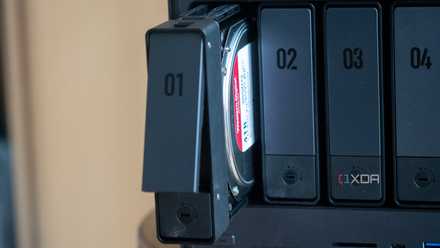
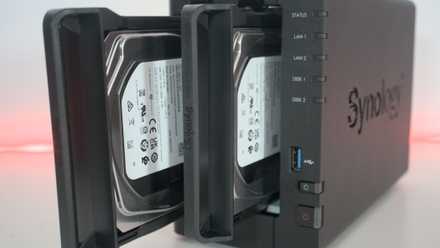
A NAS (Network Attached Storage) device is one of the best ways of backing up multiple devices, since you can connect your PC, laptop, and phone to a central storage hub seamlessly. With a NAS, you no longer need to mess around with cables and separate hard drives; your home network is used to back up all your data on your NAS. Setting up your NAS can be time-consuming, but once you're done, it silently does its job in the background.
Thanks to RAID (Redundant Array of Independent Disks), your NAS stores your data across multiple hard drives, meaning even if one drive fails, your data can be recovered from the other drives. Although RAID is technically not a foolproof backup, it's a good start. Depending on the type of RAID setup you have, the number of hard drives you need can vary. The idea, however, remains the same — a NAS is an automated, redundant, and remotely accessible backup system that also takes care of versioning, so older copies of your data are also backed up.
I've been interested in setting up a NAS to use as a media server, data backup, and Google Drive replacement, but I keep delaying it due to lack of time. It's high time I committed to it and made it happen once and for all.
Ugreen DXP4800 Plus NAS
- CPU
- Intel Pentium 8505
- Memory
- 8GB DDR5
- Drive Bays
- 4
- OS
- UGOS
- Price
- 400
The Ugreen DXP4800 Plus is a NAS that runs the company's own UGOS, and it comes with an Intel Pentium 8505, 8GB of RAM, and up to four drive bays.

5 reasons why everyone should have a NAS
If you're looking at building or buying a NAS, these are five reasons why i think you absolutely should.
3 Off-site cloud backup for archival data
Pay only when you retrieve your data
While cloud services like Google Drive or Dropbox allow you to store your data online, they can be pretty expensive if you start backing up your whole system. Add to it your phone, laptop, and other devices, and you're looking at a small fortune for hosting your data on one of these services. An alternative for backing up data that you use infrequently (ideally once or twice a year) is Amazon S3 Glacier.
The charges for Glacier are pretty cheap for continuous access to cloud storage; it primarily charges you when you retrieve your data. For instance, the Deep Archive storage class costs only $0.00099 per GB per month to store your data, meaning that storing 200GB of data per month will cost you only $0.20. Retrieving it will cost you around $0.02 per GB. This strategy is ideal for users who need cheap long-term storage for backing up rarely-accessed data.
Most of the data I recovered from my defective hard drive is stuff that I haven't even checked once after the fact. So, services like Amazon S3 Glacier are perfect for hosting such data once and forgetting about it.
How I built a Google Drive alternative on my NAS with Nextcloud
If you don't really trust Google Drive, then you can build your own Google Drive alternative with Nextcloud and a NAS.
2 Incremental backups
Balance cost, speed, and security
Another backup strategy is to back up only the changes to your data instead of doing full-fledged backups frequently. Incremental backups ensure you're not using a lot less storage and speeding up the whole process. With programs like Duplicati offering free and open-source solutions for incremental (and full) backups, you can be up and running in no time. Duplicati ensures deduplication, so you're not accidentally storing the same data again. And, of course, you can automate the entire process. The best strategy, however, is to combine any backup strategy with the 3-2-1 backup rule (coming up).
1 3-2-1 backup strategy
The gold standard
The 3-2-1 backup rule is the go-to standard for data backup, ensuring your backups actually protect you from data loss instead of just being a glorified copy. The rule essentially boils down to: 3 copies of data on 2 different storage types, including 1 offsite backup. The three copies include the original data, the two different storage types diversify the risk of hardware failure, and the offsite copy protects against theft or fire.
If you're using system images, incremental backups, cloud backups, or any other backup strategy, make sure you're incorporating the 3-2-1 rule to maintain the integrity of your data. It sounds like a lot of work, but consider this: besides your original data, you simply need to make two copies, and store one of them on the cloud, and the other on an external hard drive. Adhering to this rule isn't as hard as it sounds at first glance. I'm saying this now, but I still didn't do it, and I suffered for it.
How to follow the 3-2-1 backup rule for NAS and protect your data
Keep it secret, keep it safe
You never think it'll happen to you, until it does, inevitably
Backing up your data always seems like the last item on your priority list. However, it should ideally be right at the top, since data loss is never pretty, whether you lose professional or personal files. Using the backup strategies listed above, you can ensure you've done your part to protect your data, and if anything bad happens in the future, you're prepared for it.