
In the first month of 2026, Windows 11... got to me. After a cross-country move where every bit of my PC survived unscathed, it was Windows that decided to give me trouble during the first week of the year. After two completely fresh reinstallations over the course of a week, I decided to move over to Linux before the year ends. In the meantime, however, this is the OS I'm stuck with, for a number of reasons.
Still, while I'm here, there's no rule that says I can't bend and tweak Windows 11 to my will in order to help me game better. Until I move over to Bazzite, Windows 11 will have to do, but there are a ton of settings in Microsoft's OS that I've changed to make sure I get the best possible performance in my games.

5 free tools I use to give old Windows laptops a new life
Non-negotiable tools I use that all my friends are thankful for
A restore point before you start
Don't tweak your OS without a safety net
Before touching anything performance-related, make sure you create a restore point. It's not as if you should expect disaster, but Windows does have a funny way of reacting unpredictably when you start stacking tweaks. Registry edits, service changes, and feature removals can interact in ways you didn't anticipate.
A restore point gives you the freedom to experiment aggressively without fear. If something causes instability, weird driver behavior, or random crashes, this system restore point helps you roll back and move on. Just press the Windows key and type in "Create a restore point" to search for it. Click on the program that appears. In the new window that pops up, click on your system drive in the list of drives (the one where Windows is installed), and then select Create near the bottom. Name the restore point, and a few seconds later, you'll be good to go.

This free tool lets you make all the Windows registry changes you've been avoiding
The easiest way to get around to do what you've been putting off.
Game Mode, Power Mode, and other optimizations
Cleaning up the scheduling chaos
Windows 11 is much smarter than its older versions, but it still needs plenty of guidance. Game Mode in Windows is just one of the first features you need to toggle on. This is a built-in feature in Windows 11, and helps prioritize foreground processes. It recognizes when a game requires resources, and brings down the system resource allocation for low-priority background apps. To turn this on, just search for "Game Mode" in the Start Menu, and turn on the toggle that appears.
Next, make sure your PC's power settings are ensuring the best performance for your games. Search for "Choose a power plan" in the Start Menu, and here, you'll find the usual — Balanced, High Performance, and Power Saver plans. On medium-to-high-end rigs, there's no point in choosing anything less than High Performance, but I've gone one step further to unlock an "Ultimate Performance" power plan. For that, hit Win + R, and type in "cmd" in the Run dialog box. Then, paste the following into it:
powercfg -duplicatescheme e9a42b02-d5df-448d-aa00-03f14749eb61
The next time you go into your Power Plan settings, you should see a new power plan to select, labeled "Ultimate Performance." Unless you're doing this exclusively for better gaming performance where even the seconds matter, the default High Performance power plan is just fine, but Ultimate Performance does improve gaming performance.
Next, search for Graphics settings in the Start Menu, and make sure you turn on "Optimizations for windowed games." This makes sure that you can have the same low latency and resource allocation when playing games in Borderless Windowed display modes. Next, from the same menu, click on Advanced graphics settings, and ensure that Hardware-accelerated GPU scheduling (HAGS) is turned on as well. HAGS can improve frametime consistency in certain scenarios, especially during CPU-heavy games, and I've personally seen my frame rates and 1% lows improve while playing CPU-heavy games like Fortnite.
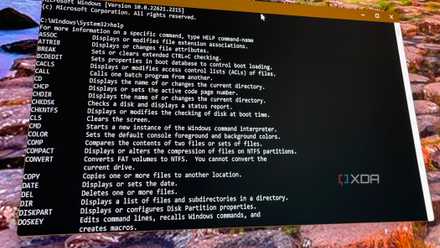
16 lesser-known uses of Command Prompt
Do you know Command Prompt well? Think again! Check these 16-lesser known uses
Exercise full control over startup apps
There's more to this than just the Task Manager
Windows machines tend to accumulate baggage over time with launchers, update agents, and monitoring tools all quietly hooking themselves into startup. Each one consumes memory and resources in the background at all times, and they occasionally spike disk activity. As such, it's always a good habit to check Startup Apps in Windows Settings or through the Task Manager to make sure the big apps that turn themselves on during startup are only the ones you want.
However, SysInternals Autoruns is the next step in this process, which gives you a much deeper look at every background process that Windows is using your system's resources for. This is where you can disable multiple startup entries and leftover components from programs you don't even have anymore on your PC. In return, your system will feel lighter, and you'll end up freeing some RAM.
Autoruns
Disabling virtual machine platform
Removing Hyper-V overhead most gamers never asked for
Virtual Machine Platform and Hyper-V features are useful — just not for most gaming systems. Even if you're not actively running virtual machines, these components can introduce additional abstraction layers that slightly impact latency and CPU behavior.
On high-refresh displays where 1% lows matter, small inefficiencies become noticeable. Disabling virtualization features I don't use ensures Windows isn't reserving resources or modifying scheduling behavior unnecessarily. This tweak isn't about dramatic FPS gains — it's about reducing overhead in a system that should prioritize above all else.
Search for Windows features in the Start Menu, and select "Turn Windows features on or off." Search for Virtual Machine Platform in the window that pops up, and uncheck it. This will free up considerable resources after your restart.

5 built-in tools to use when troubleshooting Windows problems
You don't need third-party tools
Using Win11Debloat
This is for all the junk your system doesn't require
It's no secret at all that Windows 11 ships with a ton of junk from the get-go. Sure, manually removing each app is always an option, but when Win11Debloat exists, you don't need to. This is a PowerShell debloat script, and it does what Windows won't: give you control. Out of the box, Windows 11 runs dozens of background services, telemetry tasks, and bundled apps I'll never touch on a gaming PC.
This script trims that fat in minutes. It disables unnecessary services, removes bloatware, and tones down telemetry, letting you selectively re-enable only what you actually need. The result isn't really magical FPS gains so much as it is a calmer system. With less background noise, fewer random disk usage spikes and more consistent frametimes, Windows will behave more like it knows it's on a gaming rig.

5 weirdly fun things you can do in PowerShell when you’re bored
I use Windows 11 PowerShell for silly things, stress-relief scripts, and visual tweaks that turn a boring terminal into a fun distraction.
Don't forget the NVIDIA Control Panel
Some important settings here to set and forget
The NVIDIA Control Panel is one of the best pieces of game-centric software you can have on your PC, and today, it's in every NVIDIA user's system. Open up the NVIDIA Control Panel, and select Manage 3D settings. Here in the Global Settings tab, scroll and find Shader Cache Size, and set it to 10 GB. If the limit is too low and your GPU hits that while gaming, it will automatically delete older shaders it thinks it no longer needs, and if you do end up revisiting an old area, you'll run into stutters. 10 GB is the sweet spot here, so make sure your Shader Cache Size is set to that.
Next, in the same list, find the option that says Power management mode. From Normal, set it to "Prefer maximum performance." This can have an immensely positive impact on your FPS, especially your 1% lows.

This Nvidia Control Panel replacement is a must-have for enthusiasts
It's the jailbreak that your GPU needs.
You need some registry edits to seal the deal
The final layer of deliberate tuning
Before moving on to making any tweaks and changes in the Registry Editor, make sure you export your current settings safely in case something goes awry. Of course, you'd still have your System Restore image as a safety net, but why say no to double safety? Bring up the Windows Registry Editor by typing in Win + R, and typing in "regedit." Here, the first thing you do should be to select File → Export. In the new dialog box, check "All" under Export Range, and save the registry backup in your folder of choice.
Now, type in the following in the address bar to reach the GPU and CPU priority keys.
Computer\HKEY_LOCAL_MACHINE\SOFTWARE\Microsoft\Windows NT\CurrentVersion\Multimedia\SystemProfile\Tasks\Games
Here, look for a key labeled Scheduling Category. Double-click on it to open it, and change its Value Data from the default "Medium" to "High," making sure you don't use the inverted commas and capitalize it as written.
The next tweak to make is if you face latency issues while playing online games. Stay in the Registry Editor, and head to the following folder:
Computer\HKEY_LOCAL_MACHINE\SOFTWARE\Microsoft\Windows NT\CurrentVersion\Multimedia\SystemProfile
You should find a value labeled "NetworkThrottlingIndex." Double-click on it, and change its Value Data to ffffffff. This setting significantly helped me reduce latency and achieve better 1% lows during Fortnite.
If you don't see the NetworkThrottlingIndex entry in the System Profile key, just right-click and select New → DWORD (32-bit) Value. Name it NetworkThrottlingIndex while making sure you capitalize it exactly as shown.
Of course, for some users, it can also have the opposite effect, so just go ahead and reverse the Value Data to 0 if it doesn't seem to improve anything for you.
The final registry tweak is in the same folder, and will be in a value labeled "SystemResponsiveness." Double-click on it, and whatever the value for it is, set it to 10. This value controls the percentage of CPU resources that go into background tasks and services, which, ideally, you want to keep as low as possible. However, anything below 10 is automatically considered 20%, so set it to 10, and you're done.

The Windows Registry is the problem nobody wants to admit
It's a legacy system Microsoft hasn't moved beyond when it should have
Windows should be as light and powerful as ever
Until I move to Bazzite, I refuse to let Windows run my machine on its terms.
At the end of the day, this is more about making Windows 11 behave like it actually understands its role in a gaming PC rather than chasing synthetic benchmarks alone. These tweaks have improved my system's consistency and responsiveness while reducing friction overall.
I still do plan on moving to Bazzite later this year. But until then, I refuse to let Windows run my machine on its terms. If I'm stuck here, I'm taking control. With a little effort, Windows can actually be made to game surprisingly well, and you just have to teach it who's in charge.