
Across its various generations, macOS has earned quite a reputation as the operating system of choice for productivity-focused users. Perhaps it is the sleek UI or its seamless ecosystem for continuity across devices, Apple's OS retains its charm as a popular OS for many creatives and professionals.
Beneath this reputation, however, lies a key aspect of user experience that often feels quite ill-suited and almost out-of-place for the workflows it is meant to support. I am, of course, talking about the elephant in the room that Apple refuses to address, which is its confounding window management problem — which lately seems to be bothering power users more than poor Siri ever did.
Window management on Mac has a problem
It's the fact that it's non-existent
As a long-time Windows user dating all the way back to Windows 95, and a macOS user since OS X Mountain Lion, it's difficult not to delve head-first into a comparison between how the two platforms approach their window management. On Windows, Alt + Tab treats every open window on your desktop with equal priority. Whether you're on the lookout for a folder, a document, or a Chrome session, it's easy to select and pick exactly where you need to be, often without even having to reach the mouse.
MacOS, however, makes an attempt to oversimplify the problem to reduce the cognitive burden on the user by letting them choose specific applications to jump to rather than the tab they're looking for, which, in turn, creates further friction. If I have three Chrome windows open, the equivalent shortcut, Command + Tab, surfaces the application (and every single open window) rather than the specific tab I'm looking for. To find the session, I'm made to retreat into Mission Control, which is even more offensive to anyone caught in the situation. This is because the bird's eye view only reveals the windows that aren't currently minimized.
If you were to swipe up on the trackpad to trigger the overview, you are only shown the applications that are active on the desktop. So, if you've been diligent about minimizing documents to the Dock to keep your desktop clean, these windows effectively vanish from under Mission Control's radar altogether.
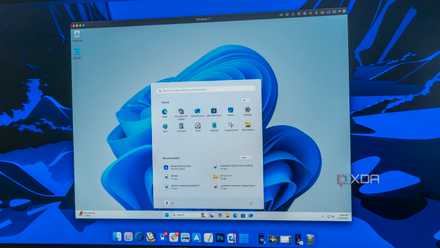
4 things that neither Windows nor macOS do well (and how they could fix them)
Both have their strengths, but there are some things that neither of these operating systems do a great job at.
Window-snapping and tiling need third-party crutches
To be barely functional
When you delve further into window-snapping for multitasking, the gap between macOS and Windows becomes downright impossible to ignore. On Windows 11, snapping and tiling are native, predictable, and intuitive. The moment you hold down the Windows button and an arrow key anywhere with active windows, you've got grids for placement, allowing you to partition your screen in halves, quarters or even thirds. The "ghost" preview of the destination makes organization even simpler and almost feels like second-nature on the go.
The hallmark of a great OS is its ability to detect user intent and optimize for the actions they are undertaking, and macOS has effectively delegated most of this responsibility to third-party tools. While Windows proactively anticipates your next move with Snap Assist, the Mac leaves most of the heavy-lifting to the user.
The recent OS updates in Sequoia haven't helped either. Between the rounded corners that are painful to "grab", poor discoverability, and new snapping behaviors that can trigger when you don't want them to, it seems that while these features exist, they're not designed with the user in mind. Why else would there be a market for paid third-party utilities like Magnet, Rectangle or Moom that serve the exact same purpose, and solve exactly the same problem? It has created a strange paradox wherein the world's most premium consumer hardware demands a productivity tax for bare functionality.
The hallmark of a great OS is its ability to detect user intent and optimize for the actions they are undertaking, and macOS has effectively delegated most of this responsibility to third-party tools.
We've got "one more thing"
The green button problem
For as long as I can remember, the "traffic light" buttons have felt like a constant source of friction. While being similar to the minimize, maximize, and close buttons on Windows, their implementation on the Mac is where the UX diverges.
You'd expect the green button to manage window scale, and it does precisely that — however, in the process, it always throws the app into its own space via Full Screen Mode that isolates it by hiding both the menu bar and the dock.
The native workaround is to hold down the option key or simply hover over the green button, but doing so also compounds user friction, since the menu appears as a grid with options to Move & Resize or Fill & Arrange. Instead of a single click to maximize or lay out your workspace, you're forced into a multistep menu navigation that turns a simple command into a management chore that burdens you into decision-making. This is the exact sort of operational inefficiencies and user friction that generates the demand for payware on the App Store that promises convenience for dollars, and unfortunately, the price is almost always worth it for power users.
The author used an M2 MacBook Air to understand the deeper OS-level user pain points. This article was written entirely on macOS Sequoia.
OS-induced friction burns at every turn
To be fair to macOS, the only reason why its native Window management feels 'fundamentally broken' is because of how starkly it contrasts with the broader ecosystem. Apple excels at polishing the big picture, but here, everyday interactions just fell through the cracks and made it into the OS, and sure enough, became a part of the user experience that increasingly defines our productivity on the system. While third-party applications bridge that usability gap remarkably well, they end up feeling like an added cost for value that should've been provided natively.