
Machine learning has most certainly taken off, even if many are sick and tired of reading and hearing about artificial intelligence (AI). Just about everything sold today has AI slapped onto the device, including appliances, PCs, and even smart home hardware. Large language models (LLMs) are frequently used, with the most popular option being ChatGPT, but it's possible to self-host these impressive tools from home.
The issue with self-hosting LLMs is getting the balance between computational power and model efficiency just right, which can often times feel like an art and science combined. It's easy for big corporations such as Google, Meta, and OpenAI, as these companies have access to serious computing power with huge data centers. The same can't be said for our homelabs, which often consist of an old PC or some mini PCs strapped together.
This is perfectly fine for running some Docker containers and saving money through cancelling cloud subscriptions, but running LLMs at home is a whole different ball game. Even mid-range GPUs such as the Nvidia GeForce RTX 4060 Ti with 16GB of VRAM will struggle to run the most capable models due to limitations with both compute and memory. After extensive testing and experimentation, I feel like I've finally matched the right LLM for my GPU for optimal results.
Making the most of what you have
It's all about the graphics card
I find the RTX 4060 Ti 16GB strikes a good balance for those who wish to toy around with self-hosted LLMs without breaking the bank on high-end flagship models. The price of GPUs hasn't helped this hobby, which also seems to be causing the problem with high prices after we had the massive demand spike during the cryptocurrency mining craze. It's not the flashiest of GPUs, but the RTX 4060 Ti is capable of handling a variety of models.
But it all comes down to the model you wish to use. For my setup, consisting of running OpenWeb AI and Ollama inside a Linux container (LXC) on Proxmox, some models proved too demanding for the GPU. This resulted in crashes, slow performance, or inefficient memory usage. If you're new to the game of running custom LLMs, you'll likely encounter all of these issues (and more) as you work through switching between LLMs and adjusting settings.
It really does make choosing the right LLM feel like an art. It may appear easy enough on paper. You install a GPU, add the relevant drivers, launch Ollama or some other solution, pick an LLM, and you're good to go. But it's much more involved if you wish to make the most of your GPU and the selected AI model. For the RTX 4060 Ti, we have 16GB of VRAM, which offers decent enough memory bandwidth and numerous Tensor Cores for deep learning tasks like an LLM.
Depending on the GPU you have at hand, if you push it too hard, you'll run into memory-related issues or performance bottlenecks. Conversely, you could play it a little too safe and not leverage the full potential of your system hardware. And it wasn't until my esteemed colleague and Lead Technical Editor, Adam Conway, ran me through some OpenWeb UI and Ollama settings that I was able to influence performance further.
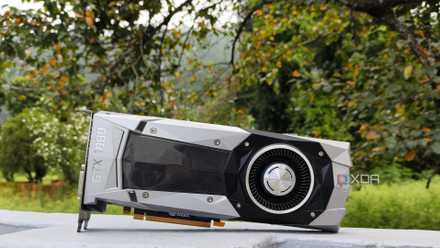
Nvidia stopped supporting my GPU, so I started self-hosting LLMs with it
I self-support my gpu now because Nvidia won't
Starting from scratch with Proxmox
Running the LLMs as part of the cluster
I love using Proxmox in my home lab. It essentially powers everything. We've got Jellyfin running for media streaming, Immich for backing up mobile devices and media, Gitea as a self-hosted GitHub, and Home Assistant that controls the entire house. There are countless other virtual machines (VMs) and LXCs running that I've almost lost count. Running LLMs via Proxmox is great for keeping it all on the same platform as the rest of the home lab.
But Proxmox also allows me to use a community script for a lightweight and efficient way to run models without the overhead that can come with full virtualization. Depending on what was required by the model running at the time, resource allocation can be adjusted on the fly. After trying a few models, it wasn't until I loaded up qwen3:14b-q4_K_M that it all clicked. The 14B variant of this model is fairly compact enough to run on GPUs with 16GB of RAM.
Qwen3 is a relatively new model and is optimized for running on GPUs with a moderate amount of memory. The Q4_K_M part of the model refers to the quantization settings. This makes it great for running on the RTX 4060 Ti, but even then, I needed to adjust num_ctx within Ollama and OpenWeb UI to get the most from the LLM. Increasing this one parameter from 2,048 to 16,384 prevented the model from overflowing context and losing its mind within a few responses.
I did try my luck at some larger models, such as qwen3:30b-a3b-q4_k_m and deepseek-r1:14b, but these either required too much tweaking to get running reliably or ended up reducing quality to the point where smaller models would likely outperform with better results. It's all about finding the right balance between the size of the LLM you wish to use, how optimized it is, and how much VRAM you have available. So long as you search for recommendations for your GPU specifically, you should be on the right track.
Qwen3 is great for general tasks and conversations, but qwen2.5-coder:14b was perfect for more specific coding tasks and smaller chats. This model is lighter on VRAM and doesn't require as much compute to perform. Using both of these models, I was able to get OpenWeb UI into a position where I and anyone I provided access to could run an LLM without having to connect to somewhere outside of the LAN.

I run local LLMs daily, but I'll never trust them for these tasks
Your local LLM is great, but it'll never compare to a cloud model.
Getting LLMs to run on your GPU
Matching the right LLM to your GPU may feel like a daunting task because it can require some technical expertise and intuitive adjustments. Using a GPU with 16GB of VRAM provides ample space to store larger models, though 30B is most certainly pushing boundaries — It's possible, but performance suffers. You must pay attention to memory usage, precision, batch size, and token limits. Experimentation is key, and maximizing performance becomes easy once you've got the hang of it.
And don't try to max out your memory with the model because space needs to remain for context. Going back and forth with an LLM will fill up space, and so some needs to be left over to handle this overflow. Without ample VRAM, the LLM will start to hallucinate quicker, or you'll see slower responses from the get-go.