
If you’re going to take the time to build your own PC, you might as well take a few extra minutes to make sure your monitor is up and running to give you the best performance. Often all it takes is clicking a few buttons and all those fancy settings that the box of the monitor will all be active.

5 reasons you shouldn't buy a dual-mode monitor
Dual-mode monitors seem to be solving a problem that doesn't exist
Even if you’re just looking to get the most out of your games and just realized you never took the time to optimize your monitor, we have all the settings you need to change to ensure your monitor is in tip-top shape.
4 Is your monitor plugged into the right port?
Don’t worry, it's an easy mistake
It feels like PC Tech Support 101, but making sure your latest and greatest gaming monitor is plugged into the right port can solve any immediate problems you might be experiencing. Both the motherboard and the graphics card can accept monitor inputs, but only the graphics card slot should be used.
Typically, the motherboard will be positioned vertically on your PC, while the graphics card will be horizontal, though that’s not always the case.
If you want to check to make sure you have it correct, you can head to the Windows Settings Menu by:
- Right-click on your desktop, navigate to Display Settings
- Click on System, then Display.
- Scroll down to the Related Settings section and click on Advanced Display.
- If it doesn’t match your graphics card, you can fix it!
Even the most experienced of us can make a simple mistake, especially when you’re rushing to get your monitor set up so you can get to gaming right away, so don’t feel bad about this one at all. If you have your monitor plugged into the wrong port, you might be adjusting other settings to try and get your monitor optimized after experiencing weird things happening while gaming, making you jump through hoops for something relatively easy to fix.
3 Have you looked at your resolution and refresh rates?
Super easy fix
Both the resolution and refresh rate are vital for getting the best experience possible. A monitor’s refresh rate is the maximum number of frames per second (FPS) and is most commonly referred to as the Hertz or Hz. A higher refresh rate is crucial in many fast-moving games, like first-person shooters, as it lets you see subtle player movements that would otherwise not show up.

5 things to consider when buying a monitor for photo and video editing
See your photos come to life with a good monitor
The easiest way to check is to head back to your Display Settings to make sure you’re getting the most out of your monitor.
- Right-click on your desktop and navigate to Display Settings.
- Click on System, then Display.
- Under Scale & Layout, find the section labeled Display Resolution and make sure it is set to the resolution of your monitor.
You can check the refresh rate from the menu, so from the Display Settings, you can go to:
- Click on the Display option.
- Under Related Settings, click on Advanced Display.
- Below, where you checked to ensure you are connected to your graphics card, is the option to choose a refresh rate.
- From the drop-down menu, pick the option that works best for you.
A higher refresh rate means you’ll be able to see a character move more smoothly than if it were at a lower rate.
This setting might not be as important if you’re playing a single-player adventure or are nestled up for a cozy night of gaming, but it is absolutely crucial for competitive games.
2 Boost that color!
Really make your games pop
This one is a bit based on your personal preference, but adjusting the color settings on your PC can really help enhance your gaming experience. Practically every game will give you the options to adjust brightness, contrast, gamma settings, and more. You’ll also want to ensure your monitor settings are ready.
If your monitor is too bright, blacks will wash out, turn gray, and make dark scenes look muddied. If your contrast is too high, scenes during the daytime might look completely blown out, like you’re constantly looking at the sun.
A key setting that can really help your experience is enabling AMD’s FreeSync or Nvidia’s G-Sync settings. Both of these systems can help reduce screen tearing and stuttering frames while also providing a few other benefits, like reducing input lag.
1 If you can, utilize your HDR
It’s a great feature, but not for everyone
HDR, or High Dynamic Range, is a great way to give you the best gaming experience possible, though it's not without its caveats. More or less, HDR works to enhance every visual element of your game, giving you better looking shadows and more vibrant colors than what you can get from a regular monitor.

10 simple ways to prevent burn-in on your OLED monitor
Burn-in on OLED monitors is unfortunately all too real. Here are some quick tips to help you delay the inevitable.
The thing you need to keep in mind is that the quality of your HDR experience will vary depending on the brand and model of monitor you have. If you have a more modest monitor, you can experience issues like dropped frames. HDR also works best with a 4K resolution; anything below that can cause further complications.
Monitors with this feature also tend to be a bit pricier, so it might not be an option for all budgets.
Even modest monitors can benefit from these changes
Getting your monitor to peak condition doesn’t take long; just make some quick adjustments to some default settings, and you’re good to go. Depending on your PC, you will likely have access to some sort of on-screen display system, where you can further adjust settings. Even better, you can make presets of your preferred settings for all your favorite games, letting you easily swap between them as you jump from game to game. With these changes, even your older monitors can be worth keeping around.
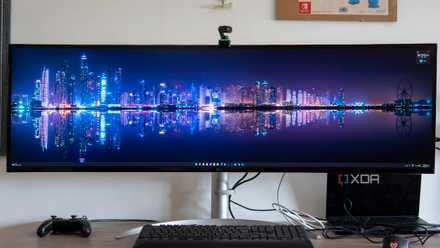
6 reasons a super ultrawide monitor is the best for gaming
Super ultrawide monitors stand alone when it comes to immersive gaming