
An OLED monitor is one of the biggest upgrades for any PC setup. By now, almost everyone knows that OLED is miles ahead of any other display technology. OLED screens can deliver true blacks, near-instant pixel response time, and superior HDR performance, thanks to self-emitting pixels that can turn on and off rapidly.
However, like any other display tech, OLED has some inherent downsides, with the risk of burn-in being the most concerning. Burn-in occurs when static images, after prolonged use, leave a permanent mark on the screen. The pixels used to display those static images degrade slightly faster than others, becoming less bright over time. Fortunately, you can prevent burn-in on your OLED monitor by taking care of it with some DOs and DON'Ts.
I won't recommend changing in-game UI settings or avoiding some titles altogether, as you should be able to enjoy your expensive OLED monitor without compromising on what you want to play or watch. Besides, unless you only play the same game for 10-12 hours a day, non-stop for a year, you don't have to worry about burn-in due to a specific game or setting.

4 things you should know before buying an OLED monitor
Everything you need to know before splurging on an OLED monitor
10 Hide the desktop icons
You'll be fine without them
It's easy to hide your desktop icons on Windows, but you might be worried about living without them. As it turns out, you can swap the taskbar for most of the things you accomplish using the desktop icons. Suppose you want to launch your most-played game — you can pin all your favorites to the taskbar. If you want to access your partitions or other folders, just pin the Explorer icon to the taskbar and use it to open "This PC," "Downloads," or "Documents."
Hiding your desktop icons is a small price to pay to avoid seeing their ghosts burned into your screen. Moreover, if you're like me, you keep all your browser windows, game launchers, wallpaper apps, and other programs always open, and switch between them from the taskbar. You seldom need to go to the desktop to double-click an icon to launch a program. Personally, I always put my PC to sleep so that I can resume everything just like I left it.
You might be wondering — what about the taskbar itself? That's what I'm coming to next.

How I made a beautiful, minimalistic Windows desktop and you can too
It only takes a few minutes to get the perfect desktop setup
9 Hide the taskbar
Use auto-hide and you'll never go back
Just like your desktop icons, your Windows taskbar can be a permanent fixture on your desktop. Even worse, the taskbar is always there, even if you're not on the desktop and working on a document or using your browser. It's one of the most common sources of OLED burn-in on a monitor, that is, unless you hide it.
It's one of the most common sources of OLED burn-in on a monitor, that is, unless you hide it.
And don't worry, it's not going away; you can always bring it up by hovering your mouse where it used to be. So, you can still access all your pinned programs and games whenever you want, and also switch between open applications, if you don't like using keyboard shortcuts on Windows. Hiding the taskbar, one of the biggest fixtures of the Windows experience, can be disconcerting at first, but you'll get used to this, and save your precious OLED panel from burn-in.
.jpg?q=49&fit=crop&w=220&h=124&dpr=2)
Prefer a cleaner desktop? Here’s how to fix the Windows taskbar when it won't auto-hide.
If your Windows taskbar isn't behaving, here's how to get it back to the way you prefer
8 Use Dark mode
Once you go black...
A dark theme is preferred by many users, irrespective of whether it's on their PC, phone, or browser. It looks cool, enhances the visuals on OLED and AMOLED screens, and saves battery life on some devices. Using Dark mode on Windows can have the added benefit of not wearing out your monitor's OLED pixels.
Switching to Dark mode will keep UI elements black or as dark as possible whenever you access Windows settings or browse Explorer, allowing your monitor's pixels to emit as little light as possible. This will further lower the probability of burn-in if you often find yourself changing settings or moving files and folders. As the pixels spend less time in highly illuminated states, they'll last longer, delaying burn-in for a long time.

Dark mode not enough? Here's how you can make the Windows 11 Start menu completely black
You don't need any additional software to turn the Windows 11 Start menu completely black.
7 Move your windows every few hours
My WFH buddies, take note
If you've invested in a new OLED monitor for your "work and play" dual setup, you're probably spending 6 to 10 hours 5 to 6 days a week working on your work projects. This could be a Google Docs window, WordPress or other CMS, an Excel worksheet, or simply Outlook or Gmail. Having the same window open on your screen for hours on end might be unavoidable for work.
This will prevent uneven pixel usage on your panel, and over time, enable it to wear out uniformly.
To avoid temporary image retention or permanent burn-in, use your programs in a windowed mode, rather than going full-screen. You can then drag your open windows around the screen every 3 to 4 hours. This will prevent uneven pixel usage on your panel, and over time, enable it to wear out uniformly.
Those who regularly use a split-screen setup with 2 or 3 windows open together can use FancyZones — a PowerToys tool that allows you to snap multiple windows into different layouts. You can switch it up every few hours, moving your open windows around so that no single window stays static on the screen for too long.

7 best PowerToys tools I want to see in Windows
Hey Microsoft, make Windows more productive by integrating these PowerToys add-ons
6 Use animated or rotating wallpapers
Wallpaper Engine is your best friend
Even after you've hidden your desktop icons and the taskbar, your desktop still has a pretty glaring source of burn-in — the wallpaper. You might not be spending hours staring at the desktop, but if you use your programs in windowed mode (as you should on an OLED), the desktop background will always be there in the, well, background, chipping away at your precious OLED pixels.
Ensure you pick an animated wallpaper where the entire screen has moving elements, not just certain parts of it.
An easy fix to prevent wallpaper burn-in is to set a few of them to cycle periodically across your screen. You can also use Wallpaper Engine to apply animated wallpapers to eliminate hours of static elements on the screen. Ensure you pick an animated wallpaper where the entire screen has moving elements, and not just some parts of it.
I don't prefer a solid black background, as that would just cause the pixels occupying the open windows to degrade faster than the black areas of the screen. Of course, this will only happen over a long time, but so will the other kinds of burn-in I've mentioned in the article.

Want to spice up your desktop? These are the best places to get wallpapers on Windows
Get rid of those boring backdrops
5 Turn your monitor off when not in use
Let it rest when you take a break
I know most of us tend to leave our monitors on when we step away for a while. Maybe you're waiting for a download to finish or want to break for lunch during your workday. This might feel harmless on an IPS or VA monitor, but when you're using an OLED display, it helps to give your monitor some much-needed breathing room.
For one, turning your monitor off or letting it go on standby mode will allow all the pixels to shut off completely, eliminating the risk of burn-in, in case you get held up for too long. Secondly, your monitor will get an opportunity to run its pixel refresh cycle that's scheduled to run every 4 hours or so on most OLED monitors. You probably don't even need to do anything to make this happen — standby mode is enabled by default on almost all monitors.
Alternatively, you can run a slideshow of photos on your Windows 11 PC, minimizing static images for long periods and bringing some oomph to your lock screen at the same time.
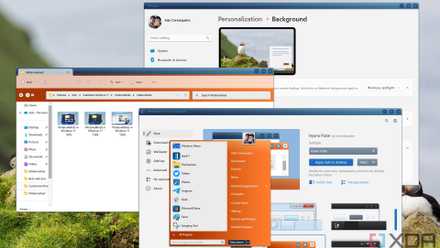
You can make Windows 11 feel like home — here's how to customize it
Windows 11 is a great operating system, but not everyone has to like how it looks out of the box. Here's how you can change
4 Don't ignore OLED upkeep features
They are there for a reason
Manufacturers design their OLED monitors for regular self-maintenance by way of techniques like pixel shifting, pixel refresh, and more. While pixel shifting is something that occurs on the fly, if your monitor detects some static elements on the screen, pixel refresh and pixel cleaning are a bit different.
The monitor scans the screen for any image retention, and if detected, can remove it pretty successfully.
Every manufacturer calls it something different, but the basic pixel refresh process is the same — every 4 hours or so, your monitor will prompt you to allow a quick pixel refresh cycle to be run. It takes a few minutes and can be done automatically when the monitor is turned off or in standby mode. The monitor scans the screen for any image retention, and if detected, can remove it pretty successfully. You shouldn't ignore these prompts, and use this time to take a short break and move yourself around a bit too.
A longer pixel cleaning (or whatever the manufacturer chooses to call it) runs every 500 to 2000 hours, depending on the model. This process scans for permanent burn-in, and if it finds some degraded pixels, it attempts to wear the surrounding pixels, so that the affected pixels blend in with them. This might seem harmful, but it extends the time for which you can experience your OLED monitor without noticing visible burn-in.

3 reasons why I'm passing OLED monitors and sticking with my IPS for now
OLED monitors are great, but they're not for everyone.
3 Decrease the brightness
You might not want to hear this
Lowering your monitor's brightness so that it lasts longer is something that doesn't sit well with most people. After all, a great HDR experience needs not only decent local dimming but also high brightness. And OLED monitors, while being excellent at HDR, generally have lower brightness levels compared to Mini-LED or even some LED displays.
Decreasing your brightness on a monitor that already doesn't have lots of it can sound tough, but it goes a long way to save the pixels from extreme illumination, and consequently, accelerated degradation. The saving grace is that due to the way our eyes perceive contrast, OLED displays can still make the image pop even without record brightness levels, due to their signature per-pixel dimming.
So, don't try to run your OLED monitor at maximum brightness, experiment with 25-35% brightness, and see how you like it. You can gradually increase the level if the image isn't impressive enough.

4 differences between OLED and QD-OLED
New monitor technology can cause confusion, so here's a breakdown of the main differences between OLED and QD-OLED display technology.
2 Buy newer models for better burn-in protection
Prevention is better than cure
The first-generation of OLED (or QD-OLED or WOLED) monitors were much more susceptible to burn-in than the newer models on the market. Over time, manufacturers have been able to make the panels more burn-in-resistant. These new panels aren't immune to burn-in, but you can rest easy knowing you're buying something that offers the best protection available on the market.
If you have the budget, try to buy a newer-generation OLED monitor instead of hunting for a deal on an older one.
Older models can be found cheaper, yes, but the risk of your entire investment going down the drain is also higher. If you have the budget, try to buy a newer-generation OLED monitor instead of hunting for a deal on an older one. You're also likely to find longer burn-in warranties on the latest OLED monitors, which is always a big plus.

4 reasons I would still buy an OLED monitor despite the tradeoffs
OLED monitors aren't perfect (yet) but I'm willing to live with the tradeoffs for the superior experience
1 Bonus: Don't go looking for defects
Paranoia will get you nowhere
This one is more of attitude advice rather than a strict tip on preventing OLED burn-in. The thing is, every OLED display will encounter burn-in at some point in time — the pixels can't go on forever without wearing out. You can delay the inevitable for years, so that you're much more likely to encounter dead pixels or something else before burn-in.
So, it's to your advantage not to worry yourself too much about burn-in, constantly pixel-peeping to find the faintest sign of image retention or pixel degradation. If you focus on enjoying your OLED monitor while adhering to the other tips above, you'll notice only the most glaring cases of burn-in. At that point, you'll probably have spent 5 to 7 years with your monitor, ready for another upgrade anyway.

ASUS ROG PG32UCDP review: A bright OLED for any room
One of the brightest OLEDs available marrying sharpness, contrast, and motion clarity
Love 'em or hate 'em, you can't ignore OLED displays
Many people complain about OLED monitors being "consumables," i.e. short-lived displays that need to be babied for years. Others swear by their unparalleled image quality and gaming performance, declaring that nothing else comes even close. Whichever camp you belong to, buying an OLED monitor is a big, expensive decision — something you need to be sure about, so that you won't have needless regrets getting in the way of enjoying a high-end monitor.