
My NAS has been a part of my home for years now, and it has taken over the kind of tasks that I hadn’t ever thought a NAS could do. While it has made my life a lot easier and streamlined, living with a NAS for this long also meant making a fair share of security mistakes. It didn’t seem like a big deal since everything stayed on the home network and within my family. But with the growing number of apps on the server, and the times I had to enable remote access, I needed to fix a lot of security loopholes that I had earlier left as is.
These are the biggest ones, and I finally fixed them.
Direct internet exposure
When convenience cost me my peace of mind
I thought of NAS as my personal cloud replacement, which could do everything Google Drive did, including seamless remote access to my files from anywhere in the world. If an app suggested opening a port, I did. Thankfully, my server wasn’t attacked by random login and bot attempts as I came to my senses just in time.
The first step I took was to cut down all kinds of remote access, including first-party solutions like QuickConnect (which, anyway, is unusable for moving large files with its snail-like speeds). I moved everything over to Tailscale for instances where remote access becomes unavoidable, while making sure to never expose the NAS to the internet without safety. Routing everything through the VPN has brought me a different kind of peace of mind.
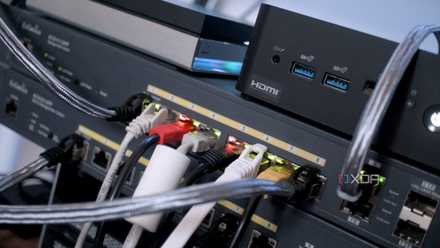
Please don't expose your new NAS to the internet
A proposition fraught with risk for networking newbies
Using weak or repeated passwords
It could’ve compromised everything
We assume that the stakes are low since the server lives inside our house, leading us to use simple-to-remember passwords and even reuse them, because why not? It was fine early on when my usage was limited, but over time, with increasing touch points, from backup apps to productivity containers and their managers, I realized this habit was going to cause me problems.
I’ll admit that it wasn’t the most fun thing I’ve done on a NAS, but it was something I needed to do (now even for every new NAS I use). I started cleaning up — ensured using strong passwords generated by my password manager, replaced reused ones with unique alternatives, changed the passwords for my family members too, and set up separate admin accounts that I don’t use for personal stuff. Besides that, I also enabled 2FA for critical apps as an extra safety measure.

Stop storing your passwords in your browser
Browser password storage feels convenient, but it’s not safe. Here’s why even improved browser security still can’t replace a proper password manager.
Delaying firmware updates
‘I’ll do it this weekend’ never happens
I am indeed guilty of this. I disabled auto updates on my NAS to take control of when new OS and app versions are installed, but each time a new update arrived, I sat on it for so long that another update would arrive. Delaying the installation wasn’t the point, but finding the right off-peak hour was — and guess what? That never came.
A lot of them patch actual vulnerabilities, often the ones being actively exploited, which is true for both app and OS updates. I worked around that habit of mine with a routine where I perform monthly checks for new updates across the system. I ensure there are recent backups and snapshots in place before the system restarts to avoid any potential problems caused by a faulty update.

4 NAS upgrades that gave me the biggest performance boost
These easy upgrades boosted my NAS' capabilities
Trusting unverified Docker containers
It just works — errr, not always
Docker makes a NAS undeniably powerful. However, its flip side is that you can install something you don’t fully understand. I used to pull random containers following some random Reddit recommendations without checking their background, the kinds of permissions they sought, or who maintained them. It was fun to try out so many of them until the risk of that mindset became a concern for me.
I started checking the containers I had already installed and learned that a lot of them were running with full system access and mounted system directories. Now, I stick to official images from creators I trust, and a lot of thought goes into it before giving an app root access. This is one of the primary reasons I set up a secondary NAS to test out risky Docker containers while my primary NAS stays safe and away from them.

I tried running everything off my NAS and realized where to draw the line
Your NAS can hit its limits if you host everything on it with reckless abandon
Leaving broad file shares open
Folder permissions shouldn’t become the weak point
Network shares are harmless — in fact, they are quite convenient. You can set up a public folder that everyone at home can access to view and copy files from. The problem was that once I shared those folders, they stayed open for much longer than necessary without me even realizing. This could allow anyone on the network to see them unrestricted.
It’s fine until it’s just my family members at home, but with guest access and lots of IoT devices on the same network, the risk of exposure grows quite a lot. To fix that, I had to redo the entire permission structure. Public shares became restricted, and every user account got its own set of access permissions so that the NAS stopped putting everyone on the same safety level.

4 reasons I use both NFS and SMB on my NAS for file sharing
The secret to hassle-free file transfers on your home network.
Tiny things add up
Back then, these mistakes didn’t seem dangerous per se, but over time, I knew these shortcuts could collectively pose a serious problem if left unattended. When the NAS is being more than just a storage unit, fixing these issues doesn’t just improve security; it also makes the entire setup much cleaner and easier to trust. These tweaks didn’t change anything fundamentally, but they did bring some meaningful upgrades that make my NAS a lot safer and more trustworthy.
TerraMaster F4-424 Max
- CPU
- Intel Core i5-1235U
- Memory
- 8GB DDR5 non-ECC SODIMM (up to 64GB)
- Drive Bays
- 4 HDD bays + 2 NVMe SSD slots
- Ports
- 2x USB Type-A (10Gbps), 1x USB Type-C (10Gbps), 1x HDMI 2.0, 2x 10GbE RJ45
The TerraMaster F4-424 Max is a premium hybrid NAS enclosure that combines a solid Intel Core i5-1235U processor with ultra-fast 10GbE ports and ample storage capacity. It also supports up to 64GB RAM and is as amazing for home lab workloads as it is for storing your precious data,