
The M.2 connector, formerly known as Next Generation Form Factor (NGFF) was created to replace the older mSATA and mPCIe connectors, which it successfully did. You might be familiar with the M.2 slots on your PC's motherboard that are commonly used to connect M.2 SSDs (NVMe or SATA), but they're not the only devices compatible with M.2.
The M.2 connector was meant to be flexible to accommodate a wide variety of devices. So, if you have a spare M.2 slot gathering dust on your motherboard, you might want to know the types of devices you could install on it.

5 of the most useful non-GPU devices you can plug into PCIe slots
Put your vacant PCIe sockets to good use with these handy expansion cards
7 Wi-Fi and Bluetooth cards
Bring your old PC online

If your motherboard doesn't have onboard Wi-Fi and Bluetooth support, you can put that spare M.2 slot to good use by installing a Wi-Fi and Bluetooth card. These expansion cards typically come in the 2230 form factor (22x30mm), and need a compatible M.2 connector with the A+E key configuration on your motherboard. Generally, mini-ITX motherboards feature this slot, while ATX and mATX boards usually come with M key connectors.
If your motherboard only has an M key slot, you can even get an M key to E key adapter and install the Wi-Fi card on the adapter. Using a Wi-Fi and Bluetooth card is a cheap and easy way to add wireless functionality to your old PC without replacing your entire motherboard or using an unreliable USB Wi-Fi adapter.

Did you know you can use your PC to extend your Wi-Fi? Here's how.
Did you know most computers can extend your Wi-Fi? Well, now you do, and it's time to learn how to use it.
6 Ethernet cards
When Wi-Fi just doesn't cut it
This one might be counted as cheating, but hear me out. You probably have an Ethernet port on your motherboard already, but chances are it's a 1GbE port. And if you're someone whose work requires 2.5GbE or even 10GbE Ethernet, it's not always feasible to replace the motherboard to get it. Enter the versatile M.2 slot — supporting multi-gig Ethernet adapters to provide you with all the speed you need.
Several M.2 to Ethernet adapters I found on Amazon are B+M keyed, so they'll easily fit into the M-keyed M.2 slot on most motherboards. You might be using the M.2 connection as an in-between in this case, but you're still using the connectivity provided by the M.2 slot to bypass the absence of a dedicated high-speed connector on your motherboard. So, it counts as a win in my book.

Here's how you can connect your NAS directly to your PC
Don't want to connect your NAS to a switch? This guide will help you pair your storage server directly with your PC
5 Hard drives
Back to the future... to the past
Hard drives might not be cool anymore, but if capacity trumps speed in your rig, you'd love to know that you can use your M.2 slot to connect multiple hard drives to your system. Using an M.2 to SATA adapter, you can install up to six hard drives, provided you have the space to house them in your case.
These adapters are available with 2, 4, or 6 SATA port variants, and in both B+M and M key configurations, so there's something for everyone. If you're running out of SATA ports on your motherboard, and don't want to buy a new NAS device, you can just get an M.2 to SATA adapter on the cheap and call it a day.
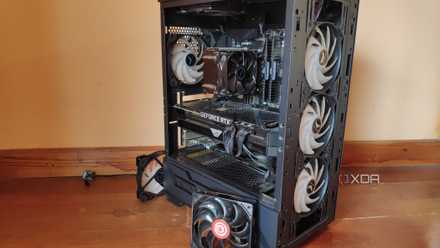
How to turn an old PC into a NAS
If you have an old PC still lying around, you could turn it into a NAS.
4 SIM cards
It's possible, if you want to do it
You might wonder who in their right mind needs to install a SIM card on their computer, but some laptop users might actually find this useful. If you're in an area with no Wi-Fi signal, and don't have your phone with you (for some reason), an M.2 to mini PCIe adapter with an onboard SIM slot can come in handy.
This thing will connect to the M key or A+E key slot on your motherboard, and you'll need to connect a 3G/4G/5G mini PCIe module as well as a SIM on the card. I know, it's a lot of hassle to get cellular connection on a laptop, and might be an edge case, but hey, it's possible, and that's pretty cool.

The MacBook Pro going cellular is a bigger upgrade than you think
Rumours about a 5G enabled MacBook Pro have been swirling. Here's why we think it'll be a great upgrade.
3 microSD cards
Reclaim your microSD slot

A lot of modern laptops no longer come with microSD card slots, and if you're someone who frequently needs to swap their microSD cards between their camera and laptop, this might be a big drawback. Fortunately, you only need a spare M.2 slot on your laptop to hook up an M.2 to microSD card reader adapter, and you can bring back this handy functionality to your laptop.
These adapters are available in both A+E and B+M key variants, so you'll probably not encounter compatibility issues. And they're also not that expensive, costing as much or less than the other adapters on this list. Laptop manufacturers are doing away with microSD card readers, so this use case for the M.2 connector might remain relevant for quite some time, at least until microSD cards are completely phased out.
2 AI accelerator cards
It's the era of AI, after all
The consumer interest in generative AI, machine learning, NLP, and other AI use cases has skyrocketed the demand for AI PCs. However, AI PCs are overwhelmingly laptops, so if you want to indulge in AI apps on your desktop PC, you'll have to come up with something else. AI accelerator cards have come up to fill this void, offering dedicated AI hardware using the good ol' M.2 slot.
These M.2 AI accelerators can offer around 26 to 40 TOPS of computational power, and are available in M key, B+M key, and A+E variants. On a desktop, you're more likely to have an unused M.2 slot waiting to be used, so these AI accelerators can come in clutch if you don't want to buy a new laptop or desktop processor for your AI PC needs.

These 8 SBCs are perfect for running AI at home
After all, not all LLMs require a full-blown AI PC
1 Graphics cards
Anyone fancy an external GPU?
If each of your PCIe slots is already occupied, and you want to install an additional graphics card, you might want to look at an M.2 to PCIe adapter. The spare M.2 slot on your motherboard can be repurposed as an extended PCIe x16 slot for a graphics card. Even though the PCIe slot is x16, the bandwidth available to the graphics card will depend on the M.2 slot.
The up side to the M.2 slot being able to connect to multiple interfaces (PCIe, SATA, USB, and more) is that you can install a variety of devices, either directly or by using adapters. A graphics card might be the most useful of those devices, depending on your use case.

Can you use two graphics cards in a PC in 2024?
Just because you could doesn't mean you should
Move over SSDs, the M.2 slot is much more universal
As you can see, the M.2 slot is truly a next-generation connector, enabling you to connect a variety of different device types to your desktop or laptop. From network cards and SIM cards to AI accelerators and graphics cards, there's little you can't do with a spare M.2 slot available. It might take some extra steps (adapters) and a significant investment in some cases (AI accelerators), but you can definitely make it work.