
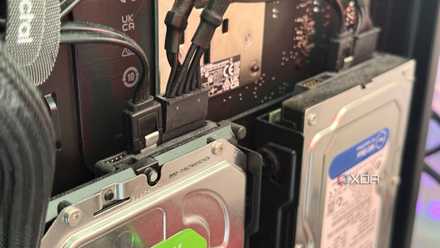
Unless the PC you're using right now is your first, you probably have at least one old SSD lying around. It's most likely a 250GB or 500GB drive that you once used, but no longer have any need for. I abandoned my 250GB Samsung SATA SSD after switching to NVMe SSDs, since the older drive was too small to remain relevant in my setup — until I found a use for it. If you, too, have an old SSD gathering dust in a drawer, you should take it out of hibernation and repurpose it for non-gaming use cases that are less than ideal on your main SSD. You could use it for testing risky software, installing other operating systems, or as a scratch disk. This way, you avoid excessive writes, data loss, and needless cluttering on your primary drive, while also avoiding the scrapyard for your old drive.
Don’t toss that old SATA drive - here’s what to do with it instead
SATA drives desere a better life than living your junk drawer
Explore other operating systems
Instead of dual-booting
This is what I did with my old SATA SSD. I was running (and still am) Windows 10 on my primary drive, but needed Windows 11 to be able to write about it. Since I wasn't prepared to make the jump to Windows 11, I needed a workaround. I wanted to avoid dual-booting Windows 10 and 11 on the same drive, since I didn't want to waste space on my primary SSD or deal with Fast Startup issues. That's when I decided to make my old SSD useful again. I installed a copy of Windows 11 on it, using it for articles whenever the need arose. Since my Windows 10 and 11 installations were on separate drives, I also sidestepped the weird behavior and conflicts that sometimes crop up on dual-boot setups. 250GB of space was more than enough for Windows 11 and a few programs that I needed for my work.
If you want to try alternatives to Windows 11 or want to switch from Windows 10 to Linux, you could explore some distros on your old SSD. Once you've decided on a distro, you can install it on your primary drive for good. This way, you don't need to get into a virtual machine setup to test-drive an OS or deal with potential dual-boot problems. You can use an OS the way it's meant to be used and make your choice based on a pure experience.
5 reasons I stopped dual-booting Windows and Linux on my PC
It's just not worth the hassle anymore.
Use it as a scratch disk
Your workflow might be wearing down your main drive
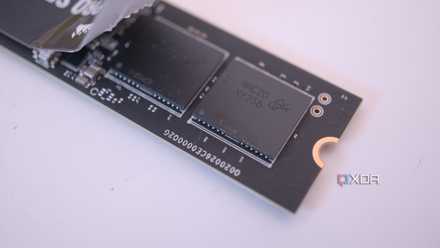
In case you didn't know, programs like Adobe Photoshop and Premiere Pro store a lot of temporary files, project data, and cache on your drive. The default settings use the same drive to store these files, but you can change the location to use a dedicated scratch disk instead. This drive can store all the temporary files you don't want cluttering and wearing down your primary SSD. If you're a creative professional or content creator, these temporary files can lead to write amplification main drive, depleting its lifespan more than you need to. Using a scratch disk offloads these excessive writes from the main drive, providing your workflow a fast and sufficiently large drive for decent performance. Chances are that you won't mind wearing down your old SSD — you weren't using it anyway.
5 storage mistakes that kill SSD endurance faster than gaming
Stop these habits right now if you want your SSD to have a long life
Turn it into an experiment drive
What happens in Vegas stays in Vegas
If you're the tinkerer type, you'll realize the importance of a dedicated test drive for running questionable programs. If you can't resist experimenting with third-party scripts, PC performance boosters, registry cleaners, or even risky beta updates to Windows 11, then a separate drive as a test dummy is a godsend. You can freely test whatever you need to without risking your primary OS installation. Even if something brings down the test SSD, you can simply wipe it, reinstall the OS, and get back to tinkering again. The old drive becomes expendable in a way your primary drive will never be. The speed advantage that an SSD will have over an old hard drive makes it ideal for running programs that benefit from faster read/write speeds.

5 types of PC programs I refuse to install on a new build
All that glitters is not gold
Create a recovery drive
Don't scramble at the last moment
A recovery drive is something you don't realize the importance of before you actually need it. Obviously, you require a separate drive to create a recovery drive, and using your old and small SSD is the perfect candidate. A small SSD that lets you boot into the Windows Recovery Environment (Win RE) allows you to run Startup Repair for minor faults, or SFC and DISM scans for deeper Windows corruption. I've faced the black screen of death more than once in my 20-year-run with Windows, and a recovery drive is a lifesaver in such situations.
You could also install multiple bootable operating systems on your old SSD with a tool like Ventoy. It avoids the hassle of creating separate bootable drives for each OS, and also enables you to install a few diagnostics tools. You don't need a large drive to do this either; a 500GB drive is more than capable of accommodating several bootable ISOs and some diagnostics tools. If reviving your primary OS seems to be taking more time than you initially thought, you can finish an urgent deadline on one of the bootable operating systems and get back to diagnosis later.
Ventoy
Ventoy is an open source tool to create bootable USB drive for ISO/WIM/IMG/VHD(x)/EFI files.

6 reasons you need a Windows recovery USB for emergencies
Discover how a Windows recovery USB can get you out of emergencies, from fixing startup issues to reinstalling Windows.
Your old, small SSD isn't as useless as you think
PC building often leaves behind older components that don't seem too useful in newer setups. Old storage drives are often stuffed in drawers and forgotten about. Well, you should consider repurposing them for OS recovery, testing risky programs, as a scratch disk, or simply exploring alternative operating systems. Even if your old SSD seems too small, it's probably large enough for each of these use cases.