
If I had to pick one feature suite on Windows 11 that I can't get enough of despite using it for months now, it's Microsoft PowerToys. For a free, open-source project, the sheer degree of polish and value the tools bring is staggering. The features are simple and intuitive to use, and impossible to go back from, simply because of how generously each one elevates an aspect of my user experience.
Some of these features serve to organize and declutter the desktop, while others make the applications and programs more accessible. Whether you're into coding, video editing, researching, or gaming, there's a PowerToys feature that's designed to enhance your Windows experience. Here are my top four.
Keyboard Manager and shortcuts
Summon your programs in the blink of an eye
My first encounter with PowerToys was born out of a Google search, where I was desperately hunting for an easy way to map a custom shortcut. I've long preferred using Process Explorer as my go-to system monitor (and as a way to swat annoying processes), but I missed the Ctrl + Alt + Esc shortcut that the regular Task Manager would come with. That specific search led me straight to the Keyboard Manager utility. It was my first introduction to the feature suite, and it immediately solved the problem I was dealing with.
Keyboard Manager allows users to seamlessly program a dedicated shortcut for any program, file, or folder of their choice. While this feature alone had me sold completely on the utility, it wasn't until I realized there was more to it. Not only do you get to decide what program launches, but you also get to choose how it's launched. You can pass specific arguments, set a "start in" directory, and even toggle elevation so that the tool runs with administrative privileges by default. It also affords some impressive granularity to process logic as well. For example, if your process is already running, you get to choose what happens if you hit the combination again, ranging from running a copy of it to closing the app.
The utility also extends to web-based workflows, too. Since I find myself visiting a particular website a number of times as a part of my workflow, I can map a shortcut to open the pre-defined URL for me. This feature was a natural evolution of my keyboard, which went from typing words on the screen to becoming a command center in itself.
PowerToys Run
It's like macOS Spotlight, but better
If the keyboard manager turned my keyboard into a command center, then PowerToys Run gave it a powerful search capability (that works). I originally stumbled upon it while looking for a way to replicate the Spotlight search experience from MacBook Air on my Windows PC, which always seemed to work so well.
Simply enabling it from the PowerToys menu and hitting Alt + Space launches a mini search bar on the screen, which can be used as an app launcher, a way to quickly access files or folders, or be used to perform quick calculations if I need to. Although I'm yet to use this feature, Run also allows for executing shell commands instantly, which might come in handy for power users. Perhaps this feature succeeds when it comes to removing the cognitive load that comes with using the traditional Search feature on Windows 11, which, according to many users (and even in my personal experience), is a bit of a headache to use.
To get access to the latest PowerToys features and to avoid bugs, it is recommended to update to the latest version periodically.
FancyZones takes Windows Snap a step further
Windows does windows really well
I've always found the stock Windows Snap feature more than adequate for my needs, but FancyZones took it, pushed it further, and I don't see myself complaining at all.
The real beauty of utility is that it doesn't seek to replace the native experience, but rather, it works in tandem with it. I can still use the standard Windows + Arrow command for quickly adjusting the windows, but by holding the Shift key while dragging a window, I can snap them to my pre-defined 'Zones' that work well to make the best of the digital real estate that I've got on my 1440p monitor. This synergy means that I get the best of both worlds; one for the casual reading while Spotify player runs in the background (with a window just big enough for me to see and avoid the tracks I don't like) and another productivity-focused layout I've defined for deep work sessions.
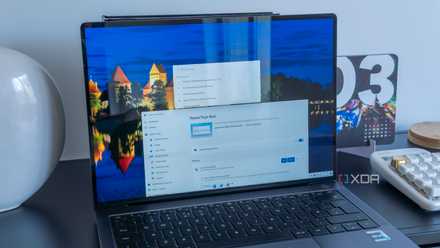
5 reasons to use PowerToys on Windows 11 to simplify your workflow
Here are some essential PowerToys to use on Windows 11 to simplify your workflow.
Quick Accent is a godsend
Because I need special characters a lot
I've truly saved the best for the last, and it comes with a bit of a shameful confession. Until I discovered the magic of Quick Accent, my method for handling special characters was embarrassingly ... primitive. Whenever I needed a specific symbol, I would head to Google, search for it, and then copy-paste it directly from the search results. It was a tedious, clunky process that frequently broke my flow, especially since I'd switched to a 75% gaming-optimized keyboard that strips away the extra keys and number-pad shortcuts usually needed to trigger them.
This tool has been an absolute lifesaver, particularly because I spend a significant amount of my time benchmarking hardware and using special characters in the process of recording data. I constantly find myself needing the degrees-celsius symbol (°C), and what used to be a multiple-step migraine of Googling and stripping away web formatting is now a reflex. I just simply hold the key for the character (for example, it's holding down C for °C) and tap the Spacebar to cycle through all of its variations.
This tool has been an absolute lifesaver, particularly because I spend a significant amount of my time benchmarking hardware and using special characters in the process of recording data.
- OS
- Windows 10/11
Microsoft PowerToys offer a diverse set of freeware utilities developed by Microsoft that help you maximize your productivity.
PowerToys have changed my life for the better
I attribute much of the streamlining of my Windows 11 experience to PowerToys, and even then, it feels like an understatement. Having talked about a few, I am compelled to say that these only form the tip of the metaphorical iceberg of features that come with them that can help you tune your desktop experience to your beat. Since PowerToys is constantly being updated with new features, it's always worth a look to go back and check if you're using the latest version.