
Windows has seen the rise and fall of many interfaces, but through every version, every redesign and every OS identity crisis, the Task Manager has remained largely the same.
The Task Manager still does exactly what it was designed to do exceptionally well, and while most users call on it to show running apps and processes and kill the ones that misbehave, power users can find themselves depending on it for a little more than that. So, while it is reliable, familiar and good at quick fixes, when I want to know what's actually happening beneath the hood, I reach for another app that gives me just that.
What is Process Explorer?
And what does it do?
Process Explorer is a part of Microsoft's Sysinternals suite, originally developed by Mark Russinovich a while before he joined Microsoft. I like to think of it as a more organized Task Manager that reveals a little more insight into your system's processes and applications.
It is a lightweight, portable utility, which means you can directly run the executable and make the metaphorical 'black box' of Windows processes a little more transparent. Every process, handle, and dependency is displayed with additional information to help you navigate your OS.
Why it's better than Task Manager
If knowledge is power, this tool makes you more powerful
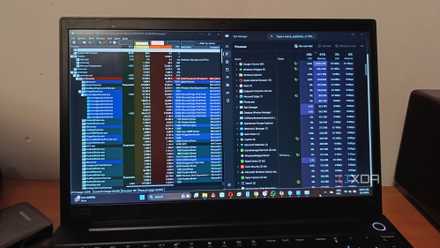
Task Manager provides you with a brief overview of your apps and processes, whereas Process Explorer gives you an X-ray. What I particularly like about the UI is that the tool tells you about its origins, what publisher developed the application, and more insight into how it impacts your system and performance, allowing you to investigate without having to reach for the web browser.
If you're accustomed to the Task Manager and some of its alternatives, the first thing that immediately stands out with Process Explorer is that it gives you a true parent-child tree of active processes, which makes it easy to identify what application spawned a process. It also visually distinguishes core Windows processes from user-launched ones, like the numerous svchost.exe processes, which are clearly highlighted and grouped, making it obvious to the user at first glance, improving on the Task Manager's cluttered overview.
A key reason why it feels more like a logical upgrade is because the utility takes the guesswork out of task and process management, allowing me to troubleshoot and delve deeper more quickly without needing secondary tools. Whenever I encounter a file that cannot be modified or deleted because I don't have the 'privileges' or it's 'in use', Process Explorer tells me exactly what is preventing the OS from making the change.
It also helps more when I identify a potentially problematic process. If a process is chewing through CPU cycles, I can drill down to the exact thread responsible and inspect its call stack to understand what's actually happening, which is also immensely helpful for malware identification. The Process Explorer comes with in-built virus protection, and checking if a process is malicious is just as simple as right-clicking on it, going into VirusTotal and referencing the file for any suspicious signature.
Missing the Ctrl+Alt+Del shortcut?
I fixed that too
One of the few things Task Manager has going for it is muscle memory, as generations of using the iconic Ctrl+Alt+Del shortcut on Windows has the key combo etched into every user's mind. It might seem like a minor gripe to not have a shortcut to launch your preferred task manager, but not having a shortcut is a major user experience problem that needs solving. So, when you're on a frozen application with no way to access Process Explorer through the start menu, here's what might help.
- Launch Microsoft PowerToys.
- Expand 'Input & Output' on the left-hand-side dashboard.
- Click on 'Keyboard Manager.'
- Enable Keyboard Manager.
- Click on 'Remap a Shortcut'.
- On the menu, click on 'Add shortcut remapping'.
- Select a desired shortcut to launch Process Explorer, and select the directory where the app is installed. When done, click on 'OK' to save the shortcut. You can also add custom arguments to launch the app, and select how it launches.
This should give you a custom shortcut to launch Process Explorer when you're in the middle of another process.
For power users, developers, and anyone who likes to get into the layers of their PC's performance, I can certainly see Process Explorer replacing the Task Manager.
5 reasons to use Process Explorer instead of the default Task Manager on Windows
Process Explorer has more features and helps you understand how your system works. You can also use it for troubleshooting.
Should you use Process Explorer?
The answer to this depends largely on your workflow, and also comes down to how often you find yourself hunting for processes and applications. If the Task Manager has always been enough for you, Process Explorer may feel like an upgrade that you'll love, much like alternatives to Windows programs. The utility does a great job at offering clarity where you'd expect ambiguity, and I can confidently say it has grown on me. For power users, developers, and anyone who likes to get into the layers of their PC's performance, I can certainly see Process Explorer replacing the Task Manager.
Process Explorer
Process Explorer is a tool made by Microsoft which shows more details about running tasks on your PC and provides advanced management options.