
If you're an avid Windows 11 user looking to maximize your productivity, there's no doubt you should be using PowerToys already. This suite of tools developed by Microsoft and the open-source community offers many ways to boost your productivity, and I've talked at length about how much I love it.
If you still need to be sold on PowerToys, though, I have compiled a list of tools included that can completely change how you use your Windows PC, boosting your productivity and efficiency. If you try these out, you'll see just how helpful PowerToys can be in your daily life.
7 Image Resizer
Sharing images becomes easier
Have you ever tried sharing a series of photos only to be blocked by annoying file size restrictions? I can tell you I have, and Discord is one of the most annoying platforms to deal with this because it has such tight restrictions unless you cough up some money for Nitro.
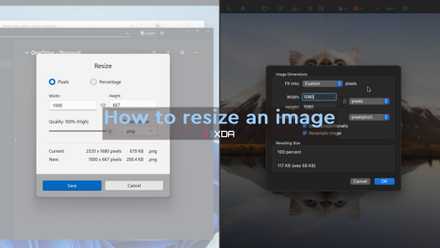
Image Resizer is a great solution for situations like this because it makes it very easy to change the size of multiple images in a row. All you need to do is select the images you want to resize, right-click them, and choose Image Resizer from the menu. You can choose from a few preset sizes (which you can customize in the PowerToys settings), or use a custom size for a specific situation. PowerToys can create new copies or replace the original files, and it can even strip metadata from an image, so no one has to know where you took a photo or what camera you used. It's been very useful to me in the past, and it can save you a ton of time.
How to resize an image on your Windows PC or Mac
Having trouble uploading an image because it's too big? Here are the easiest ways to resize an image on Windows and macOS.
6 New+
File and folder templates available at a moment's notice
No matter your work field, there's a good chance that you often find yourself creating similar kinds of documents with similar structures. Maybe it's a letter, a spreadsheet, or some kind of report. Starting these documents from scratch each time is not the most efficient way to go about it, and that's what New+ aims to fix. If you're creating the same kind of file over and over, wouldn't it be nice to just start with the basic structure and work from there?
New+ does exactly that. You can place any file or folder in the templates folder for New+, and then, while using File Explorer, you can right-click an empty space and choose New+, and then that file will appear as an option. This will essentially create a copy of that file at your current location, and then you can just make the necessary edits to the file for that specific document. Your template will never be affected, so you can always keep coming back to it.
5 Peek
View your files without opening them
One of the best features in macOS is being able to see full-size previews of files without having to launch the full apps required to properly open them. Windows doesn't have this feature built-in, but that's exactly what the Peek add-on in PowerToys does.
With Peek, you can set a shortcut that will allow you to open a preview of whatever file you have selected in File Explorer, and you can then use the arrow keys to keep navigating the current folder and preview other files. It makes it very easy to see what you're actually looking at without having to open the appropriate app each time. This can be useful for filtering through similar images, for example, or if you have documents with non-descriptive names and you want to find the right one more easily.

7 things your file manager should be able to do that File Explorer and Finder can't
It's time to move on
4 Mouse Without Borders
One mouse, multiple PCs
This one may not be for everyone, but if you often work across multiple computers, it can be a blessing. Mouse Without Borders is a tool that lets you use your mouse and keyboard to control multiple computers without having to awkwardly switch between paired devices or move cables around.
Simply link your PCs, and you can easily move your mouse from one PC to another to do whatever you need to do without having to constantly shift your focus away from the screen. This feature can even sync items in your clipboard, so you can copy content on one PC and paste it on another, making it almost like using a single computer. It's so convenient for multitaskers.

3 Workspaces
Get into your workflow more quickly
Regardless of what your work entails, or even if you're just using your PC more casually, there's a good chance you're often using the same apps at the same time. You'll probably have your browser alongside something like Microsoft Word, or Photoshop, or any other app you might need. You can launch these apps individually, of course, but what if you could just get right into all of them at once?
Enter Workspaces, a PowerToys plug-in that does exactly that. With Workspaces, you can open your usual layout for work — open all your apps and put them in the right area of your screen, and even include minimized apps if you want to. PowerToys will capture your open apps and where they are on screen, and save that as a workspace. Then, at any given time, you can launch a workspace to open all of those apps in the right positions.
It makes it so much easier to get started with work in the morning and it will save you a good bit of time in that initial setup.
2 PowerToys Run
Open apps instantly (and more)
Search bar launchers are one of the best pieces of software you can get for your PC, and PowerToys has one built right in with PowerToys Run. This search bar can be summoned at any time using a keyboard shortcut of your choosing (the default is Alt + Space), and once it's there, you can launch any app on your PC instantly. Simply type the name and press Enter and you'll be good to go. It may sound a lot like the Windows Search bar, but PowerToys Run is far more responsive and reliable.
But that's just the basic use of PowerToys Run. There are a lot of plug-ins available the enable a lot more functionality for this. You can use it as a calculator, unit converter, search your OneNote notebooks (even Obsidian thanks to a third-party plug-in), terminate running processes, open bookmarks from your web browser, and more. There's so much you can do with this single search bar, and it can truly become the hub for almost anything you do on your PC. This might just be the best part about PowerToys, but in my opinion, it falls just short of the number one pick...

7 app launchers that will speed up your productivity on Windows
Launch apps with the press of a key
1 FancyZones
Multitasking on another level
Of course FancyZones is at the top of the list. This tool is the best thing you can have in your arsenal if you're often multitasking, particularly if you have a large screen you use for multiple things. FancyZones is a window manager, and it allows you to create custom layouts with various areas on your screen, which you can then snap apps into. Think Snap Layouts on Windows 11, but on an unhealthy amount of steroids.
FancyZones can create areas anywhere on the screen, with as many vertical and horizontal splits as you want, making it a breeze to have multiple apps on screen at once. But that's not all, because FancyZones also makes it easier to snap apps into those areas. Instead of awkwardly dragging apps to the edge of the screen and moving them around to snap into a predetermined area, all you need to do is hold a key on your keyboard, and once your mouse is in the right area, let it go, and the app will resize into that area.
Not everyone has a huge screen to work on, but FancyZones truly is a blessing for big screens, and it's a huge productivity boost. You can even combine it with Workspaces to easily create the perfect layout and then launch it at a moment's notice.
5 window managers that make multitasking easier on Windows
You don't have to settle for Snap Layout
PowerToys is amazing
Whether you need all of these tools or only some of them, I can almost guarantee you're going to get a huge productivity boost by trying out PowerToys. It can speed up so many kinds of workflows that it's hard to imagine living without it once you've used it for a while. I know I always set up PowerToys on my Windows PCs, and I highly recommend doing the same.