
Windows comes with a built-in feature for managing multiple windows called Snap. Originally introduced in Windows 7 as Aero Snap, it allowed users to snap two windows side by side. In Windows 10, it was upgraded to support snapping up to four windows in quarters instead of just two in halves. Windows 11 further improved it with features like Snap Layouts and Snap Groups.
But if you need more multitasking power, automation, or advanced tiling, the built-in tool might not cut it. There are plenty of third-party options that do a better job, especially if you’re the kind of Windows geek or all-around PC productivity power user who loves having full control.

7 app launchers that will speed up your productivity on Windows
Launch apps with the press of a key
5 Divvy
Divvy is an interesting tool that takes a new approach to managing windows. The tool works not only with Windows devices but also with macOS. It introduces an intuitive grid system that allows you to define specific areas where windows should reside. In other words, it creates virtual tiles on your screen. Then, you pick an application and decide its position and the number of tiles it should occupy.
If you frequently use certain window layouts, Divvy lets you set up custom keyboard shortcuts to move windows around quickly without using a mouse. For example, you could create one shortcut to resize a window to fill the left half of the screen and another to resize a different window to fill the right half.
The tool is especially useful for multi-monitor setups and has a simple design that won’t feel too different if you're used to Windows’ built-in window manager.
Divvy
4 DisplayFusion
If you use multiple monitors, you know the hassle of using Windows’ Snap Layout. DisplayFusion brings a rich set of options to customize and simplify multi-monitor window management.
One of its best features is the multi-monitor taskbar, which adds a taskbar to each connected monitor. You can customize it to show all open windows or just the ones on that specific screen. The tool also includes over 30 built-in functions and lets you create custom ones. You can assign these to TitleBar Buttons or keyboard shortcuts, so you can quickly move and resize windows.
Another handy feature is Monitor Splitting, which lets you divide a single monitor into multiple virtual screens, each with its own taskbar, wallpaper, and screensaver. It’s especially useful for ultra-wide monitors or large displays.
DisplayFusion
3 AquaSnap
Just like other tools on this list, AquaSnap helps you organize and arrange multiple application windows on your desktop. Inspired by features like Aero Snap and Aero Shake from Windows 7, AquaSnap extends these capabilities to all Windows versions, including XP, Vista, 7, 8, 10, and 11, with support for both 32-bit and 64-bit systems.
It includes a Window Snapping feature that lets you drag windows to the edges or corners of the screen, automatically resizing them to fit half or a quarter of the screen. Window Tiling is also available, allowing you to resize one window while holding a key (like Ctrl) to adjust adjacent windows simultaneously. You can even shake a window to make it transparent and stay on top of others, or minimize all other windows, depending on your settings.
AquaSnap is lightweight, and written with optimized native code to minimize CPU and memory usage. It’s available in two editions — a free Personal Edition with basic features and a paid Professional Edition with advanced functionalities like multi-monitor support and window grouping.
AquaSnap
2 Bug.n
Bug.n comes packed with a wealth of features. The simple-looking app is free and open-source. Just like other options in this list, Bug.n lets you drag windows to the edges or corners of the screen, and they automatically resize to fit half or a quarter of the screen. It also creates virtual desktops (called tags), so you can assign windows to each tag, manage multiple workspaces, and visually separate tasks.
In terms of window management, Bug.n offers three layouts by default. The Tile layout puts one window in focus while keeping others visible around it. The Monocle layout shows only one window at a time, letting you switch between them with a shortcut. The Floating layout works just like Windows normally does, letting you move windows freely.
You can customize hotkeys and mouse gestures to control everything the way you want. Bug.n works on a wide range of Windows versions, from XP to Windows 11, and supports both 32-bit and 64-bit systems.
Bug.n
1 PowerToys FancyZones
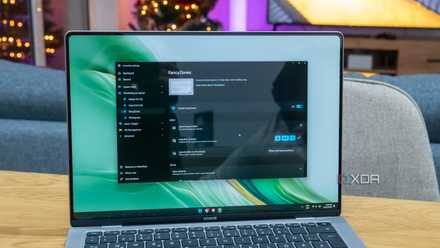
Microsoft PowerToys is a brilliant package of free and open-source tools that take your Windows PC to the next level. One of these tools is FancyZones, which comes with powerful features like spanning zones across multiple monitors and switching between layouts with a shortcut. You can even move all application windows from the current arrangement to your new zones instantly.
Two key features of FancyZones are the ability to create custom layouts instead of being limited to the default Windows ones and the option to force an application to always launch in a specific section of the Snap grid. To get FancyZones, install PowerToys from either the Microsoft Store or GitHub.
- OS
- Windows 10/11
8 reasons you should be using PowerToys on your Windows PC
Take your productivity to the next level
Be more productive on Windows
If you’re looking to take your window management to the next level, there’s no shortage of great tools to choose from. Whether you prefer the built-in options in Windows, a simple drag-and-snap tool, or a full-fledged tiling window manager, there’s something for everyone. If you’re looking to further boost productivity on Windows, start by checking out these PowerToys productivity features. You might also want to learn some Powershell scripts that will help you automate and speed up your workflow. While you’re at it, check out the app launchers that will speed up your productivity.
4 reasons PowerToys Run is the best Spotlight alternative for Windows users
An app launcher and then some