
If you’re even remotely active in the computing landscape, you must have heard of the Raspberry Pi boards. Highly versatile, inexpensive (well, mostly), and backed by one of the largest tinkering communities, you’re bound to find some use for these SBCs regardless of your interests or experience.
Although the Raspberry Pi boards lie on the beginner-friendly spectrum as far as SBCs are concerned, they are nowhere near as simple to set up for complete novices as your average laptop, or even a desktop. So, here’s a beginner crash course on how to configure the Raspberry Pi boards and bring your favorite projects into reality.
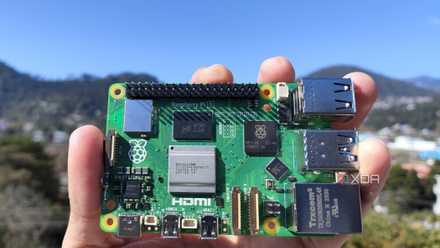
Raspberry Pi 5 review: The holy grail of DIY projects got even better (and rarer)
The Raspberry Pi 5 is one of the most powerful consumer-grade SBCs out there. Sadly, its limited stock means you'll have a hard time finding one.
What else do you need for the Raspberry Pi?
Since the Raspberry Pi is pretty much a full-fledged system, you’ll have to invest in a handful of peripherals to access it. Just like the PSU on your PC and the charger for your laptop, a Raspberry Pi also requires a power supply. The newer Raspberry Pi 4 and 5 boards have a Type-C power port, while the older models, including the RPi Zero 2 and Pico, rely on a micro-USB connector for juice.
The other essential component you’ll need is a storage device, or more specifically, a microSD card. While there are ways to use a USB drive to boot into your favorite OS, you’re going to need a microSD card for the initial setup. With the size of the official Raspberry Pi OS image ballooning over the past few years, I recommend at least an 8GB card to avoid running out of space while you’re in the middle of creating your project.
Finally, you’ll need some input and output devices to access your Raspberry Pi. The most common setup involves the old-school KB+M and a monitor setup, though you can also use a touchscreen display to serve as the input and output device. Personally, I wouldn’t recommend it because the Bookworm version of the Raspberry Pi has plenty of issues with accepting touch input.
That said, you can skip the input and output accessories, and set up a headless Raspberry Pi that you can control with another device, including your smartphone! But that’s a topic for another time.
-
Raspberry Pi 5
- CPU
- Arm Cortex-A76 (quad-core, 2.4GHz)
- Memory
- Up to 8GB LPDDR4X SDRAM
- Operating System
- Raspberry Pi OS (official)
- Ports
- 2× USB 3.0, 2× USB 2.0, Ethernet, 2x micro HDMI, 2× 4-lane MIPI transceivers, PCIe Gen 2.0 interface, USB-C, 40-pin GPIO header
- GPU
- VideoCore VII
- Starting Price
- $60
-
CanaKit 45W USB-C Power Supply
-
SanDisk 256GB Ultra microSDXC card
How to flash the OS on your Raspberry Pi’s microSD card?
Once you have the Raspberry Pi board, an adequate power supply, and a microSD card, you’ll need an operating system for the SBC – and a way to install said OS. While tools like Balena Etcher and Rufus are fantastic for writing the operating system files onto the microSD card, I’d recommend going with the Raspberry Pi Imager app thanks to its quality-of-life features and customizability options.
- Connect your microSD card to your PC and fire up your favorite web browser.
- Download the Raspberry Pi Imager from the official link and install it on your system.
- Run the tool as an administrator.
- Click on Choose Model and pick your Raspberry Pi model from the list.
- Hit the Choose OS button and click on Raspberry Pi OS. I always go for the 64-bit version of the operating system on my Raspberry Pi 5, though certain older models may only support the 32-bit variant.
-
Select the Choose Storage option, click on your microSD card, and press Next.
If you have multiple storage drives plugged into your PC, the Imager app will display them once you click on Choose Storage. So, you should exercise extra caution when picking the microSD card, as one false move can lead to the deletion of all data on another drive.
- (Optional but highly recommended) Click on the Edit settings option to customize certain settings and make your first boot into the Raspberry Pi OS a lot smoother.
- Enable the checkbox next to Set username and password before entering your Username and Password in their respective fields.
- For those with a Raspberry Pi model that doesn’t come with an Ethernet port, it’s a good idea to toggle the checkbox next to the Configure wireless LAN option. Be sure to enter the SSID, Password, and Wireless LAN country.
- Hit the Save button once you’re done, and tap Yes when the Raspberry Pi Imager asks for confirmation.
- Wait for the Raspberry Pi Imager to finish flashing the operating system files.
How to boot into the OS on your Raspberry Pi?
If you filled in the customization setting, then you’re pretty much done setting up the Raspberry Pi OS. All that’s left is to:
- Unmount the microSD card from your PC and insert it into your Raspberry Pi.
- Use an HDMI cable to connect your Raspberry Pi to a monitor. The Raspberry Pi 1, 2, and 3 models are equipped with full-sized HDMI sockets. Meanwhile, the Raspberry Pi Zero series boards feature mini-HDMI connections, and the RPi 4 and 5 are armed with micro-HDMI ports.
- Connect a keyboard and a mouse before plugging a power supply cable into the SBC and waiting for it to boot up.
- You’ll soon be greeted with the default Raspberry Pi OS GUI.
What to do next with your Raspberry Pi?
With that, you’re free to start working on your next big project. Created specifically for coding and tinkering, the Raspberry Pi OS is extremely optimized for its namesake boards and comes with a wide variety of tools, libraries, and packages pre-installed. That said, it can take a while to get used to it, even if you’ve had prior experience with Linux.
If you’re looking for something to put together with your shiny new Raspberry Pi, I recommend checking out our list of the best easy-to-make project ideas. Despite being simple, they’re quite practical, and a lot of fun to build. Once you become experienced with these SBCs, you can take your training gloves off and give the more complex Raspberry Pi projects a shot!

10 simple Raspberry Pi projects for beginners
You don't need to be a DIY god to create these projects with your Raspberry Pi