
Luckily I don’t do research-heavy work that often. I’m studying design and most of the materials are already curated, and most of my tech articles aren’t that research-heavy either since they’re topics I already know. But now and then, I hit those projects where I do need to dig, and that’s where things start getting messy. I end up with 50 open tabs and notes across ten different platforms that I’ll “sort later”. So I wanted to narrow down my system to just a handful of tools that I can easily keep track of, and that can also speedrun the research process.
What I landed on was Perplexity, NotebookLM, and Windows Notepad with my local text stack. At the time of writing, there is no official integration for any of these apps; however, if you have Google Drive, then you can pretty much consider your workflow integrated. Here’s how I’ve been pairing these tools to cut down on distraction and overwhelm, and hone in on the actual work…
What does it mean to “pair” Perplexity with NotebookLM?
When there’s no official integration
It’s a little disappointing that there are no official extensions or plugins that integrate probably the top two AI tools out there right now. I came across this Reddit thread by a developer who is creating a browser extension that will plug Perplexity queries and answers directly into NotebookLM. It’s called ChatRelayAI, and I’m still waiting to hear back after signing up for the beta. But until that’s official, I’ve just been using good ol’ Google Drive to sync everything.
Perplexity has an API platform, but NotebookLM doesn’t have a public one yet. So a full automation pipeline isn’t possible unless you hack together some n8n workflow and hope Google Drive catches it. Since automation is not really within my scope, I’m keeping it simple - everything goes through Drive. As I’ve mentioned before, if you have a local folder synced with Google Drive, then you’re already halfway there. All it takes is exporting your Perplexity content directly to that folder, then fetching it from within NotebookLM like any other source.
Starting with Perplexity
This is where I gather my research
Perplexity is my first point of contact when I’m working on topics that need more digging. It lets me pull official sources, cross-check claims, and gives me a clearer starting point than I’d get from scrolling through other engines, because it’s context-aware. It completely customizes not just the results it presents to you, but the way it lays them out, based on your prompt. So make sure to tell it exactly what you need from the jump. I also recommend checking out these Perplexity templates that let you customize how it speaks to you. Here are some deep-dive prompts I’ve been using:
- Map out the core arguments around [topic], but split them into: widely agreed facts, contested claims, and emerging trends. Include citations.
- Give me a research starter pack for [topic]: best sources, recent papers, overlooked angles, and where confusion usually happens.
- Audit this research (paste) and tell me what perspectives or fields I’m accidentally ignoring.
Once I get my answers, I simply export the threads to a Drive-synced folder on my PC dedicated to research. You’ll find this option in the three-dot menu in the top-right, and from there you can export as Markdown or PDF.
Those are just the discussions, though. To get the weblinks of the sources into NotebookLM, I right-click them in Perplexity, select Open in Default Browser, then add them to a notebook directly using the NotebookLM Web Importer extension.

I replaced ChatGPT with Perplexity for research and studying, and I should have done it sooner
It excels in every way
Using NotebookLM to study
This is where I interact with the information I just got from Perplexity
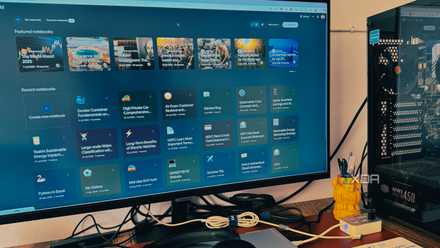
I already have a couple of dedicated notebooks for the topics I’m researching and studying. Once all my conversation threads and weblinks are in, it’s time to start summarizing and extracting key points. The first thing I do is create a mind map so I have an interactive visual aid to reference at any point. Then I prompt NotebookLM to give me digestible overviews of the research in plain language. Things along the lines of:
Break this down in everyday language. What’s the main point, what matters, and what should I pay attention to?
If the research is for an upcoming test or assignment, I highly recommend using the Quiz and Flashcards features. This lets you treat the entire notebook like a real textbook to learn from. But unlike regular textbooks, it actually gives you the answers at the end and explains them.
I made these NotebookLM mistakes so that you don’t have to
Saving you from NotebookLM headaches
Bringing a notepad into the mix
So I can keep studying offline
NotebookLM has a Notes feature for you to take down notes as you’re using the chat panel. However, these are only accessible when you’re logged in, and I like to have copies for when I’m offline, too. This is where my local text stack comes in. I simply hit the little Copy button and paste the answers into Windows Notepad.
Now I can expand on the responses, add my own notes, and also export the documents into that same research folder for backup. And sometimes, I like to print them out - learning with physical materials just works better for some things.
I replaced my complex note-taking workflow with a single NotebookLM instance, and it's been a game changer
This single tool transformed my note-taking
Research made simple
Most of the time, it’s not the research itself that gets in my way, but the tools I use and the way I use them. So I had to find a way to narrow it down so I could focus on one thing at a time. This Perplexity + NotebookLM combo has been the best research system I’ve used so far because of how simple it is. It’s just two apps (plus my notepad and some printed papers). It doesn’t magically make research effortless; you still have to put in the work, but it’s much more manageable than what I’ve had going on before.