
NVMe drives are sold on their speed, first and foremost. Product pages advertise massive read and write speeds, and once you install that drive, it's easy to assume you're already getting the best performance. When synthetic benchmarks don't hit the advertised numbers or your computer doesn't feel as snappy it should storage-wise, it's easy to blame the drive itself.
The reality is, the drive usually isn't the problem. It could be the lack of a DRAM cache, or in rare cases, a faulty drive, but in the vast majority of situations, it comes down to a handful of common platform and configuration choices that quietly slash your performance. These 4 things actually can cut your NVMe drive speed in half, and are worth checking next time you install a new drive.

I tried using an M.2 SSD in a PCIe adapter instead of my motherboard, and the results were impressive
Add more speedy storage with those unused slots.
Running the drive in the wrong slot
Your motherboard manual is a good place to look before installing a new drive
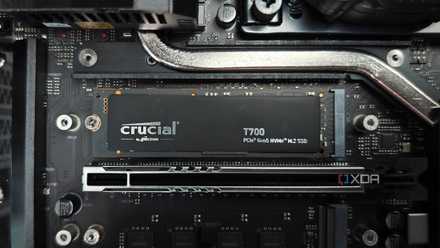
Not all M.2 slots on a motherboard are created equal. On many consumer boards, the primary M.2 slot is wired directly to the CPU, while secondary slots are routed through the chipset, which is significantly slower. CPU-connected lanes will typically provide full bandwidth for the PCIe generation your drive is capable of driving, and chipset lanes are often sharing bandwidth with things like SATA drives or USB controllers.
Lane sharing is another consideration, as all motherboards have a finite number of PCIe lanes they can allocate to devices. Some motherboards automatically disable SATA ports or reduce PCIe bandwidth when certain slots are populated, and others silently downgrade a slot from PCIe 4.0 to PCIe 3.0 depending on configuration. If you install a PCIe 4.0 x4 SSD into a slot that only runs at PCIe 3.0 x4, you’ve effectively cut theoretical bandwidth in half before the drive even starts working.
If you're unsure as to which slots you should use for your SSD, a safe bet is the one closest to the CPU socket, but it's best to check your motherboard manual just in case.
My next storage upgrade won't be a Gen 5 NVMe, I'm getting this instead
User experience matters more than benchmarks
PCIe link speed set incorrectly in BIOS
Rare, but can be set incorrectly by default
Even if your drive is installed in the correct slot, there's no guarantee that the link speed has been set correctly in the BIOS. For most modern motherboards, automatic detection doesn't usually go awry, but it's possible that the "Auto" setting won't behave as intended. After a BIOS update or CMOS reset, some systems fall back to slower speeds even when both the CPU and SSD support Gen 4 or Gen 5. You won’t necessarily get a warning, either; the system will just run those devices at slower speeds.
Fortunately, this is easy to verify. Tools like CrystalDiskInfo or HWiNFO will show the active link speed and width. If you see PCIe 3.0 when you expect PCIe 4.0, head into the BIOS and manually set the link speed for that slot to the correct generation. In many cases, that single change restores full performance instantly.

5 mistakes to avoid before you decide to buy a new SSD
Choosing the right SSD isn’t just about speed. Avoid these 5 costly mistakes to ensure performance, longevity, and value for money.
Thermal throttling
More common than you think
NVMe drives are very densely packed devices: NAND flash, a controller, and sometimes DRAM cache all onto a tiny M.2 stick. Under any kind of sustained load, especially with blazing fast Gen 5 drives, significant heat can be generated. When temperatures cross a defined threshold, the firmware deliberately reduces speed to prevent damage.
Thermal throttling doesn’t always show up in short, bursty benchmarks either. A quick synthetic test might hit advertised speeds just fine, and the real slowdown will only appear during longer transfers, when speeds suddenly drop from several gigabytes per second to a fraction of that rate.
The physical placement of the drive matters here. Many motherboards position M.2 slots directly under the GPU, which is one of the hottest components in the system. If your drive sits under a large graphics card with minimal airflow and no heatsink, throttling becomes much more likely. Unfortunately, the M.2 slots that have direct lanes to the CPU will be sandwiched between your GPU and the motherboard, or above the GPU and below the CPU, two components that can generate a lot of heat. Luckily, unless you have a budget board, most motherboards include an M.2 heatsink of some kind, integrated with the mounting assembly.

Filling the drive up to 90%+ capacity
Can't fly too close to the sun
Even if your configuration is perfect and temperatures are under control, filling your drive to the brim can severely impact performance. NAND flash doesn’t behave like a traditional hard drive; SSDs rely on free blocks and spare area to maintain performance, because they need space to shift data around. Most consumer drives dynamically use a portion of their capacity as high-speed SLC cache, temporarily writing data to a faster area before reorganizing it in the background, but once space is at a premium, this can only do so much.
This behavior is especially noticeable on QLC-based drives, but even TLC drives can experience significant slowdowns when nearly full. A drive that normally writes at several gigabytes per second might fall below 1,000MB/s during large transfers once the cache is exhausted. Keeping at least 10 to 20 percent of your drive free gives the controller breathing room to manage data efficiently. It’s one of the simplest ways to maintain consistent performance over time.

4 SSD features that matter more than raw speed
Don't forget to do your storage due diligence
Max speed doesn't matter in most scenarios
Luckily, even if you're not getting the performance listed on the box in gaming, web browsing, and everyday desktop tasks, the difference between PCIe 3.0 and 4.0 often isn’t dramatic. Game load times and general system responsiveness tend to depend more on latency and random performance than peak sequential throughput, and synthetic benchmarks can exaggerate the importance of maximum bandwidth. Still, if you're performing large file transfers or work with big data, you want that extra performance, and sometimes it's as simple as a missed toggle in the BIOS or an incorrect slot.