
Though I've covered Android Auto a lot lately, I'm primarily a CarPlay user. While my experience with Apple's in-car infotainment platform has been pretty smooth, it wasn't always that way. Similar to Android Auto more recently, a few years ago, I found myself dealing with frequent CarPlay disconnects while behind the wheel.
To keep your CarPlay connection stable, there are a few simple things you can check before delving into more involved troubleshooting steps. First, if you're getting no connection at all, make sure you're plugged into your vehicle's USB data port and that it supports wired CarPlay. Most cars have several USB charging ports and only one USB data port.
Next, make sure that your iPhone is running iOS 26 or later (I always recommend having the latest version installed). Next, ensure your car's dashboard is updated to the latest version. With my Ioniq 5, I need to update the infotainment system's OS using a USB stick, but the process will vary by vehicle manufacturer.
Once you've confirmed the above, there are a few other steps you can take to ensure you have a solid CarPlay setup.
This story is focused on wired, not wireless, CarPlay connectivity troubleshooting solutions.
Double-check your USB cable's quality
Avoid using third-party USB-A-to-USB-C cables and dongles
The first thing I suggest doing might seem very obvious, but it's easy to overlook. Take a look at the USB cable you're using to connect your iPhone to your car. Does it look like it has any weird kinks in it? When you use it with a standard wall plug, does the cable charge your phone consistently? When you wiggle around the USB or Lightning port end of the cable, does your iPhone easily disconnect?
In the four years I've owned my Ioniq 5, I've gone through several USB cables. You might not realize it, but when you plug your phone into your car, you're probably just dropping it into your center console, where it gets tangled up with stuff like sunglasses, your wallet, other cables, hand sanitizer, and whatever else you have sitting in there. This can easily lead to the cord bending in odd directions, resulting in breaks you can't see, but that are still there.
Additionally, I always suggest using an official Apple charging cable. In my case, I use an older official Apple USB-A-to-Lightning cable paired with an official Lightning-to-USB-C adapter. Since switching to this cable setup, I haven't run into any cord quality issues. If you're using a third-party USB-A-to-USB-C dongle, this can also sometimes cause CarPlay disconnection issues (I had this happen with a simple third-party dongle I purchased on Amazon).
It's worth taking a look at your iPhone's USB-C or Lightning port to see if any debris is caught in it. One time, I pulled out a bunch of pocket lint that had jammed its way deep inside my iPhone 17 Pro's USB-C port. After removing the Lint, my CarPlay connection became far more reliable.
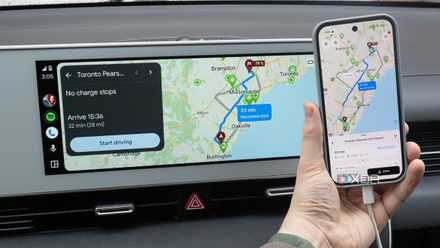
Android Auto kept disconnecting until I changed one hidden setting
The solution to my issue was more straightforward than I expected.
Remove and re-add your car to your iPhone's CarPlay settings
This might sound silly, but it could help
A simple thing you can do to solve any USB-related issues you might encounter with CarPlay is to remove the vehicle from your iPhone and then re-add it. To do this, go to Settings > General > CarPlay > [Your Car's name] > Forget This Car. Now, navigate through the process of re-adding your vehicle.
Connect your iPhone to your car's USB data port. Next, unlock your phone, and when the CarPlay prompt appears, select Allow. Your iPhone is now added to CarPlay again. Since CarPlay settings like your app layout are saved to your phone and not your car, you shouldn't need to reconfigure them once you re-add your iPhone to your vehicle. I'd describe this as the equivalent of the standard "turn it off and on again" solution, but with CarPlay. I don't really know why this solves CarPlay issues, but I've seen it work, so it doesn't hurt to give it a try.
Make sure CarPlay has lockscreen access to your iPhone
This could easily be the culprit
I ran into this problem early this year when I used my iPhone 17 Pro with CarPlay for the first time. I connected the phone to the car, and CarPlay seemed to work fine, but after a few minutes, the phone randomly disconnected. It felt like every time the screen timed out, and my iPhone's lock screen appeared, CarPlay disconnected. This is because, for some reason, my USB Accessory settings changed following an iOS update (I still have no clue why).
To make sure CarPlay works when your iPhone is locked, head to Settings > Privacy & Security > Security > Wired Accessories, then tap Always Allow. When this setting is enabled, your phone's lock screen will no longer disconnect from CarPlay.
Another quick thing to check is that you don't accidentally have Screen Time restrictions enabled, which can block CarPlay without you knowing. To do this, navigate to Settings > Screen Time > Content & Privacy Restrictions, and either ensure Screen Time is Off or set CarPlay to On.
Apple 60W USB-C to USB-C Woven Charge Cable

CarPlay’s ChatGPT integration is way more useful than I expected
iOS 26.4 and CarPlay bring ChatGPT to your car's infotainment system