
I constantly change Windows 11 settings, tweaking them, so its behavior is less irksome and file management is more efficient, improving my productivity. Making specific changes on Windows often requires too many steps if done through the GUI. But I found Sophia Script (available on GitHub), which lets me fine-tune Windows more easily. It’s a PowerShell module that allows you to fine-tune Windows from the CLI.
The module boasts over 150 functions and is regularly updated. While it runs from the CLI, after getting it running, you are presented with GUI-based options for setting up scheduled tasks (which take forever), managing telemetry settings, properly uninstalling OneDrive, and more. When you click a box to schedule tasks, you can select multiple, and it will do it for you. That saves me a ton of time and makes me more productive.
6 PowerShell scripts to automate and speed up your workflow
When you work through the CLI you save a lot of time. Here are PowerShell scripts to speed your workflow.
Using Sophia Script
It allows changing settings easily, so Windows works for me
Any long-time Windows user knows that when they get a new PC or have a clean installation of the OS, there are many settings changes and other tweaks to make. That work continues as you’re using it to fit your workflow. The Sophia Script CLI module aids in making Windows work for you, not vice versa.
Once you get it up and running, Sophia scripts bring up screens where you choose options to regain control of Windows. It includes powerful scripts you can run for multiple settings, like enabling or disabling System Restore, setting Optional Features, configuring PowerShell settings, and more. It also allows you to set default system folder locations for Pictures, Documents, Music, and others. This is a good chance to change the drive location of those folders. All this is done from the CLI with screens that pop up along the way as it runs.

4 CLI tools for power users that will make you reconsider graphical alternatives
If you want to get started with the command line, these tools are better than any graphical alternative.
Ease of use
It’s easy to set up and use to adjust Windows settings
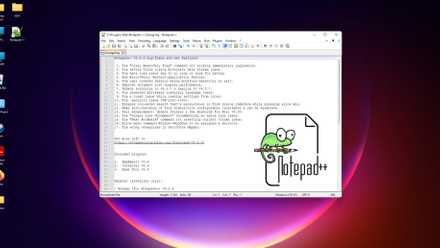
Running the Sophia Script was a cinch. You open the main PS1 file in Notepad++ (for best results), change the directory, and run a second command you can copy from the GitHub page to execute Sophia. All the instructions are on the page, and a video is available if needed. The video is from 2021, but I quickly figured it out and filled in the inconsistencies. It's important to note that once you have Sophia code in Notepad++, you must add or replace the code with a hashtag (#) next to the script based on whether you want to run it.
Also, some settings are geared toward Windows 10, but you can select or deselect what you want. Once it gets going, it’s just a matter of making your system selections of what you want to do to give Windows a tune-up. You can select the box on specific settings to apply the action to all users. Again, saving time. I don’t have to go back through it and rerun it on each user account. It’s also worth mentioning that the items you see will vary based on what you have installed on each particular system. After running through Sophia and making changes, restart your system to complete the transaction.
How to download Notepad++ in Windows
Notepad++ is one of our favorite source-code editors; here's how to install it on your Windows computer.
A valuable module to have
A great utility to have in your pocket, especially for clean installs
Sophia takes a lot out of configuring Windows for a new PC or a fresh installation. I have also been able to use it after the fact when I want something changed on my system. This is a helpful CLI module I will keep in my toolbox to use when setting up new PCs or my own computers, since it saves a lot of time in getting rid of the bloat and junk you don’t need.

Mastering Windows efficiency: I automate my PC with these software solutions
Achieve peak efficiency with simple, powerful tools designed to simplify your digital routine
Making tweaks to Windows 11 is quick and easy with Sophia Script
Check out the Sophia Script PowerShell module to make specific Windows changes quickly. It took about 20 minutes for me to run Sophia for the first time, since I wasn’t sure of everything it would offer. But I reran it, and the process was much easier. Now, this module saves me a lot of time.
Not only because I can pick out the portion of the specifics I want to run, but I don’t have to waste time dealing with a clunky UI. All Windows users have to admit the UI is still clunky in 11. For instance, there’s a reason there are multiple File Explorer alternatives out there, like the dual-pane XYplorer.
One part of Sophia that I particularly appreciated was its ability to uninstall Microsoft apps. The apps it removes include Copilot, which creeps into all other apps. Unfortunately, the script only removes the core Windows Copilot app from Windows and not the apps. However, Sophia is updated regularly, and that ability might be added. I will request it. Otherwise, I still have to manually remove it from each app individually.
So, instead of individually uninstalling apps, Sophia does it all for me. I select the apps I don’t want, and the script does the rest. With Sophia Script, I can tweak Windows 11 to work more effectively, and it’s worth noting that it also works on Windows 10. I ran it on an older Windows 10 system and had similar results, and they were all great. The creator, Farag2, also has a SophiApp 2.0 under development, which gives you a GUI to improve Windows 11 if you aren’t comfortable with the CLI environment. However, Sophia Script is half CLI and part GUI, making it easy to run and use. After running Sophia, I had five scheduled tasks created, which saved me at least half an hour setting them up via Task Scheduler. Using Sophia to take back control of Windows has genuinely been a pleasure.