
Backing up your data is one of the most vital practices you can do with technology. We're storing more and more in bits, and the risk of losing this sensitive information only increases each year. For World Backup Day, I'm rounding up some steps everyone should take, especially if you already have backup plans in place. There would be nothing more disastrous than a backup being required and something going wrong in the recovery process.

5 Ensure all devices are backed up
3-2-1 is your new friend
The first thing to do for World Backup Day is to ensure all your devices are backed up and included in retention scheduling. This includes everything you'd like to keep safe, including media, personal documents, and even configuration files. Your mobile phones and other portable devices usually have some sort of cloud storage integration, but it's worth including them with your desktop PCs and other tech hardware. You can never have too many copies available should the worst happen.
It's also worth checking retention duration, which will determine how long you keep backups around for. Media and other files should be indefinite while configurations and system images could be a few weeks or months, depending on how often new copies are written. An external drive is all that's required to start storing backups. A network-attached storage (NAS) takes this to the next level by allowing for any network client with access to store files.

Beginner's guide to NAS: Everything to know about RAID, setup, and more
NAS devices are a convenient solution to all your backup and file sharing troubles. Here's how you can configure your personal NAS server.
4 Check backup integrity
Bad backups = no backups
Just because you're backing up everything, that doesn't mean you're invulnerable to data corruption or loss. Backups can go bad due to misconfiguration or hardware-related issues. It's not only important to verify that backups are stored in various locations, but integrity should also be considered. Check the logs for whichever service or software you use for copying data across to see if any errors pop up. This leads us onto backup restore testing.
3 Test a backup restore
Recover from a simulated event
There's no point having backups available and automations in place if you're unable to effectively use them. As touched on already, backups aren't immune to issues, which is why you must perform backup restore tests. This doesn't have to be a regular occurrence if you only have to deal with your data, but it's still worth doing. Make sure you know all the processes (and risks) that come with backup restoration and attempt a dummy run with a spare device.
It's also worth writing up a quick document for steps everyone can take to recover their data should something bad happen to their devices. This can prove invaluable for family members should they require a backup restore and you're otherwise indisposed.

4 ways to set up an offsite backup system for your home server
Your home server's data isn't backed up unless you have an offsite storage solution.
2 Check backup hardware
Run updates and view logs
Another important step to take is checking the hardware you're using to store backups. If it's a cloud storage subscription, make sure you have ample space left and everything is running well. For external drives, give them a quick scan to check S.M.A.R.T. values and see if any errors or early signs of failure are present. For NAS and other systems, it's worth running updates to install the latest packages and make sure everything is running smoothly.
Logs are your new best friend, especially when working with devices you don't physically interact with daily. Unlike personal devices, where a screen is used to interact with data and you're often notified should issues arise with software, the OS, or hardware, an external drive may go unnoticed if you're not frequently checking it for errors.
1 Learn current threats and practices
Be smart and proactive
Technology evolves, and that includes backing up data. Most of us don't back up our devices, and it's important to learn how to be proactive when it comes to data security. Don't be left in the dark as best practices evolve and new threats emerge. We've covered home lab deployment extensively at XDA and frequently write about opening up external access to a NAS or server. This comes with its risks, but so does browsing websites on your PC.
As well as backing up all your data, it's good to not require them at all, so be smart when downloading files or opening up emails. Look up the 3-2-1 backup rule and why we recommend it for almost everyone. It's cheap and easy to implement, so you'll be up and running in no time. You keep three copies of data in two locations, one of which is off-site. For your home, this could be a NAS, USB drive, and a cloud storage subscription such as Microsoft OneDrive.
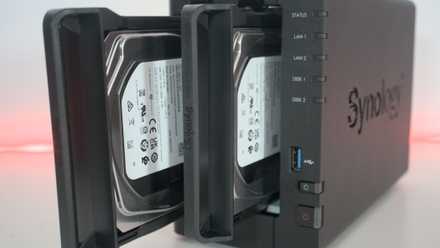
How to follow the 3-2-1 backup rule for NAS and protect your data
Keep it secret, keep it safe
Back up all the things
This week you'll learn why it's important to keep more than one copy of all your data available. You'll need to bear in mind various factors, including theft, hardware failure, availability, and convenience, particularly for those who are less tech-savvy. Start small with a USB drive and external storage. Migrate to a NAS and online backup solution, and finally consider cold storage for long-term backups once you've mastered local deployments on your home network.

Why your external hard drive isn’t a real backup (And what you should do instead)
Relying on an external hard drive for backups? It’s not enough