
A brand-new B650 full-ATX motherboard. The latest processor on the market (that I could afford). The most expensive GPU I'd ever owned, and arguably the best cabinet in the business. That's what I finally pulled together when I built my gaming PC back in 2023, and that first boot is burned into my memory — the fans springing to life and the RGB lighting up the room.
Another reason I'll remember it, however, is that it took almost half a minute to get to the Windows home screen after I pushed the power button. "Strange," I'd thought. A $2000 machine, on the newest AM5 platform, taking almost a full minute to boot into Windows was odd, but I didn't care once I began. Over the years, I've learned to live with hibernation and the occasional shutdown, but there's no denying that it still takes nearly a minute for my PC to boot into Windows.
That said, there are countless other users on the AM5 platform who have been quietly living with boot times just as long if not longer, because, believe it or not, my ASRock motherboard is one of the faster ones. One tiny tweak inside your BIOS, however, should effectively halve that time.

4 reasons you should enable AMD EXPO/Intel XMP on your PC
XMP or EXPO is a one-click boost in RAM performance that you should never ignore
I'd been living with an unreasonably slow system
I'd learned to tolerate it, even
Despite having a system I still consider fairly near the top of the line, I was looking at rather long boot times. I'm running an AMD Ryzen 5 7600X with 32 GB of DDR5-6000, and yet, after pressing the power button, I often have to wait around for a full minute before I get into Windows. That's because I'm also running AMD's EXPO, which is the AM5 platform's overclocking technology for DDR5 RAM. While my RAM's default clock speed is 4800 MHz, running EXPO overclocks it to the advertised speed.
As good as it is to be running 32 gigs of RAM at 6000 MHz, AMD's EXPO is the very reason behind the longer boot times. When you have EXPO turned on, the motherboard performs memory training at every boot, setting the RAM to its faster profile before handing you the reins to Windows. That's what often leads to longer boot times for users with EXPO enabled.
Sure, you could just disable EXPO and lose out on the overclocking benefits to decrease your boot times, but there's another reliable way to get the best of both worlds — active EXPO profiles and fast boot times, and that's called Memory Context Restore. While I was looking at boot times of about 10 seconds prior to loading up EXPO, that time went all the way up to 53 seconds once my RAM went from 4800 MHz to 6000 MHz. Definitely worth the performance, but still something I was happy to try and fix.
Make sure to update your BIOS first
If you're lucky, that'll also improve your boot time
First thing's first: make sure you've updated your BIOS. It's something almost everyone puts off, including myself. However, as intimidating as it is perceived to be, updating your motherboard's BIOS is now a rather quick affair. Just Google your motherboard model, and pick up the latest BIOS .rom file for it from the manufacturer's official website and support page.
There are plenty of better ways to get into your BIOS now, instead of mashing away on the Delete key while the PC boots. Before anything else, just make sure you hit Load UEFI defaults to reset anything you've changed in your BIOS. If you've got a different motherboard, I'd advise you to check out a model-specific BIOS update video on YouTube to know exactly what to click on, and in a span of five minutes, you'll be on the latest BIOS of your motherboard.
If you've been putting off a BIOS update for quite a while and have jumped up by several versions, there could be a chance that you see improved boot times just by the update. If that happens for you, great — who wouldn't want their base boot time becoming shorter?

BIOS updates are scary, but here's when you should consider updating
BIOS updates can pose risks, but are also very helpful sometimes
Use Memory Context Restore to decrease your AM5 boot times
MCR is a game changer for systems with overclocked RAM
Memory Context Restore is a rather simple feature you need to turn on in your BIOS settings. It lets your motherboard recycle the last-known memory parameters and use them for each new startup. Effectively speaking, the motherboard then spends less time training the memory from scratch each time, letting you into Windows faster. Head into your BIOS settings, and look for Memory Context Restore in your memory settings.
After enabling MCR on my ASRock B650 PRO-RS motherboard, my boot times — previously increased more than fivefold by EXPO — were cut in half. I even booted and rebooted the PC five to six times over the course of a day to check for boot time consistency and POSTing stability, and for me, nothing seemed out of the ordinary, except that I continued to remained at 6000 MHz while having faster boot time. It was not as quick as the default boot time of no EXPO and no MCR, but it was pretty close.

XMP/EXPO profiles aren’t just for faster speeds; here are 3 other advantages I get
It's easy to overlook the real-world benefits
There could be a catch, however
MCR needs another setting to go with it
However, over on the AM5-DDR5 platform, many users have complained about potential instability and even boot problems after turning on Memory Context Restore while pairing it with EXPO profiles for their RAM. We've spent enough years with the new platform for most motherboards to not have stability issues with EXPO and MCR enabled, but if you do end up running into trouble, go ahead and turn on Power Down Mode in the BIOS.
This should be found in the Tweaker settings of your BIOS, or the memory settings itself. The Power Down Enable feature powers down parts of your RAM when they're not being used. In theory, it's a power-saving feature, but when paired with Memory Context Restore, it can help cut down your boot times even further while still letting you keep EXPO enabled (or XMP, if you're on the other side of the lake).
Both these tricks cut down my boot time by half
It's not as quick as no EXPO, but it'll do
With EXPO and MCR both working in tandem, my boot time, which was all the way up to a minute sometimes, has been brought down significantly. Of course, this number doesn't work the same for everyone, and everyone's boot time will vary by a few seconds here and there. But if you want to maximize your RAM by overclocking it through AMD's EXPO or Intel's XMP, then Memory Context Restore is your best friend in your AM5 motherboard's BIOS.
However, with Memory Context Restore, many users have also reported stability issues. I may not have run into them, but if you do, then make sure you also enable Power Down Enable (PDE) in your BIOS as well. In fact, keep it turned on when you go to enable MCR. With these two quick toggles inside your BIOS, you'll be looking at some blindingly fast boot times before you know it.
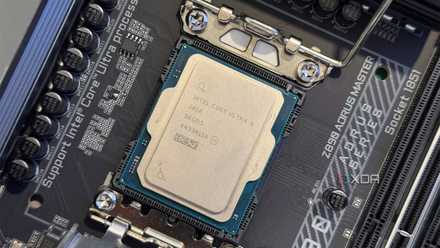
This motherboard BIOS setting changes how RAM works, and I had no idea it existed
Intel users, this one's for you
Is Memory Context Restore worth tweaking around in your BIOS?
You get the most out of your RAM without having to look too long at your reflection in the blank screen as you wait for the OS to load.
Absolutely. AMD's EXPO is a fantastic feature that lets you get the most out of your RAM, and brings it up to the DIMM's advertised speed on the box. It only makes sense to use the RAM's full capabilities after paying for them. With EXPO and its overclocked speeds, however, every AM5 user under the sun has complained about excruciatingly long boot times, and AMD's response was to introduce the Memory Context Restore feature in 2023.
MCR works brilliantly to continue giving you your overpowered RAM while bringing down the boot times of your system. PDE only helps it along on that mission, which is why they're both well worth tweaking around in your BIOS. Not only do you get the most out of your memory modules, but you also don't have to pay the cost by staring at reflection on the blank screen as you wait for your OS to load.