
The Start menu is always one of the most controversial parts of Windows, and that's definitely true with Windows 11 as well. The small menu without resize options and very limited customization makes for an experience that doesn't sit quite right with users.
Thankfully, you don't have to use it. Thanks to the world of third-party apps out there, you can completely change or just bypass the Windows 11 Start menu and make your experience so much better. So, if you're sick and tired of Microsoft's offering, here are some apps to check out.

Ranking all the Windows Start menus, from worst to best
The Start menu has evolved (and devolved) quite a number of times since its debut on Windows 95
5 Windhawk
Free and so versatile
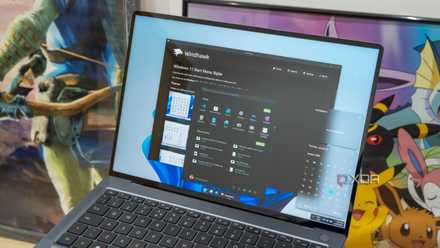
Windhawk is one of my favorite Windows 11 customization apps, and the Start menu customizations are only a very small part of what it can do. In fact, I'd say this isn't necessarily Windhawk's strong suit, but the Start Menu Styler mod does have some cool options.
While it will still be based on the Windows 11 design, Windhawk can give you options like a look more similar to Windows 10, the ability to see the All apps list next to the pinned area, remove the Recommended area, and more. It goes a long way to making the Start menu way better, even if it's a bit more limited than some of the other options.
8 best Windhawk mods to make your Windows 11 PC more interesting
Improve your Windows 11 experience
One thing that's cool about Windhawk is that all the mods are open-source, so you can see exactly what changes are done to your system. And in addition to the Start menu, it can customize things like the taskbar and enable all kinds of nifty tricks.
-
Windhawk
4 StartAllBack
Go back in time
If you don't like the Windows 11 Start menu, why not use an older one? StartAllBack is one of many customization apps that's focused almost exclusively on the Start menu, and as a result, it does an excellent job at it. The main point of StartAllBack is to restore the behavior of previous Start menus, but infuse them with the design language of Windows 11, which looks very clean.
That means you can have a Windows 7-style Start menu but with the modern flourishes of Windows 11, and honestly, it fits right in and looks great. You do have the option to restore more of the classic look, but even then, it still looks solid. StartAllBack also boasts some incredibly smooth animations and even some customization options Windows 11 doesn't give you. It's very cool.

4 reasons to customize Windows 11 with StartAllBack
StartAllBack is a super useful customization app for Windows 11. If you're not using it yet, here's why you should be.
StartAllBack does cost money, but it's a pretty cheap license all things considered, and it's worth it for what you get. Not to mention, it can also customize the taskbar and even the File Explorer.
-
StartAllBack
3 Start11
The ultimate Start menu
If we're talking Windows customization, no one has a bigger reputation than Stardock, and Start11 is the ultimate tool for changing up the Start menu and making it what it should have been in the first place. I've reviewed Start11 v2 and was blown away by how much customization it offers and everything it does to boost your productivity.
Start11 gives you a ton of options for the Start menu before even getting into the purely visual customization. You can change from seven different styles, some based on classic Windows versions, and some based on the Windows 11 design but turned up to... I guess that phrase doesn't work as well here. Either way, these styles do things like showing you the full apps list next to the pinned area or a list of system links similar to how classic Start menus used to work.

5 reasons to use Start11 to customize Windows
The Windows 11 Start menu is fine, but there's so much more you can do with Start11.
But what's really special to me is how deeply customizable the pinned area becomes. You can create multiple groups, tabs, folders, and pages to hold all your apps in any way you want. You can bring actual folders from File Explorer directly into the Start menu, so you can browse them before even opening a File Explorer window. And you have so much visual customization for it all.
It's truly mind-boggling how much this app lets you do with the Start menu while looking so similar at first glance. This is a more expensive app, but if you want the best Start menu possible, this is the one for you.
-
Stardock Start11 v2
- OS
- Windows 11/10
2 PowerToys
Why even use the Start menu at all?
Enhancing the Start menu with a much improved interface is one thing, but at this point, I'm totally over using it at all. It's all about search bars, and Microsoft's own PowerToys suite comes with an excellent one in the form of PowerToys Run.
Essentially, PowerToys Run is a search bar you can summon at any moment with a keyboard shortcut (by default, it's Alt + Space) and from there, you can launch all your apps, OneNote notebooks, do math calculations, and much more. Summoning PowerToys Run, entering the name of a program and pressing Enter makes opening apps so much faster and more efficient, and on top of that, you can do so much more. Searching OneNote notebooks within PowerToys Run is a really cool feature. So is having a unit converter, or the ability to terminate a process, search your browser history, and so on. You can expand PowerToys Run with plug-ins that add even more features, which is also great.

Should you use PowerToys Run or Flow Launcher? Here's how they stack up
I know what I'm sticking with
PowerToys Run isn't my launcher of choice, but it's already a great replacement for the Start menu, and considering everything else PowerToys does, it's definitely a great place to start.
-
- OS
- Windows 10/11
1 Flow Launcher
This is the one
If PowerToys is great, then Flow Launcher is the ultimate replacement for the Start menu, in my opinion. Flow Launcher is pretty much exactly the same concept as PowerToys Run, but the execution is much better. A tool like this is as useful as the integrations it offers, and Flow Launcher has a large ecosystem of plugins that are easy to install so you can expand the capabilities far beyond what's there out of the box, and it's amazing.
The same basics are there: launching apps, terminating processes, searching the web... but there's just a ton more. Unit converters, a specific YouTube search tool (and a YouTube downloader), a Pokédex for seaching information about Pokémon, the ability to search OneNote and Obsidian notebooks, and so, so much more. You can even uninstall apps this way.

10 best Flow Launcher plug-ins to get things done faster
Speed up your workflow using your keyboard
I can't imagine using my Windows PCs without Flow Launcher these days, and if the Start menu was completely gone, I probably wouldn't even miss it at this point. It's a truly fantastic tool for my productivity, and if you give it a chance, it will be for you too.
-
Flow Launcher
Forget about Microsoft's Start menu
We can complain all day long about the Windows 11 Start menu, but at the end of the day, if you want to make Windows 11 better, you can always take matters into your own hands. I have so many fewer frustrations using Windows 111 now that Flow Launcher is my go-to, and to be fair, that still applies to all the other apps on this list. Whichever app you end up choosing, you're going to enjoy your PC a lot more and be much more productive.