
System monitoring tools are aplenty when it comes to a PC. You might have used HWiNFO, MSI Afterburner, HWMonitor, CPU-Z, GPU-Z, or other tools at least once. Many users, however, ignore some of the most useful tools on Windows that can not only monitor your PC components, but also diagnose stability and optimization issues. Some of these are built-in Windows tools, while others are great third-party utilities to always keep on your PC.

6 diagnostic tools you need on your Windows 11 PC
If you are constantly dealing with performance issues on your PC, then you should always have these 6 tools on hand
5 Performance Monitor
Advanced system monitoring within Windows
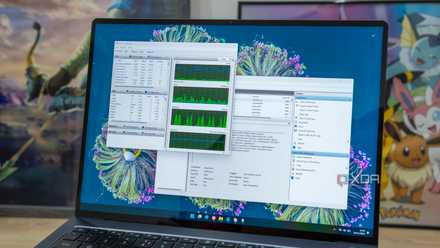
You might be using Task Manager, and even tools like Resource Monitor on your Windows PC regularly. Performance Monitor, however, often goes unnoticed by most Windows users. This advanced Windows tool lets you keep an eye on your PC's activities, and spot any processes or tasks that might be interfering with the system's performance. It's basically a more advanced version of Task Manager that has access to far more variables, and hence, far more detailed data.
You can monitor real-time resource usage and performance in the "Performance Monitor" section of the tool. What makes it impressive is the ability to see more than just the default "processor time" parameter; you can add hundreds of counters to the graph and see info on, say, the battery status, Bluetooth adapters, network adapters, and more. To better visualize tons of parameters, Performance Monitor allows you to save the settings in an HTML file that you can open in Microsoft Edge. You can choose to see the info in a line graph or histogram.
4 Wi-Fi Analyzer
Visualize Wi-Fi dead zones and optimize signal strength
WiFi Analyzer is a free tool that you can download from the Microsoft Store. It's a powerful network monitoring tool that gives you the power to diagnose your wireless networks. Maybe you want to find out why your Wi-Fi suddenly gives up in certain rooms in your house, or you want to reveal which neighboring networks are interfering with yours. It can scan all nearby Wi-Fi channels and show signal strength, channel overlap, and interference in a visual format.
You can figure out which Wi-Fi channels are crowded, so you know which one to pick for your router. You can even visualize dead zones or weak spots by walking around the house and noting the signal quality over time. You'll probably spend the most time choosing the best channel and diagnosing random connectivity issues. This free tool is an invaluable window into the inner workings of your Wi-Fi network, especially in apartment buildings with tons of competing networks.
WiFi Analyzer
WiFi Analyzer allows you to visualize your network's signal strength and quality, and uncover information about neighboring networks. You can also find dead zones in your house and switch to the best Wi-Fi channels.
These 5 home networking tools are essential for any Windows user
Troubleshoot, optimize, and secure your home network like a pro
3 CrystalDiskInfo
Check on your storage drives
CrystalDiskInfo is probably the most well-known tool on this list, but it's still not as popular as it should be. Most people don't know that this tool can show them a percentage value denoting the remaining health of their hard drive or SSD. It also shows you the drive temperature, number of reads/writes, power on hours, PCIe/SATA interface, and firmware version, among other interesting information.
More advanced users will be interested in the data shown in the lower part of the screen, such as the number of critical warnings, unsafe shutdowns, and data integrity errors. It's only a monitoring tool, but it can come truly handy when you're experiencing storage problems, and you want to confirm whether the drive has underlying hardware faults.
CrystalDiskInfo
CrystalDiskInfo is a free software utility designed to monitor and report on your storage devices.

5 ways to check how much life your SSD has left
Handy apps for monitoring SSD's health to avoid failure and data loss.
2 HCI MemTest
Diagnose faulty RAM
If you suspect your memory is faulty instead, you can use HCI MemTest to uncover faults in your RAM. If you have suddenly started seeing blue screen errors or crashes, and you've ruled out faulty storage, corrupted Windows files, and other hardware faults, your RAM might be the culprit. Using MemTest to run a few passes on your memory can uncover deeper faults that built-in tools like Windows Memory Diagnostic can't.
The way to do it is to divide the amount of free RAM on your system by the number of CPU threads, and test that amount of RAM in each of the 12 instances of MemTest (the number of instances will vary based on your CPU). If MemTest doesn't show any errors after two such passes, you can safely assume that your RAM is working fine. Otherwise, run the test again with individual DIMMs, and figure out the faulty stick.
HCI MemTest
HCI MemTest is an intensive memory diagnostic tool that uncovers hardware faults in your RAM. It's a free utility that you can use to find RAM errors that built-in Windows tools cannot.

How to check whether your RAM is faulty
Faulty RAM can cause a host of issues and headaches. Here are 3 simple ways to check if your RAM has gone bad.
1 OCCT
Test the stability of your entire PC
OCCT, or OverClock Checking Tool, as the name suggests, is capable of testing the stability of almost all your components. You can run stress tests on your CPU, GPU, RAM, power supply, and motherboard. A storage testing feature is likely to be introduced in a future update. Not only this, you can monitor multiple parameters for each of your components, and benchmark your CPU and RAM.
It can do everything that HWiNFO can, but with the added ability to stress test and benchmark your PC hardware. Overclockers can expose any unstable tweaks they've made to their system, and those simply looking to diagnose faulty components can run a simple test to get the answers they need. If you don't belong in either camp, you can simply use OCCT to monitor your hardware in one of the most advanced ways possible.
OCCT
OCCT is a powerful and comprehensive stress testing and monitoring tool for Windows PCs, allowing you to test the stability of almost every component inside your PC.
Top 9 programs to stress test and benchmark your Windows PC
You should stress test your PC to make sure everything is running smoothly
Don't leave your hardware unmonitored
As a PC user, you'll always need tools to monitor your components, diagnose faulty hardware, and, sometimes, run stress tests to uncover unstable settings. The tools on this list are some of the most advanced options you have for keeping tabs on your hardware, and you don't even need to pay a cent. You might need them right now, but sooner or later, you'll find them useful.