
If you're an Android Auto user, you'll know that the in-car infotainment system platform can be pretty resource-intensive on your phone, even if you're using a high-end device like the Pixel 10 Pro or Galaxy S26 Ultra. The nature of Android Auto means your phone is doing a lot at once, including navigating, streaming music, sending data, and in many cases, probably also charging. If you happen to live in a warmer area, this can make matters worse, too.
Unlike some people, I've never received a temperature warning on my device while running Android Auto, but based on my research, getting hit with one is relatively common, especially with older phones. With this in mind, there are a few things you can do to help keep your Android phone's temperature down while you're running Android Auto (and no, none of them involve putting a bunch of ice cubes on the back of your phone).
Turn off your phone's screen and take it out of its case
This is an obvious, but often overlooked solution
Before you scroll down to the comments, hear me out. Yes, this is a basic suggestion, but it's also the kind of thing not everyone will think of. If I feel like my Pixel 10 Pro is running hot while connected to Android Auto, which often happens in the summer on particularly warm days, I pop it out of its case and let it breathe a little. I haven't formally tested the temperature, but I can anecdotally confirm that this makes the device feel far cooler when I touch it.
Another simple thing you can do is turn off your Android device's display. It might sound surprising to some, but I've been in several vehicles over the years where the driver has left their Android device's screen on while it's connected to Android Auto, even though they really don't need to. With that in mind, turn your phone's display off, so the device doesn't need to work harder for no reason.
Only use quality charging cables
Get your hands on a solid USB 3.1 cord
Cheap USB cables are often the source of nearly every wired Android Auto issue, whether it's constant disconnections, lag, or in this case, causing your device to feel like it could cook an egg. My suggestion is to get your hands on a high-quality, braided USB-A-to-C or USB-C 3.1 cable.
Of course, if your car only supports USB 2.0, you won't be able to take advantage of the faster speeds USB 3.1 offers. That said, as a general rule, I find that USB 3.1 cables are typically higher-quality and better shielded, which helps to make connecting to your vehicle more reliable. I'm not saying you need to spend a lot of money on a high-end USB cable, but sticking with a relatively reliable brand with a good reputation, like Anker, Aukey, or INIU, is a good idea.
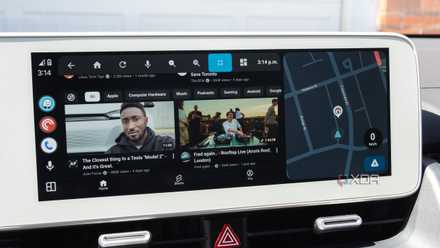
3 useful sideloaded Android Auto apps I use almost every day
The open nature of Android Auto is one of its key advantages over CarPlay
Close apps that are running in the background
Downloading offline maps can also help
On the app side, there are a few things you can do, including closing any apps you have running in the background. However, you'll need to be careful not to close apps you're using in Android Auto, such as Waze, Google Maps, or Spotify. What I'm talking about is closing apps that have nothing to do with your driving experience, including high-end games like Genshin Impact or Sky: Children of Light you might accidentally still have open, and resource-intensive creative apps like Lightroom and Photoshop.
I also tend to shut down any social apps I have running at the time that might be refreshing occasionally in the background, whether it's Twitter, Threads, or BlueSky. Closing unnecessary apps lets your device focus on running Android Auto and the apps you're using while you drive. If you want to play things really safe, you could always just restart your phone entirely.
Sticking with apps, another thing you can do is download maps ahead of time to prevent your device from pulling a lot of data, reducing the strain on it and, in theory, improving its thermals. Unfortunately, Waze doesn't allow you to download full maps (though you can set your route and then go offline), but you can download full maps with Google Maps by following these instructions.
Turn off fast charging
In a lot of cases, this might be the only thing you really need to do
The faster a device charges, the more heat it generates. While your Android device can usually handle fast charging just fine, if it's also under a heavy load and running several tasks through Android Auto, fast charging makes your phone even hotter (and heat isn't good for batteries anyway).
Save on Accessories: Deals for Phone Charging & Cables
The issue with this is that not every manufacturer lets you turn fast charging off. For example, while you can turn the feature off on most Samsung devices by navigating to Settings > Battery > Charging Settings, I can't do this with my Pixel 10 Pro. Instead, my only option is to go to Battery > Battery Health > Charging Optimization > Enable Adaptive Charging. While this isn't ideal, it reduces the time the battery spends at high temperatures and limits it to 80%, which helps keep my device running cool when it's plugged into my car.

4 Android Auto settings I changed to make it feel truly mine
Night Mode, setting a custom wallpaper, shifting media controls, and more.