
VLC has been sitting on my PC for years, quietly doing what it has always done best: playing literally anything I throw at it. It's dependable, boring in the best way, and so familiar that I stopped expecting anything more from it.
Somewhere along the way, though, I've stumbled into a few of its deeper features, and they definitely change things. Not dramatically, of course, or in a "this replaces my entire workflow" manner, but just enough that I stopped installing three other apps I used to keep around just in case.

9 hidden features in VLC you might not know about
VLC is one of the better media players around but how many of these features do you already use?
VLC has made any video converter redundant on my PC
It lets me change the occasional video's format without installing anything else
The moment I realized VLC could convert video files was the moment I stopped Googling "free video converter" or installing AVC, like it was still 2012. It's tucked away under Convert/Save, and once you know it's there, it's hard to unsee. Open up VLC, and press Ctrl + R on your keyboard. In the dialog box that pops up, add the video you need to convert by pressing the +Add button, and hit Convert / Save at the bottom.
Here, in the Profile dropdown menu, pick the file format of your choice, and then choose a destination folder underneath it. Once that's done, just click Start. Within a few minutes, depending on the file size and its quality, VLC should have the new file ready in the desired format. Whenever I need a particular clip's audio alone, instead of Googling "convert video to MP3," I simply throw it in VLC, and I have an audio-only file by the end of the minute.
Now, to be rather upfront and fair, this isn’t a replacement for something like HandBrake if you’re serious about encoding. But that’s kind of the point. Most of the time, I don’t need deep control over bitrate tuning or obsessive presets, or any sort of granularity that an enthusiast might. What I do need is to quickly turn a large MKV into an MP4, or shrink something down so it plays nicely on another device. And for those once-in-a-while moments, VLC handles it cleanly, locally, and without me having to install yet another single-purpose app that’ll sit unused for months.
It lets me stream to another device without building a whole ecosystem
I'd rather not download Plex everywhere I go
This is the one that genuinely changed how I use my setup. VLC's ability to stream media over the local network feels almost too simple, especially in a world where everything wants you to set up a server, create accounts, and manage libraries. It hasn't even been a week since I last had family over, and after dinner, we decided to look through years' worth of memories. A single laptop screen wasn't going to cut it, and I didn't want to upload every video to my Plex server before using the app on the TV.
Thankfully, all I had to do was play the videos in VLC, and a couple of clicks later, the video streamed directly over the local network to my TV screen for everyone to see. Even in a hotel room, I'd rather not install Jellyfin or Plex on the smart TV, since the last thing I want to do is log into something like Plex on a public device. With VLC, I don't have to. I just stream directly from my laptop.
Is it as polished as a full media server setup? Not even close, since there's no fancy UI, no metadata scraping, or other quality-of-life features that I've (almost) gotten used to while using Plex. And yet, it works, and even more importantly, it works instantaneously. For something I only need occasionally, that convenience matters far more than building an entire ecosystem for a few infrequent watches.
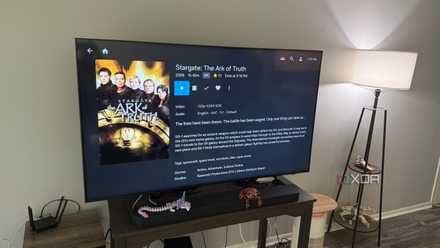
Jellyfin just launched on Samsung TVs, and Plex should be worried
Jellyfin on Samsung TVs removes the biggest barrier to switching, forcing Plex to compete on trust, not inertia.
Screen recording and watermarking get done in a pinch
Rarely used, but it still keeps me from downloading an app for it
I'll be honest: this is the feature I use the least, but it's also the one I'm weirdly glad exists. VLC can record your desktop, and with a bit of tweaking, even let you add simple overlays or watermarks. Again, this is not OBS. It's not even remotely close in its capabilities, and it will not let you set up scenes, manage audio, display, or video sources. However, you don't always need all of that. In fact, sometimes you just need to quickly record something on your screen and send it across.
That's precisely where VLC comes in handy. It's scrappy, definitely unintuitive, but perfectly capable once you get the hang of it. Most importantly, it saves me from installing a full-fledged screen recording suite for something I might do once every few weeks, if that.

Sometimes, though, it makes sense to use dedicated apps instead
VLC doesn't compete with purpose-built apps, but it works because I don't need those workflows every day.
All of this comes with an obvious caveat, though. VLC may be good at many things, but it's not the best at any of them outside of playback. If you find yourself regularly converting files, managing a media library, or recording content, you'll outgrow it quickly. There's a reason tools like Plex, HandBrake, and OBS exist. They're purpose-built, more intuitive at scale, and significantly more powerful when you start pushing beyond basic use cases. It's not like VLC tries to compete with them, which is good, because it shouldn't, and it can't.
And yet, at the same time, that's also why it works so well for me. I don't need those workflows every single day. Instead, I just need something reliable when the situation or need arises, and in those moments, VLC steps in, does the job, and then quietly gets out of the way again.