
There's a lot to love about Windows 11, including its clean design and improved performance. However, there are also some equally annoying aspects of the OS. Personally, I'm not a fan of the stringent hardware requirements, the centered taskbar, the revamped Action Center, or the ads on the Start menu. While some of these issues can't be fixed, there are a few tweaks you can make to turn Windows 11 into a less frustrating and more user-friendly operating system. I'll discuss five of these changes below.

4 reasons I disable Windows telemetry for better privacy
Data is worth more than its weight in gold, and I prefer that mine isn't shared.
5 Silence account notifications
Don't let Microsoft pester you
When you sign in with a Microsoft account, Windows takes the chance to nudge you toward services like Microsoft 365. If you’d rather set up Windows with a local account, you’ll still get a badge at the top of the account menu asking you to "sign in to your Microsoft account."
Some people like using a Microsoft account for the perks, like cloud backups and syncing. Others prefer sticking with a local account to keep their data private and on their own device. The point is, it’s your call, and once you’ve made it, you shouldn’t keep getting bugged about switching to a Microsoft account.
You can get rid of these notifications by going to Settings, then Personalization, then Start, and turning off Show account related notifications occasionally in Start.
4 Disable targeted Microsoft ads
You'd still see ads though
Windows assigns you an Advertising ID to track your interests and deliver more relevant ads within apps. While you unfortunately can't turn off ads completely on Windows 11, you can disable the use of your unique advertising ID to stop seeing targeted ads. To do so, go to Settings -> Privacy & security -> General, and toggle off Let apps show me personalized ads by using my advertising ID if you prefer non-targeted ads.
3 Remove news feed from Widgets
You probably don't want to see those outrageous headlines
Windows 11, by default, shows you a bunch of news articles when you click the widget icon, the icon on the left-hand side of the taskbar that usually shows the weather. This block of news articles was, until recently, nearly impossible to disable. However, Microsoft has had a change of heart and now lets you use the widget area without seeing any unwanted news headlines.
- Press the Windows key + W to open the Widgets board.
- In the upper-right corner of the board, click the Settings option (gear icon).
- From the menu, choose Show or hide feeds.
- Toggle off the switch next to Feeds.
- When a confirmation pop-up appears, click Turn off. The next time you open the Widgets board, the news feed will no longer be displayed.
2 Hide ads in Microsoft Edge
Or switch to a different browser
👁 Screenshot of the Edge gaming homepage with the default Windows 11 wallpaper in the background
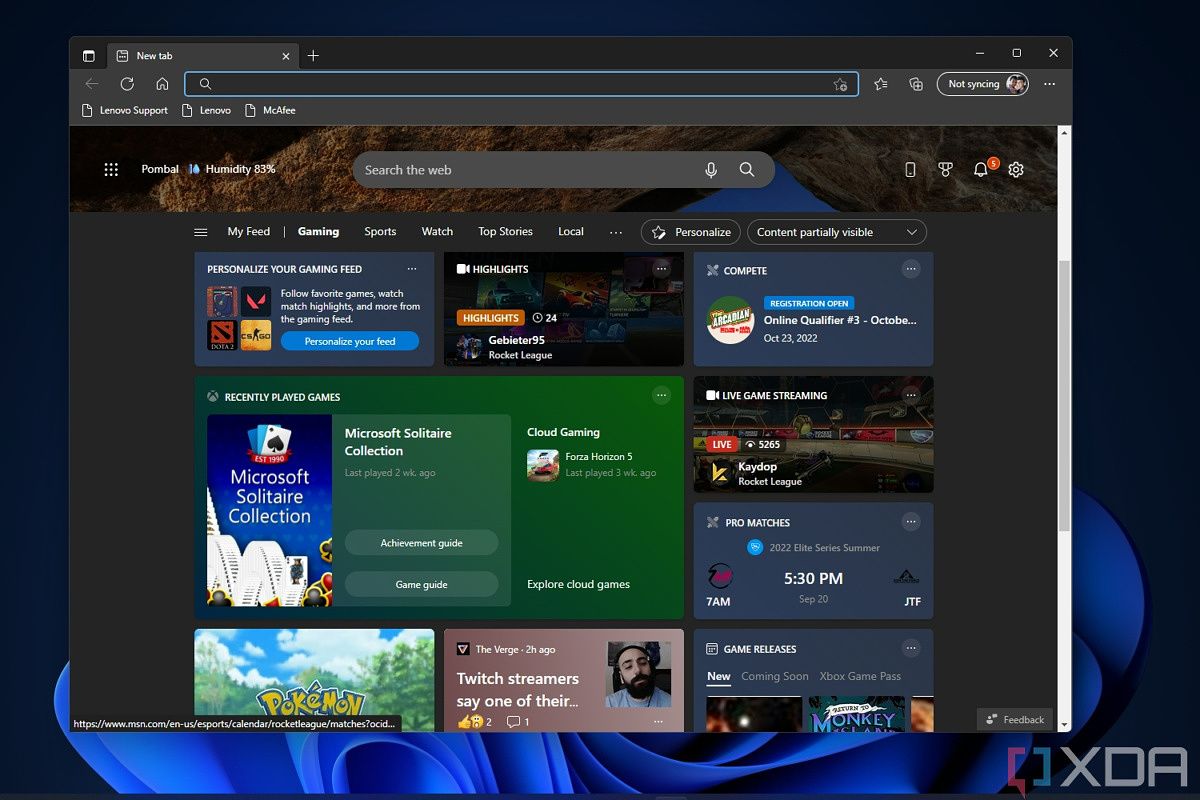
I think Edge is a great browser. It is fast, has amazing tab management, looks visually pleasing, and crashes way less than Chrome. But it is also one of Microsoft’s most ad-loaded products. If you open the browser for the first time, especially if you are coming from Chrome, you might feel like running away when you see the ads on the default Microsoft Start page. They are mixed in with a bunch of clickbait news stories and other unwanted content.
You can always pick an alternate browser from our list of underrated options. But if you would rather stick with Edge, you can disable those annoying ads on the Start page. Just open a new tab, click the gear icon in the upper right corner, and set the Content setting to Off.
1 Remove Bing from Windows Search
You rarely need web results in Windows Search
Windows Search is not great, and the Bing search results do not make it much better. Microsoft does not let you replace Bing with a different search engine (though you can do that with a third-party app), but you can disable it. There is no option to turn off Bing search results in the settings, but you can work around this using the Registry Editor.
- Open Registry Editor from the Start menu.
-
Navigate to this path:
Computer\HKEY_CURRENT_USER\SOFTWARE\Policies\Microsoft\Windows
- Right-click the Windows folder, hover over New, and select Key.
- Name the new key Explorer and press Enter.
- Right-click the Explorer key, hover over New, and select DWORD (32-bit) Value.
- Name the value DisableSearchBoxSuggestions.
- Double-click it, set the value to 1, and click OK.
- Restart your PC to disable Bing Search.
Take control of your PC
Windows 11 comes with a lot of default settings and features that can feel frustrating. Some you can change, and some you can’t. The tips below will help you clear up at least some of these annoyances. While you're at it, check out how Windows collects your data and how you can opt out.

10 Windows 11 security settings to keep your PC safe
Protect your PC by enabling these 10 essential Windows 11 security settings