It's no hyperbole to say that Steam changed the face of gaming. It enabled centralized management of our game libraries, a way to keep our game keys safe, and a way to both buy and download games over the internet. But if you're experiencing download speed issues while installing the latest free-to-play games or while trying to update already installed games, it can become a source of frustration.
Thankfully, most Steam download issues can be solved with a few steps, and you'll be back downloading your games at full speed again in no time. From clearing the download cache to making sure there aren't any bandwidth limiters set, here's what you need to do to fix slow download speeds on Steam.

10 best first-person shooters that are free to play on Steam
Enter the genre of fast paced first-person shooters with these 10 free-to-play titles on Steam
6 Switch the Steam server you download from
The closest server is not always the fastest for you to use
Valve has download servers all over the world so that gamers can download their Steam library as fast as their connection allows. However, depending on the number of people downloading at one time and where you are, your download speeds can sometimes slow down. To fix this, you can change the download server that Steam uses, which often solves any slowdown issues.
To find the list of download servers, open Steam and go to Settings. Select Downloads from the left pane, and you'll see that the top option is the Download region. When you first install Steam, it is set to the closest Steam server geographically, but that's not always the fastest server to download from. Click on the drop-down menu and scroll to find one that fits one of these options:
- In a timezone where most people are either at work or asleep
- One that's in a neighboring country
- In the next state/province/territory over (if you're in the US or Canada)
Making this change can get you to a less congested server, and improve your download speeds.

A Steam Deck that won't connect to Wi-Fi is frustrating, here's how to get back online
Having Wi-Fi woes with your Steam Deck? Get back online with some simple troubleshooting steps.
5 Hardwire your PC
Ethernet will always give you the best Steam download connection
If your Steam downloads aren't stable or as fast as you think they should be, consider wiring your gaming PC to the router. Even if you have the fastest Wi-Fi available, your connection speed depends on many factors that are out of your control, like how many other wireless devices are using data at the time.
However, using Ethernet gives you a direct line to the router that isn't shared by other devices. Depending on your Ethernet port speeds, you could even outpace your Wi-Fi because 2.5GbE is becoming more common, and premium motherboards might even have 10GbE. Plus, it's inherently more stable than wireless, so your download speeds will be more consistent, and your latency will be lower, which will come in handy when you play online games.

6 reasons your home LAN should be wired instead of wireless
Use the right networking equipment for your needs.
4 Move closer to your router
If you're using a wireless connection try reducing the distance to your Wi-Fi router
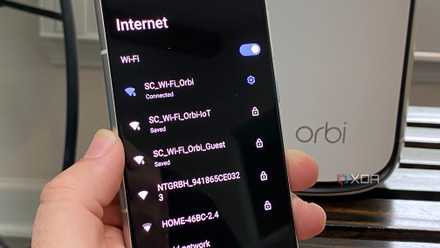
While wired network connections are the best option for consistent download speeds on Steam, it's not always possible. The Steam Deck doesn't have an Ethernet port, for example, and while you could add one with a docking station, you might not have one of those at hand. Plus, many mesh router kits have a disappointingly low number of Ethernet ports to work with, so you might not have an open port anyway.
Being that your device is wireless, there is one thing you can do for a better signal. That's to stand up and move closer to your Wi-Fi router. The 5GHz band used by the Steam Deck might be fast, but it's range-limited and the further you go away from the router, the worse it will perform. You don't need to be right next to the router, and that might even hurt speeds again, but sitting nearby in the same room with no furniture or other obstacles between the two will get the best signal.

Best routers for gaming in 2024
Keep pings low and consistent with a router designed for gaming.
3 Clear the Steam download cache
Sometimes, your download speeds can be because of corrupted cache files
If you encounter a game that won't download or start, there's one thing you can do to get it working again. That's to clear the download cache. Sometimes, the files in there get corrupted, and if that happens, Steam won't recognize them. Then, it won't know whether to keep downloading that file or use it as an update for an existing installation.
As before, go to Steam Settings and the Downloads section. Scroll down a bit, and you'll see a button labeled Clear Download Cache and a brief explanation. Hit the button and confirm your choice to continue on the popup. It's worth mentioning that you will have to sign back into Steam once the process finishes, but it won't change any of your installed games, so you won't have to reinstall or redownload them.
2 Disable any download limits
Steam has an inbuilt limiter for download speeds that you can easily turn off
There are a ton of controls in the Downloads section of the Steam app, and many of them restrict download speeds when enabled. Limit download speed lets you set a hard cap that's measured in kilobits per second, and it's easy to set a speed that's lower than your full internet speed if you're not careful. Untoggling the option removes the cap, and lets you download in peace.
While you're there, I suggest going down the list and seeing if there are any other settings you might want to change. Throttle downloads when streaming is only needed if you use Steam Remote Play often, and can usually be turned off without issue. Using Game File Transfer over Local Network is fantastic if you have games installed on another computer, and will be faster than downloading from Steam's servers. And if you're not a big multiplayer gamer, you can probably let Steam download updates during gameplay because it won't affect single-player experiences as much.
1 Your computer might be the issue
Steam downloads compressed data, so anything that uses the CPU can make it grind to a halt
Steam is a well-optimized content delivery network. Part of its success is its compression of downloads, which means you download less data overall. However, that can be an issue on some hardware, such as older CPUs or ones with fewer cores, or if the computer is performing other tasks simultaneously. And as it's doing decompression and file movement at the same time, it could also mean the storage drive that you use for Steam is slowing down, either from hitting its SSD cache limit or other issues.
The only fix here, aside from upgrading your hardware, is to limit the speed at which Steam can download because otherwise, you're taxing your system and slowing everything else down. It's also worth taking some basic troubleshooting steps, like clearing Windows caches, checking your storage drive, and making sure there aren't any viruses or malware slowing your PC down.

4 clear signs it's time to upgrade your CPU
Don't let your CPU hold your PC back
Steam doesn't often have download issues, but these tips will help you get the most out of your connection
Slow Steam downloads can be incredibly irritating, especially if you want to play your games. With some simple troubleshooting steps, your connection should be back to taking advantage of your ISP's package. If you notice that things are still slow, check if other devices on your network are also affected, and do some troubleshooting on your computer to rule out the network connection.