
Intel's Turbo Boost technology is a great performance-boosting feature if you want to get the most out of your CPU, offering a quick and easy way to improve your PC’s performance without needing to overclock anything. This feature, which is only available for Intel CPUs, lets your CPU adaptively change its clock speed when running intensive programs and then lower it when it's not needed.

Intel’s 2024 laptop processor names explained
Intel’s new naming scheme can be confusing at a glance
What is Intel Turbo Boost?
Turbo Boost is a dynamic processor frequency adjustment technology developed by Intel to optimize the performance of its range of CPUs. Turbo Boost adaptively changes your CPU's clock speed based on the task you're trying to perform. In essence, it allows your CPU to operate at higher clock speeds (within factory settings) when there is a demand for increased performance. This intelligent adjustment is made in response to the workload, temperature, and power consumption, ensuring that you get the best performance when you need it the most.
This feature was introduced back in 2008 to meet the escalating demands of gaming, video editing, and multitasking tasks on older hardware. Since then, there have been two newer versions of the software: Intel Turbo Boost 2.0, released in 2011, and Turbo Boost Max 3.0, released in 2016. Your CPU generation will decide which version of the program you have, but as long as your CPU isn't from before 2008, then this feature should be present on your CPU too.
Intel’s Turbo Boost feature works smarter, not harder, to boost your PC's performance. When the CPU detects that it's handling a workload that requires more processing power, it ramps up its clock speed without pushing past the factory safety parameters. This gives you better performance for the tasks at hand, but a drawback is that your PC will be using more power, which means if you're using this feature on a laptop you will have lower battery life.
Intel's Turbo Boost is enabled by default on most modern CPUs, but you may need to manually enable it if you are using a laptop or an older CPU. On the other hand, if you are looking to overclock your PC, you may want to disable the feature to have more control when you are overclocking.
Overclocking vs. Intel Turbo Boost
While overclocking and Intel Turbo Boost both work to improve your CPU’s performance, they operate in very different ways, but each serves its distinct purpose. Intel Turbo Boost provides a safer and more user-friendly approach to adjusting your CPU clock speeds without manually tweaking BIOS settings.
Overclocking involves pushing your CPU clock speed past its base clock speed. This pushes the CPU past its factory safety settings as well, which means you will need more power and better cooling for your system to run smoothly. Overclocking can be a tricky procedure if it's your first time doing it. You need to find the right balance of performance, power, and stability, which involves a lot of tweaking, restarting, and stress testing of your system. This can be a time-consuming task and while it does boost your CPU performance, it also reduces the lifespan of your chip and increases the power consumption of your machine, which puts strain on all your other hardware.
The big difference with Intel's Turbo Boost feature is that it doesn't push your CPU past its factory clock speed. It will only adjust the clock speed within the specific CPU's range of operation. This still benefits users immensely by reducing your CPU's power consumption when not in use and giving you more performance when you work on resource-intensive tasks.
Turbo Boost doesn't require you to have better cooling or need you to change anything in BIOS (unless you want to disable it), and it doesn't affect the lifespan of your CPU either. It just slightly changes your clock speed as you use your PC, which optimizes your device's performance.
Can AMD users use Turbo Boost?👁 An AMD Ryzen 3000 CPU.
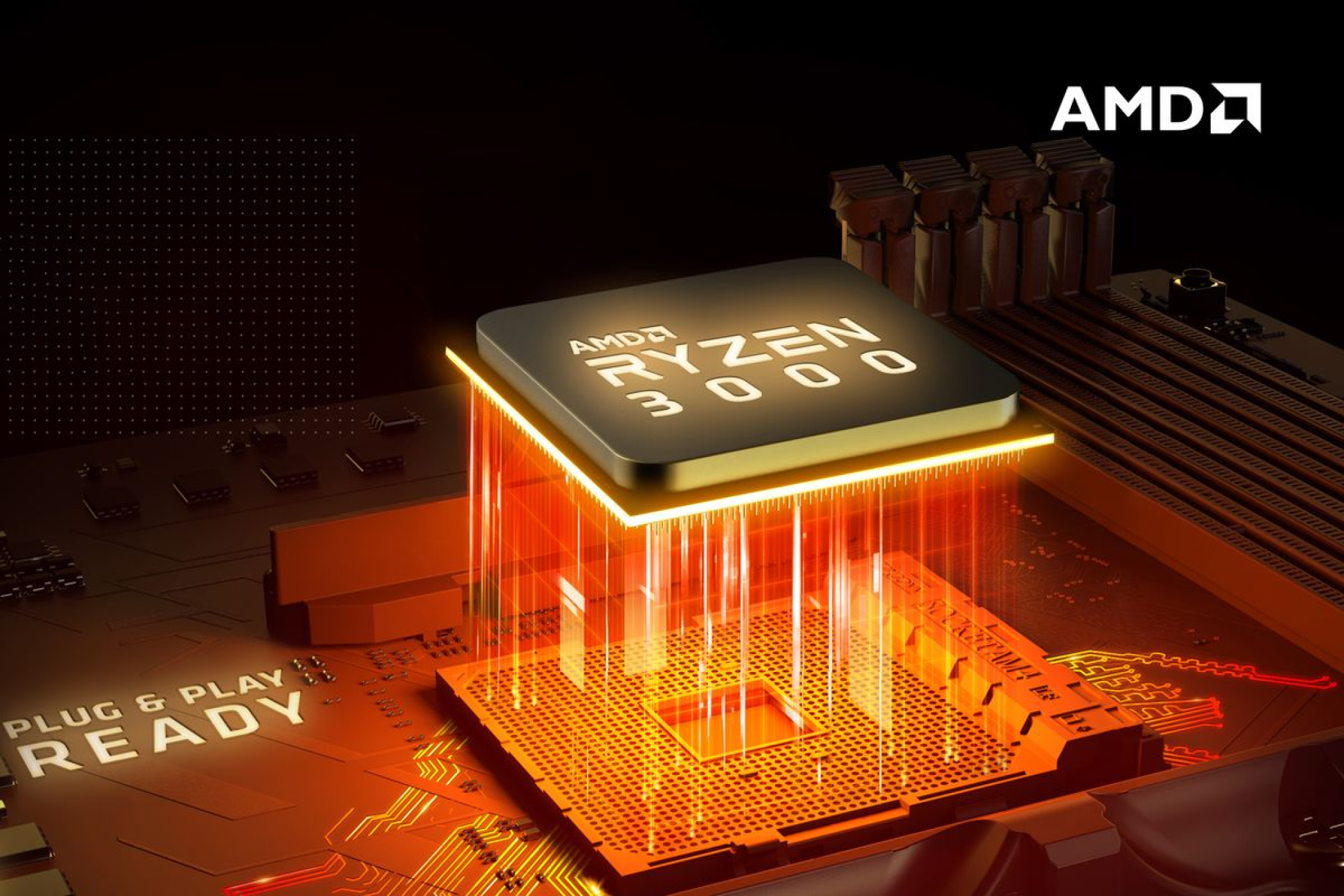
No, unfortunately, Turbo Boost is exclusive to Intel CPUs, but AMD does have its own version of the feature for AMD CPUs. The AMD equivalent is called AMD Turbo Core and has been available in every CPU generation since 2010. It is also enabled by default on every CPU, except that the turbo core feature is much harder to disable, as the setting is hidden.
AMD also has another version of turbo core designed for their laptops. AMD PowerNow is a version of Turbo Core that scales the laptop clock frequency to reduce the device's power consumption and improve its battery life.
How to enable/disable Turbo Boost in BIOS
As stated before, Turbo Boost is enabled by default on most modern CPUs. But you plan to overclock your CPU, you might want to turn it off (even then, you shouldn't have to). Turning Turbo Boost on or off is easy. However, the process is different for every CPU model, motherboard/BIOS, and device type, i.e., laptop or desktop. But here are the general steps you will need to follow to use Turbo Boost.
- You can only turn Turbo Boost off/on in the BIOS menu. To access BIOS, restart your PC.
- When your PC restarts you will have to constantly press the BIOS key. Every computer uses a different BIOS key, but the most commonly used are F10, F12, Del, Tab, and Esc. Check your manufacturer's page or your PC's startup screen to confirm which you should use.
- Every BIOS looks different, so you'll just have to scroll through them until you see the setting. If you are using a laptop, the setting will most likely be in the performance tab, and if you are using a desktop PC, you can find the setting in the CPU tab. In the example image, it's in the Cell menu tab.
- Enable/disable Turbo Boost. Once you're done, press F10 to save and exit the Bios menu, then you can restart your PC.
Improve your CPU’s performance with Turbo Boost
Intel Turbo Boost is a great feature that offers a safe, efficient, and user-friendly way to improve your CPU's performance without the complexities and risks associated with overclocking hardware. Using Turbo Boost to adjust your CPU's clock speed in real-time based on workload and other factors, ensures you experience the best possible performance across various tasks. So, if you think your PC or laptop might be getting a little too old, make sure that this setting is turned on to make your device last longer and perform better with very little hassle involved.