
Despite the existence of several new-age browsers like Vivaldi and Arc, and some old-school ones too, like Firefox, I've stuck to using Google Chrome for the past decade or so. A big reason for this is that Chrome has always offered a no-frills experience. Sure, it eats up more RAM than required at times, but I've largely had a pleasant experience when using Chrome. Owing to this, I've also become dependent on some native features Chrome offers. For instance, I use Chrome's built-in send-to-devices feature to create my own ecosystem with an Android and a Mac, and many extensions - including Grammarly and a VPN.
Apart from these, another important feature of Chrome I use regularly is the built-in password manager. Chrome's password manager is seamlessly integrated into the browser and offers all the features I need. Moreover, since Chrome is my browser of choice on all my devices, it automatically syncs my credentials across all my gadgets seamlessly. While some may argue that it's not the wisest decision given Google's track record with data, I guess the pros outweigh the cons for me. Allow me to explain.

6 things I wish someone told me before I signed up for a password manager
New year, new you! Then why the same ol' passwords?
5 Free of cost
Who doesn't like free stuff?
I'm all about saving money wherever possible. If there is a free alternative to an app or service, I will take it over paying for one. Unless, of course, it's from an unreliable source. This is a big reason why I've stuck to using Google's password manager built into Chrome. It's worth noting that there are several free password managers out there at this point, but I haven't really found a solid reason to switch away from the one built into Chrome.

Best free password managers in 2024
Here are some good options to consider if you are looking to try a password manager, but don't want to pay a premium right away.
There's no denying the fact that a dedicated password manager that's paid will offer better features. In fact, it may also be better in terms of privacy. However, I am okay with the compromises that arise as a result of using Chrome as my password manager of choice, since it's free of cost. I can't justify paying for a service for those few extra perks when a free version from a reputed developer is available. Personally, I believe that once you're on the internet, your privacy is already compromised. Internet privacy is a myth. Hence, Google being a data-driven company doesn't really bother me because I'm sure my data is already out there in some form or the other.
There's also a built-in check-up tool that notifies you of compromised passwords. This feature is also free so it's a good way to check where you stand in terms fo keeping your accounts safe.
4 Doesn't need a separate app
Save your storage
Another thing about me is that I try to limit the number of apps I install on my devices. This is primarily to save as much storage space as possible since I have a ton of files on my computer, and I take a lot of photos on my phone. So, any amount of free storage is precious to me. Using the default password manager in Chrome saves me from installing one extra app on all my devices. You may think that a solitary app may not add much to the storage, but it definitely makes a difference.
Additionally, running an extra app in the background also consumes more RAM. Some password managers automatically open at startup, which slows down the boot time and consumes extra resources. It may not be a big deal if you have a powerful computer, or you know how to disable startup apps. But, I consider even one less app on my PC as a win. Chrome is one of the first apps I install on any new PC/Mac so it's a no-brainer. Plus, it comes pre-installed on every Android device. On my iPhone, too, I use Chrome instead of Safari so I'm covered on all my devices.
3 Works across platforms
From Android to iOS to macOS
I mentioned how Chrome is my default browser of choice on all the devices I use. A big reason for this is the consistent experience across platforms. For example, Chrome on my MacBook Pro and Windows 11 PC looks and works in the exact same manner. So, every time I switch between the devices, I feel right at home. The same applies to the tablet version of the app too. On my iPad, Chrome runs like the macOS version, albeit with a few limitations. The layout is more or less identical which makes it seem like a desktop browser instead of a mobile one.

10 Chrome Flags you should consider enabling
In this tutorial we explain what Chrome flags are, how they're useful, and suggest some flags you should consider enabling in Chrome.
Speaking of mobile, Chrome on Android and iOS are also similar to a large extent. Both versions of the browser are smooth and work as intended. As you can imagine, familiarity is a big deal for me. I like apps that are cohesive and work similarly across all the platforms I use. Chrome is right up there in that aspect. The best part is that other supplementary features like Chrome Flags and the password manager are also cross-platform and work seamlessly no matter which device I'm using. If I save a password on my Mac, it automatically shows up on my Android phone instantly too.
2 Supports autofill via Gboard
Save time while logging in
Similar to how Chrome is the default browser on all my devices, Gboard is my keyboard of choice across all my smartphones and tablets. Including my iPhone and iPad. This is mainly because I despise the first-party keyboard on iOS and iPadOS. The auto-correction is terrible, and there was no haptic feedback for the longest time. By the time they introduced it, I had moved to Gboard and got comfortable with it. Needless to say, it's also the default keyboard out of the box on all Android smartphones (except Samsung, which still pushes its own keyboard), so there's a sense of familiarity. At this point, you may have realized it's an important factor for me.
Apart from how well it works, Gboard also automatically fills in your credentials on websites and apps -- directly from Google's password manager. You might have observed how Google suggests the email ID along with the corresponding password as a suggestion while logging in to apps or websites whose password you've saved on Chrome. Thanks to this feature, all it takes is a single tap to sign in to most apps on my phone. I review phones for a living, so I keep switching between multiple devices. Owing to this, I have to log in to hundreds of apps on a new phone every week. The fact that I only have to tap to enter my details makes things a lot easier and quicker.
1 Quick login via Passkeys
Sign in with the tap of a button
This is the latest addition to Google's password manager and I absolutely love it! For those unaware, Passkeys are a one-click solution to logging in to websites and apps using trusted devices. This could be your smartphone, tablet, or computer. The way the feature works is that you set up any of your devices as a passkey to log in to a certain service. Let's consider Instagram, for instance. The next time you want to log in to Instagram, you will receive a prompt on your trusted device. All you have to do is scan your fingerprint or face to log in instead of entering your credentials. How convenient is that?
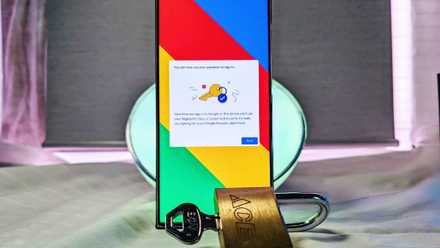
How to set up a passkey for Google
A cybersecurity dream has been to create a world without passwords, and we're one step closer to that vision with Google passkeys.
It's like replacing the traditional lock-and-key solution on your door with a smart lock. You don't have to hunt for your keys every time, and you won't be locked out of your house if you forget your keys. All you have to do is scan your fingerprint to unlock your door. Third-party password managers are also gaining support for Passkeys, but the fact that it's included in a free, built-in tool is certainly something to appreciate.
Convenience is key
I totally get how one might be apprehensive of using Google's services due to privacy concerns. After all, Google is an ads company. However, I believe my data was already out there in the open the instant I signed up for any service online, so using another one wouldn't make a difference. That said, if you're truly concerned about your privacy, you can consider using a third-party password manager app. They may offer better features along with support for any and all browsers, so you're not limited to using Chrome. Notably, any vulnerabilities in the Chrome browser could also expose your passwords, so this is something to keep in mind.