
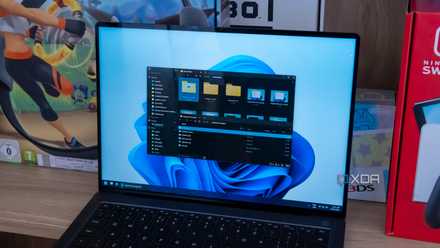
If you spend a lot of time working on your computer, chances are a good chunk of that time is spent managing files and making sure things are organized enough for you to navigate your files easily. The built-in File Explorer covers all the basics of file management and it's good enough for most people, but it does fall short in some aspects.
We could spend all day talking about better File Explorer alternatives (and we have), but if you don't want to change to something completely different, there are a few things you can do to make the Windows 11 File Explorer work better for you. Let's take a look at some of them so you can start making the most of your time in File Explorer.

The Windows File Explorer isn't good enough — 5 file managers for power users
Microsoft could learn a thing or two... or more
10 Show file extensions
It's small, but it matters
Truthfully, I don't know how much of a problem this is for everyone else, but I've had many situations where I had multiple images in the same folder that look the same, but they have different file formats, which makes it hard to know which file I need at a specific time. Showing file extensions in File Explorer is an easy way to fix this problem, and while it's not exactly a hidden feature, it's still worth highlighting.
On Windows 11, you can simply click the View button in the toolbar, then choose Show > File name extensions. On Windows 10, you can use the Ribbon interface to find the same option in the View tab.
9 Change the default home page
It may not be for everyone
Every time you open File Explorer, it takes you to the Home page, which shows you recent files, frequent folders, and items you added to your favorites. This is meant to be helpful, but it's not a behavior everyone wants, and thankfully, you can change where File Explorer opens without too much fiddling.
All you need to do is click the ellipsis button in the File Explorer toolbar (on Windows 11), and from there, click Options. You can choose between the Home page, This PC, or your OneDrive folder, which is perfect if you work with files in the cloud most of the time.
8 Clean up the context menu
ShellExView to the rescue
The context menu is meant to get you quick access to the most common actions you might need when using File Explorer, and its extensibility makes it that much more useful since any app can add an entry here to make certain actions even quicker. But as you install more and more apps, the context menu can fill up quickly, and what's more, even some of the options Windows offers may be superfluous to some users.

Is your Windows context menu getting too cluttered? You should try ShellExView
ShellExView is here to clean up your mess
I've talked about ShellExView in the past, and it's a pretty useful program for decluttering the context menu in the File Explorer. It can enable or disable all sorts of shell extensions, too, but if you just want the context menu to be more focused on the options you need more frequently, this is a great way to achieve that. You could also modify the Windows Registry manually, but this is much more tedious and complex, so I highly recommend ShellExView.
-
ShellExView
7 Bring back the Windows 10 Ribbon
Windows 11 was a step back for many
Microsoft made a lot of UI changes in Windows 11, and they mostly aimed to make Windows easier to understand and navigate. But removing the Ribbon interface from File Explorer was honestly a bit of a downgrade, as many options now require more clicks or are just harder to find. The Ribbon was a great way to make numerous tweaks readily available without taking up too much space.

I tried out ExplorerPatcher, the best way to make Windows 11 feel like Windows 10
Can't deal with the changes in Windows 11? Explorer Patcher takes you back to the Windows 10 UI.
Thankfully, you can bring it back. ExplorerPatcher is a tool that can change all kinds of behaviors in Windows 11 to restore older versions of it, including the Windows 10 Ribbon among many other UI elements Windows has had in recent years. If you're willing to pay, I also really like StartAllBack because it not only brings back the Ribbon menu, but it updates each and every icon to fit in perfectly on Windows 11, so it feels a bit more pleasant to look at.
-
ExplorerPatcher
6 File Locksmith
See what's using your files
Have you ever tried to delete a file only to have Windows tell you you can't because it's being used by some program? It can be a nightmare to figure out what's preventing a file from being deleted, but thankfully, Microsoft's own PowerToys suite includes a tool called File Locksmith that helps with this exact issue.
File Locksmith takes a slot in the context menu, and when you select it, it can detect what process is holding your file hostage and preventing it from being deleted. You can then terminate that process by closing the respective app, and you can do whatever you want with the file. It's not for everyone, but it's pretty neat.
-
- OS
- Windows 10/11
5 Use file previews
Third-party tools can make this even better
File names and even thumbnails can sometimes not be enough to help you identify the exact file you're looking for when going through a folder. File Explorer does have something to help here, though. You can click the View button in the command bar and then choose Preview pane to enable a pane on the right side that will show you previews for supported files.
The true potential of this feature is unlocked when you use a tool like PowerToys, which can add support for file previews with many more file types, including SVG, source code files, markdown files, and more. Other tools can also provide previews for even more file types, it's just a matter of looking around, and it can make things much easier.
4 Peek
Identify files faster
Sometimes, you can't remember the exact contents of a file in File Explorer, but opening it in the respective app can take a little longer than you'd like and make it tedious to check every file until you find the one you're looking for. And while you can use the Preview pane above, this is usually fairly small, so it's not the best for documents or images that are very similar. PowerToys also has a solution for this with another tool called Peek, which replicates a beloved feature in macOS.
With Peek enabled, all you need to do is press Ctrl + Space (or a shortcut of your choice) and you'll get a quick, but full-size preview of the contents of a file, making it easy to tell what a specific document or image is. What's great is that while this overlaps the File Explorer window, your keyboard is actually still focused on File Explorer, so you can navigate the folder to keep previewing files until you find the one you're looking for.
3 Make batch renaming easier
PowerToys does even more
We're almost done with PowerToys tools, but I promise this one is pretty great. Renaming multiple files on Windows is kind of clunky, partly because it's something many people don't even know is possible. When you select multiple files and try to rename them, only one of the files shows the name chanigng until you confirm it, and they all magically transform.
But what if that wasn't the case, and on top of that, you had all kinds of options for how you want to change the name of the files you choose? Well, Power Rename is yet another tool in PowerToys, and it's exactly that. Power Rename lets you choose what parts of a file name to replace with something else, with support for regular expressions (RegEx) to help define exactly what you want to change, and options for adding things like the current time and date, changing the capitalization, and more. It can take some time to learn all the options here, but once you do, it's a very powerful tool.
2 TeraCopy
Move files faster
The Windows File Explorer is fine for many things, but it's not the fastest option around if you want to move files between directories or devices. It takes a good while to move larger files, and many times, just calculating the size of files to move takes a while.
TeraCopy is a specialized program that acts as a sort of add-on for File Explorer, offering a much faster way to move files in bulk from one drive or directory to another. You can create multiple separate file transfer tasks and TeraCopy will queue them rather than run them simultaneously, and it also automatically skips files that cause errors, continuing the rest of the transfer as normal. This way, your transfer doesn't get hung up or cancelled while you might be busy with something else.
TeraCopy is already pretty great in the free version, but the paid version offers faster performance and some additional options if you want a more tailored experience.
-
TeraCopy
1 DropIt
Organize your files more easily
Finally, we have another add-on to help you organize your files. Sometimes, folders just get a little too full and you might want to organize them into sub-folders, and that's what DropIt is all about.
This app lets you take actions on files using a set of predefined rules which can be applied instantly by just dropping the files or folder you want into the DropIt icon, which is visible on your screen at all times as long as the app is running. For example, say you want all your MP4 files to be in the same folder on your computer. You can create a rule that moves these files into that folder, and whenever you have a new file, you can just drag it into the DropIt icon, and that action will be taken. If you're moving a folder with different types of files, you can have rules for each type that automatically sort each file type into the appropriate folder.
DropIt can do a lot more than move or copy folders, though. It can rename them, compress them, send them via email, and more. It's not meant to fully replace the act of moving folders and files, but it does offer some capabilities that help you organize your files much more easily.
-
DropIt
The File Explorer can be so much more
With all of these tools, the File Explorer on Windows 11 can be elevated to do much more, or do it better. Whether it's advanced renaming, file previews, or faster copying, these tools might make it so that you don't feel the need to use a third-party file manager. But if you're exploring that option, File Pilot is a file manager I tried recently and really enjoyed.
Hands-on: File Pilot may be the best File Explorer alternative yet
The new kid on the block has got some serious chops