
No one builds a perfect PC the first time. Even if you build a gaming PC with the most balanced configuration, you might make several other building mistakes that can ruin your gaming experience. PC building is a learning process where you get better with every new build. Your blunders when building a PC turn out to be your best teachers.
The process of putting your PC together might be fraught with potential mistakes, but what about the buying stage? Purchasing the wrong components might seem impossible considering that builders can always use PCPartPicker, but not every first-time builder uses or knows about it. If you're still new to PCs, you could succumb to some rookie buying mistakes where your new build will be over even before it begins.

10 obvious things I wish someone told me before I built my first PC
There are some things people don't tell you, and as a first time PC builder, they're not actually obvious
5 Buying a PC case based on looks alone
Looks matter, but not at the cost of performance
Choosing a PC case might be subjective, and a matter of personal taste, but you shouldn't prioritize looks over everything else. Housing the rest of the components and providing sufficient airflow for them are the primary functions of a PC case. Unless these functions are taken care of, you shouldn't obsess over whether your PC case is white or is covered with glass on 3 or 4 sides.
Many cases might look sleek and eye-catching, but are lacking in air intake, number of fans, or support for larger radiators.
When choosing a case, try to pick one that has a mesh intake panel on at least one side. Pre-installed fans, plenty of room, necessary mounts for radiators, and cable management features should also be kept in mind when you're browsing cases online, ready to add them to your cart. Many cases might look sleek and eye-catching, but are lacking in air intake, number of fans, or support for larger radiators.

Why you shouldn't save too much money on a PC case
When saving a little too much money can negatively affect your PC.
4 Buying parts that don't fit in your case
A case that's too small is no case at all
Besides airflow, plenty of room is the most important feature you should look for in a case. If you're building a PC in 2024, chances are your graphics card and CPU cooler aren't on the compact end of the size scale. If you overlook specifications such as GPU clearance and cooler clearance when picking a case, you might be in for an awful surprise when your components arrive at your doorstep.
New PC builders often leave the case for last, and end up ignoring the minute details, leading to such unpleasant situations.
Realizing that your graphics card is too long, or the CPU cooler is too tall for your case is one of the worst feelings when building a PC. There's nothing you can do at this point other than return the case (if possible) and buy a new one. This will inevitably tarnish the experience, delay the proceedings, and leave a bad taste in your mouth. New PC builders often leave the case for last, and end up ignoring the minute details, leading to such unpleasant situations.

5 of my favorite PC cases you might not have heard of
Here's to some amazing PC cases that might have flown under your radar
3 Buying a slow-as-heck NVMe SSD
Not all NVMe SSDs are made equal
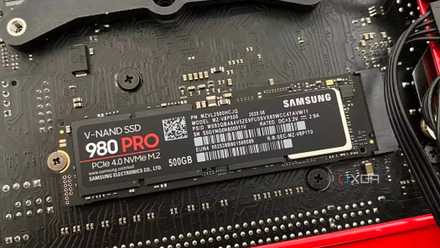
You might be aware that NVMe SSDs come in various forms — PCIe 3.0, PCIe 4.0, and PCIe 5.0. Also known as Gen3, Gen4, and Gen5 NVMe SSDs, the newer they are, the more performance they deliver (generally). You might already be aware of this, but what you might know is that even two SSDs from the same generation might have different speeds and performance.
Even two SSDs from the same generation might have different speeds and performance.
Whenever a new PCIe generation is formalized and manufacturers start producing new SSDs, a few months or years pass before the fastest SSDs start appearing on the market. Before that, you'll often see some models that are barely faster than the previous PCIe generation SSDs. Whether you're buying a Gen3, Gen4, or Gen5 SSD, don't simply focus on the PCIe generation. Check the read/write speeds in the product details as well.
This will help you avoid buying the "wrong" SSD — something that's Gen3 or Gen4 in name, and isn't equipped to utilize the complete bandwidth of the protocol. Regretting your purchase long after you've made it is never a pleasant feeling, especially if it's your PC's storage — something that's integral to the system responsiveness, boot time, and gaming experience.
How to know if an M.2 SSD is compatible with your motherboard
Buying a compatible M.2 SSD for your brand new PC can confuse even the most experienced PC builders
2 Buying the wrong motherboard variant
Pay attention to DDR4 and DDR5 in the name
This might feel obvious, but for a new PC builder, things can easily get confusing. If you're not totally into the details and are picking parts for your first build, it's possible to end up with the wrong version of a motherboard, even if the model name appears correct. This is because Intel's 12th, 13th, and 14th Gen CPUs support both DDR4 and DDR5 memory. Based on the RAM you're buying, you need to pick the right version of the motherboard, and it isn't always clear-cut based on its age.
If you end up buying the wrong motherboard, your RAM will not work, since DDR5 and DDR4 RAM are not interchangeable between motherboard RAM slots.
Two motherboards might have the same name, down to the complete brand name and chipset, but only differ in their DDR4 and DDR5 support, usually indicated by a "D4" or "D5" in the name. If you end up buying the wrong motherboard, your RAM will not work, since DDR5 and DDR4 RAM are not interchangeable between motherboard RAM slots.
For AMD CPUs and motherboards, making this mistake is less likely, since the chipsets differ completely between AMD's AM4 (DDR4 support) and AM5 (DDR5 support) CPUs.

Save your money by overclocking your DDR4 RAM instead of upgrading to DDR5
Running a DDR4 system and itching for a DDR5 upgrade? Hold your horses, as overclocking your DDR4 RAM might save you money and get you what you need.
1 Buying a RAM kit incompatible with your CPU and motherboard
The speed and capacity of RAM matter a lot
Based on the CPU and motherboard combo you've picked, you might be limited in terms of the frequency and amount of RAM that can work on your system without issues. This is because the Integrated Memory Controller (IMC) of the CPU and the Qualified Vendor List (QVL) dictate the memory kit you can safely buy for your new PC.
Even if your Ryzen processor supports 6000MT/s RAM, it might only work well with it if you populate two slots instead of four.
Intel and AMD CPUs differ in their maximum memory frequency support and also the number of slots you can populate at a certain frequency. You can't just buy a 64GB (16GB x 4) kit of 7200MT/s or even 6000MT/s DDR5 RAM for your new Core i9 14900K or Ryzen 9 7950X system and assume everything will work as intended. Even if, say, your Ryzen processor supports 6000MT/s RAM, it might only work well with it if you populate two slots instead of four.
This is linked to the signal integrity and stability of RAM when you completely populate your RAM slots. Often, your 6000MT/s RAM will default to 4800MT/s for the system to even boot — this happens mostly in cases where you're using four DIMMS totaling 64GB or 128GB of RAM. Hence, it's important to go beyond the official XMP/EXPO support and browse some online forums and reviews to ensure the memory kit you're buying will work at its maximum speed on your motherboard.

5 reasons why your PC RAM specs matter
From multitasking to gaming and even web browsing, your RAM performance matters
You can often run into unexpected problems while PC building
Even though PC building might seem straightforward, there are several unexpected issues you can run into, especially if you're doing it for the first time. The ones I described above are only some of the weirdest and worst problems you can face while putting together a new build. As you get into it, you might uncover more peculiarities and intricacies related to PC components and how they work with each other.
In the worst cases, you might not even be at fault, and your CPU might start crashing unexpectedly due to the manufacturer's fault. The best course is to stay informed, consume as much reliable information as you can, and make the best decisions with the data you have.

These 6 rookie mistakes could wrongly convince you that your brand-new PC is faulty
Sometimes, it's not the hardware, it's just you and a few unfortunate mistakes