
If you're using hard drives on your PC (many of us still do), you ought to know what not to do to ensure a long lifespan for your spinning drives. While external hard drives are more prone to user error and environmental factors, even internal HDDs need to be protected from certain lifespan-reducing activities. You need to ensure your hard drives are free from vibrations and shocks, not gasping for air, and protected against power surges. This will ensure your HDD isn't dying on you prematurely.

7 signs your hard drive might be dying
Hard drives aren't known to last long. Here are some telltale signs that yours might be at the end of the line.
5 Aggressive defragmentation
Let Windows handle things
Defragmentation is something we used to do pretty often back in the day. I remember defragmenting my hard drives manually whenever I thought about it. I didn't think about what those frequent defragmentation cycles were doing to the drive. While the point of defragmenting a hard drive is to reduce access time by bringing various fragments of a file close together, excessive defragmentation can be counter-productive. It can cause unnecessary wear and reduce the lifespan of the drive.
Windows handles defragmentation automatically anyway, running weekly cycles on your hard drives, so you don't have to do it yourself anymore. The best thing you can do is not do anything at all. Just keep around 10% of the drive empty, and for your OS and most-used applications, choose an SSD.

4 times an HDD is still better than an SSD
Hard drives aren't going anywhere just yet
4 Ignoring surge protection
An unfortunate surge can strike anyone
Surge protection is necessary not just for your SSDs but also for your hard drives. Random power surges can damage sensitive electronics, and, in the case of hard drives, cause permanent data loss. The power grid in your area might be reliable, but aging grids and emergencies can cause power cuts. Moreover, lightning strikes on power lines, electric companies switching grids, and heavy appliances powering on can introduce power surges that need to be tackled.
A discrete surge protector or one built into your UPS can offer some degree of protection against power surges and cuts. Surge protectors aren't perfect, however, since a particular surge could be too much for it to handle, and the excess electricity could still make its way to your PC components. That said, not having one is exposing your PC to surges that can otherwise be mitigated.
Hancony Surge Protector Power Strip
This surge protector includes two USB-C ports, and comes with a 5ft extension cord.
6 ways to extend the life of your PC components
All PC components will die eventually, but you can do your bit to extend their lifespan
3 Running the drive in an air-starved case
HDDs need airflow too
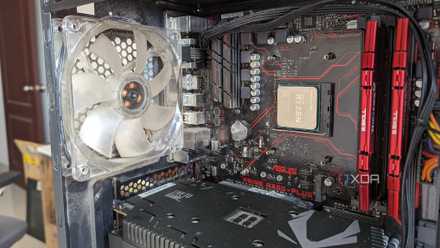
Just like other PC components, heat can affect your hard drive's performance and longevity. While HDDs aren't as susceptible to heat as your CPU, GPU, or SSD, they still need some amount of airflow to function smoothly. Many users cram multiple HDDs in the hard drive cage without ensuring any airflow toward the drives. Over time, your hard drive's components can wear down due to improper ventilation and overheating, reducing its lifespan.
To avoid this, you can simply install an extra front fan in front of the hard drive cage if your case permits. Otherwise, if the hard drive cage is movable, relocate it to an area with better airflow. Getting rid of the cable jungle usually present near the hard drive cage and PSU area is also a great way to improve airflow for both your hard drives and power supply.

3 easy ways to check hard drive health on Windows
If your hard drive is showing symptoms of failure, use these tools to check its health
2 Moving the PC while the drive is running
Handle with care
Sudden shocks, however mild, are one of the biggest reasons for damaged hard drives. While you might think that internal hard drives, mounted securely inside the PC, aren't prone to shocks, moving your PC while it's on is enough to hurt the drive. Whether you're repositioning your tower on your desk or taking it to another room or a friend's house, it's possible to introduce mild shocks to your hard drive.
Even if your HDD is disconnected from the PC, and you're taking it with you in your backpack, you need to handle it carefully. First, avoid moving your PC when it's turned on. And when it's off, keep your fragile HDDs in mind when moving it or traveling with it (for a LAN party or something else).
1 Mounting the drive improperly
Don't just trust its weight to keep it in place
Many people think they can use their HDD without safely securing it to the hard drive cage. In reality, micro-vibrations can also hurt your hard drive. If your HDD is simply resting in the hard drive bay without any screws holding it in place, it's bound to suffer from vibrations. Plus, the more drives you use on your PC, the greater the number of vibrations. This is also a source of hard drive noise, which can get pretty annoying with multiple drives.
In addition to using the provided screws to tighten the hard drive to the cage, you can use rubber grommets to further reduce micro-vibrations. Your hard drives will last longer and run quieter, not adding to the noise levels of your PC, which is always a neat bonus.

5 HDD myths that you shouldn't believe
HDDs might be on their way out, but these myths are still alive
Give your HDD the best chance
Hard drives usually last three to five years without developing any faults, but you can do your bit to maximize your drive's lifespan. Preventing overheating, vibrations, and sudden shocks can go a long way in increasing your drive's longevity. Plus, a surge protector can avoid damage in the unlikely event of a power surge. Lastly, avoid manually defragmenting your drive as Windows is perfectly capable of doing it automatically.