
Single-Board Computers have been a thing for decades, with the first Raspberry Pi being the pioneer in making these tiny systems available to the consumer market. But with SBCs becoming more mainstream, manufacturers have started adding their own spin on the classic Raspberry Pi formula.
For example, Zero boards are better for folks who don’t mind a smaller board with reduced functionality in exchange for better value and lower energy consumption. You’ve also got dev boards and compute modules, which are better for developers and coders who want a tiny companion for their painstakingly-compiled projects. Then there are NAS-centric SBCs that are outfitted with all the connectors you’d ever need from a storage server – except in a small form factor.
IceWhale is one firm that has largely focused on releasing SBC devices that fit the NAS and home lab demographic. As a complete home server and SBC, I immediately agreed when the company asked me to sample their latest creation: the ZimaBoard 2. It’s a huge step up from its predecessor, both in terms of specs and pricing, and has a couple of standout features that make it a great secondary server for your home lab.
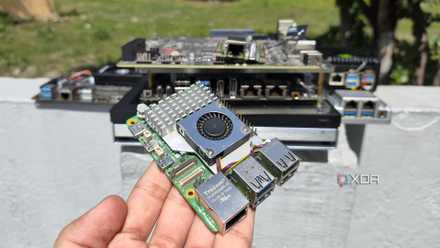
5 amazing computing devices you can buy instead of a Raspberry Pi 5
The Raspberry Pi 5 may be a terrific system for DIY projects, but there are plenty of other alternatives for tinkerers
About this review: IceWhale sent me the ZimaBoard 2 832 for review, but the company had zero input on the contents of the article.

ZimaBoard 2
That can double as a NAS, router, or container-hosting platform
- Storage
- 32GB eMMC (up to 64GB), 2x SATA 3.0 6Gb/s ports
- CPU
- Intel N150 (4 cores, 4 threads; up to 3.6 GHz clock speed)
Featuring an Intel N150 processor, dual 2.5G Ethernet ports, a PCIe 3.0 x4 slot, and up to 16GB of LPDDR5x memory, the ZimaBoard 2 is a step-up from its predecessor in every way. While the built-in ZimaOS is rock-solid for simple file-sharing and containerization workloads, its x86 architecture lets you outfit the SBC with a multitude of distributions, including router operating systems and server-centric distros.
- Dual 2.5GbE ports are perfect for a dedicated firewall
- Compatible with multiple x86 distros (including ESXi)
- Supports an extra PCIe 3.0 x4 port
- No NVMe slots and limited USB ports
- Doesn't support Wi-Fi
Specs, pricing, and availability
The ZimaBoard 2 has yet to be officially released and is currently in its early access phase on Kickstarter. The base model, the ZimaBoard 2 832, costs $179 for 8GB of RAM with 32GB of eMMC storage, and you can spend $249 on the 1664 model if you want to double the memory and eMMC capacity. The retail model should cost a bit more once the ZimaBoard 2 finally hits the market.
ZimaBoard 2
- Storage
- 32GB eMMC (up to 64GB), 2x SATA 3.0 6Gb/s ports
- CPU
- Intel N150 (4 cores, 4 threads; up to 3.6 GHz clock speed)
- Memory
- 8GB LPDDR5x (up to 16GB)
- Operating System
- ZimaOS (default)
- Ports
- 2x 2.5GbE, 2x USB 3.1 Type-A, 1x PCIe 3.0 x4
- Display
- 1x Mini DisplayPort 1.4
- GPU
- Intel Graphics (24 Execution Units)
- Starting Price
- $179 ($200 retail)
- Wireless Connectivity
- No
It’s a gorgeous, all-aluminum SBC
With high-speed SATA ports
Right off the bat, the ZimaBoard 2 is the cleanest-looking SBC I’ve ever used. Unlike the plastic body of its predecessor, the ZimaBoard 2’s chassis is made entirely of aluminum, granting it a futuristic appearance. It's a lot larger than typical Raspberry Pi Model B units, though it can fit perfectly well on a 1U rack.
Since it’s meant to be used as a NAS-cum-home server, the ZimaBoard 2 features dual SATA connectors, with IceWhale including a SATA-Y cable to ensure you don’t have to spend extra time and money searching for the right adapter. The 60W barrel connector can supply enough juice to power the SBC and two storage drives, including bulky 3.5-inch HDDs. That said, I wouldn’t advise using hard drives with the ZimaBoard 2 unless you have a proper case or a 3D-printed mounting solution.
For my actual tests, I slotted two SSDs into the SATA 3.0 ports, which the SBC recognized immediately. By now, you may have noticed that the ZimaBoard 2 doesn’t include a dedicated NVMe slot – and that’s my biggest complaint about the SBC.
Considering most high-end x86 boards (including my beloved Radxa X4) ship with an M.2 connector to accommodate M.2 2230 SSDs, it’s a real downer that you have to rely on USB-to-NVMe or PCIe-to-NVMe adapters to interface more SSDs to the ZimaBoard 2, and I really wish IceWhale had included a dedicated NVMe port or two. While we’re on the subject of USB ports, the SBC houses only two USB 3.1 Type-A sockets, which is on the low side if you’re planning to slot external SSDs into the system. Luckily, the PCIe slot has you covered on that front…
There’s a dedicated PCIe socket onboard
And it’s compatible with most adapter cards you can ask for
If you’re coming from the meager PCI Express 2.0 x1 slot on the Raspberry Pi or the PCIe 2.0 socket built into the original ZimaBoard, you’ll find their Gen 3.0 x4 counterpart on the ZimaBoard 2 a worthy upgrade. Since the SBC ships with ZimaOS, I tested plenty of PCIe cards with the OS.
To my surprise, the ZimaBoard 2 worked well with every PCIe adapter card I threw at it, including a PCIe-to-NVMe converter for a PCIe 3.0 SSD. Heck, it even worked with my 10 Gigabit TP-Link TX401 NIC, which usually needs proper drivers to work on Windows 11. That said, I left my graphics card lineup out of the tests, as adding a bulky power supply alongside a heavily-bottlenecked card makes little sense. Likewise, while the PCIe slot supports SATA adapter cards, you’ll have to use an external PSU to power SSDs/HDDs, which can result in a messy setup.
"The ZimaBoard 2 worked well with every PCIe adapter card I threw at it"
ZimaOS is an excellent beginner-friendly server OS
It’s probably my favorite proprietary NAS distro
First-party operating systems are one of the biggest disadvantages of pre-built storage systems, though the ZimaOS distro included in the ZimaBoard 2’s eMMC module manages to avoid most of the issues plaguing its rival proprietary operating systems. Based on CasaOS, ZimaOS has a fairly simple UI, so you don’t have to dig through manuals just to get the hang of the OS. Adding disks and enabling network shares is just as simple, though I have to point out that you can’t set up RAID 6 or JBOD arrays just yet, as IceWhale plans to release support for the two storage configurations in future updates.
ZimaOS also includes robust containerization features, with the built-in App Store providing a ton of applications to help you build an imposing self-hosting workstation. In case the offerings from the App Store can't satisfy your tinkering spirit, you can whip out Docker containers from custom images. If you’re more into virtual machines, ZimaOS includes the ZVM hypervisor, and while the processor isn’t the very best for the job, you can tinker with a virtual machine or two.
ZimaOS also includes robust containerization features, with the built-in App Store providing a ton of applications to help you build an imposing self-hosting workstation.
The x86 CPU lets you arm the SBC with other distributions
Though the processor isn’t the best for VM-heavy loads on server operating systems
Speaking of the processor, the ZimaBoard 2 is powered by an Intel N150 CPU. Thanks to its x86 architecture, you won’t have to deal with incompatible distros or broken packages as you would in a typical Arm SBC. Whether you’re a NAS lover who can’t do without a TrueNAS configuration or want a secondary machine for your Proxmox cluster, the ZimaBoard 2 won’t let you down. Personally, my favorite use case for the SBC involves configuring it as a Proxmox Backup Server, but you can even use it as a regular machine for your distro-hopping requirements.
Performance-wise, the N150’s faster clock speeds definitely make VMs feel more responsive than the N100. Unfortunately, the 4-core, 4-thread CPU serves as a huge bottleneck for projects involving multiple GUI-based virtual machines. In my tests, the ZimaBoard 2 ended up crashing once I started running multiple browser tabs and installing several packages on two Linux Mint VMs inside ZimaOS’ ZVM. Bare-metal platforms seemed to fare somewhat better, as I was able to run a Debian VM alongside a Linux Mint virtual machine inside ESXi. Yeah, the same ESXi that refuses to run on literally every system in my home lab. And I’ve got the Intel Ethernet controller to thank for that…
The dual 2.5G Ethernet ports are just the icing on the cake
While the Intel Ethernet controller brings some extra facilities into the mix
Before I talk about running ESXi on the ZimaBoard 2, I wanted to give a shout-out to the Ethernet provisions on the device. Unlike other SBCs on the market, the ZimaBoard 2 includes two Ethernet ports, with each connection supporting 2.5G speeds. Combine the dual RJ45 connections with its x86 architecture, and it’s clearly the best budget-friendly device for a self-hosted firewall/router OS.
Combine the dual RJ45 connections with the ZimaBoard 2's x86 architecture, and it’s clearly the best budget-friendly device for a self-hosted firewall/router OS.
Speed-wise, each port is on par with what you'd expect from a 2.5G connection. CrystalDiskMark’s synthetic benchmarks displayed decent transfer speeds for my all-SATA SSD setup inside ZimaOS. The actual transfer speeds were more-or-less the same, with file transfers taking around 245-250 MB/s for my ISO collection. There isn’t a Wi-Fi module inside the SBC either. But I’m willing to overlook that because, frankly, I don’t see myself preferring a wireless connection over good ol’ Ethernet when accessing my ZimaBoard 2 server.
Going back to ESXi, the Intel Ethernet controller is the real star of the show. When Broadcom abruptly decided to bring back ESXi, the first thing I did was try to set it up on my spare PC. Despite trying out every permutation and combination of motherboards, NICs, adapter cards, server systems, and even pre-built NAS I had at my disposal, ESXi refused to work with the Ethernet controller in every scenario.
Meanwhile, the installation process barely took half an hour on the ZimaBoard 2, and the dreaded No Ethernet adapters found error message never reared its ugly head. Again, the N150 lacks the sheer core count to run multiple virtual machines. But if you’re looking for a no-nonsense device to familiarize yourself with ESXi, the ZimaBoard 2 is hands-down the most budget-friendly option out there – provided you’re willing to run a single VM at a time.
Should you buy the ZimaBoard 2?
The ZimaBoard 2 is worth your money if:
- You need an x86 system with enough ports to build a router.
- You’re new to the self-hosting ecosystem and prefer an easy-to-use distribution for creating your FOSS application stack.
- You plan to build a simple file-sharing server and aren’t interested in a dedicated NAS.
- You’re as tired of ESXi’s terrible NIC support as I am and want an affordable device to get accustomed to the virtualization platform for your DevOps and sysadmin projects.
- You want a secondary server or an extra worker node for your home lab.
The ZimaBoard 2 isn’t a worthwhile investment if:
- You’re a hardcore NAS lover and need a device that can accommodate multiple NVMe drives.
- You want a typical Raspberry Pi-sized device that supports wireless connectivity.
- You require a more powerful processor for your server tasks.
All-in-all, I’d say the ZimaBoard 2 is a solid option for most home labbers. Its x86 processor already makes it more versatile than other SBCs with Arm processors, and the 2x 2.5GbE ports are perfect for makeshift file-sharing servers as well as custom firewall setups built using pfSense or OPNsense. Once you factor the PCIe slot into the equation, the ZimaBoard 2 becomes even better for home server enthusiasts.
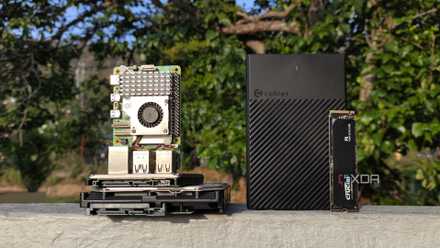
5 things I regret about using my Raspberry Pi as a NAS
Although a NASberry Pi has its perks, it's not good enough to serve as my primary backup server
But if you’re a hardcore data hoarder, there’s a bit of a catch when it comes to the pricing. The LincStation N2 includes a 10GbE port, ships with a 1-year Unraid subscription, and can house six drives, including four NVMe SSDs – all while costing $309. If you’re planning to grab a budget-friendly NAS in a couple of days, the N2 is easily the better option until it reaches the end of the early access phase and LincStation starts charging $439 for it. At that price discrepancy, the ZimaBoard 2’s $200 retail price makes it a lot more appetizing for tinkerers on the prowl for a budget-friendly board.
ZimaBoard 2
That can double as a NAS, router, or container-hosting platform
- Storage
- 32GB eMMC (up to 64GB), 2x SATA 3.0 6Gb/s ports
- CPU
- Intel N150 (4 cores, 4 threads; up to 3.6 GHz clock speed)
Featuring an Intel N150 processor, dual 2.5G Ethernet ports, a PCIe 3.0 x4 slot, and up to 16GB of LPDDR5x memory, the ZimaBoard 2 is a step-up from its predecessor in every way. While the built-in ZimaOS is rock-solid for simple file-sharing and containerization workloads, its x86 architecture lets you outfit the SBC with a multitude of distributions, including router operating systems and server-centric distros.