

Source: https://git.zabbix.com/projects/ZBX/repos/zabbix/browse/templates/media/discord?at=release/7.4

Discord webhook
Overview
This guide describes how to integrate your Zabbix installation with Discord using the Zabbix webhook feature, providing instructions on setting up a media type, user, and action in Zabbix.
Requirements
Zabbix version: 7.4 and higher.
Parameters
After importing the webhook, you can configure it using webhook parameters.
Configurable parameters
The configurable parameters are intended to be changed according to the webhook setup as well as the user's preferences and environment.
| Name | Value | Description |
|---|---|---|
| zabbix_url | {$ZABBIX.URL} | The URL of the Zabbix frontend. |
| user_agent | ZabbixServer (zabbix.com, 7.4) | The user agent to use in the request. |
Internal parameters
Internal parameters are reserved for predefined macros that are not meant to be changed.
| Name | Value | Description |
|---|---|---|
| event_source | {EVENT.SOURCE} | Numeric value of the event source. Possible values: 0 - Trigger, 1 - Discovery, 2 - Autoregistration, 3 - Internal, 4 - Service. |
| event_value | {EVENT.VALUE} | Numeric value of the event that triggered an action (1 for problem, 0 for recovering). |
| event_nseverity | {EVENT.NSEVERITY} | Numeric value of the event severity. Possible values: 0 - Not classified, 1 - Information, 2 - Warning, 3 - Average, 4 - High, 5 - Disaster. |
| event_severity | {EVENT.SEVERITY} | Name of the event severity. |
| event_update_nseverity | {EVENT.UPDATE.NSEVERITY} | Numeric value of the event update severity. Possible values: 0 - Not classified, 1 - Information, 2 - Warning, 3 - Average, 4 - High, 5 - Disaster. |
| event_update_severity | {EVENT.UPDATE.SEVERITY} | Name of the event update severity. |
| event_update_status | {EVENT.UPDATE.STATUS} | Numeric value of the problem update status. Possible values: 0 - Webhook was called because of problem/recovery event, 1 - Update operation. |
| alert_subject | {ALERT.SUBJECT} | 'Default subject' value from action configuration. |
| alert_message | {ALERT.MESSAGE} | 'Default message' value from action configuration. |
| trigger_id | {TRIGGER.ID} | Numeric ID of the trigger of this action. |
| event_id | {EVENT.ID} | Numeric ID of the event that triggered an action. |
| discord_endpoint | {ALERT.SENDTO} | The URL of the Discord webhook. |
Please be aware that each webhook supports an HTTP proxy. To use this feature, add a new media type parameter with the name
http_proxyand set its value to the proxy URL.
Service setup
-
Go to
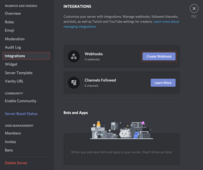
https://discord.com/appor open the Discord desktop application. Open your Server Settings and head to the Integrations tab. -
Press the Create Webhook button to create a new webhook.

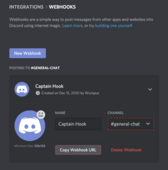
- Click on the webhook that has been created and edit the details if needed. You can:
- Edit the avatar.
- Choose what channel the webhook posts to.
- Rename the webhook.
- After setting up your Discord webhook, press Save Changes.
You can copy the Discord webhook URL now by pressing Copy Webhook URL, or you can view it later.

Zabbix configuration
- Before you can start using the Discord webhook, you need to set up the global macro
{$ZABBIX.URL}:
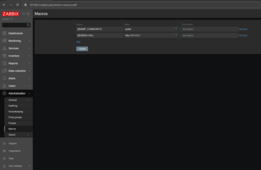
- In the Zabbix web interface, go to Administration > Macros in the top-left dropdown menu.
- Set up the global macro
{$ZABBIX.URL}which will contain the URL to the Zabbix frontend. The URL should be either an IP address, a fully qualified domain name, or a localhost. - Specifying a protocol is mandatory, whereas the port is optional. Depending on the web server configuration, you might also need to append
/zabbixto the end of URL. Good examples:http://zabbix.comhttps://zabbix.lan/zabbixhttp://server.zabbix.lan/http://localhosthttp://127.0.0.1:8080
- Bad examples:
zabbix.comhttp://zabbix/

- Import the media type:
- In the Alerts > Media types section, import the
media_discord.yamlfile.
- Create a Zabbix user and add media:
- If you want to create a new user, go to the Users > Users section and click the Create user button in the top-right corner. In the User tab, fill in all the required fields (marked with red asterisks).
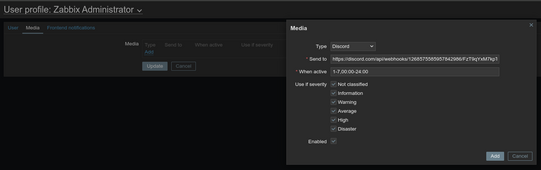
- In the Media tab, add a new media and select Discord from the Type drop-down list. The Send to field must contain the URL of the Discord webhook created previously.
- Make sure this user has access to all the hosts for which you would like problem notifications to be sent to Discord.

- Done! You can now start using this media type in actions and receive alerts.
For more information, please see Zabbix and Discord documentation.
Feedback
Please report any issues with the media type at https://support.zabbix.com.
You can also provide feedback, discuss the media type, or ask for help at ZABBIX forums.
Source: https://git.zabbix.com/projects/ZBX/repos/zabbix/browse/templates/media/discord?at=release/7.2
Discord webhook
Overview
This guide describes how to integrate your Zabbix installation with Discord using the Zabbix webhook feature, providing instructions on setting up a media type, user, and action in Zabbix.
Requirements
Zabbix version: 7.2 and higher.
Parameters
After importing the webhook, you can configure it using webhook parameters.
Configurable parameters
The configurable parameters are intended to be changed according to the webhook setup as well as the user's preferences and environment.
| Name | Value | Description |
|---|---|---|
| zabbix_url | {$ZABBIX.URL} | The URL of the Zabbix frontend. |
| user_agent | ZabbixServer (zabbix.com, 7.2) | The user agent to use in the request. |
Internal parameters
Internal parameters are reserved for predefined macros that are not meant to be changed.
| Name | Value | Description |
|---|---|---|
| event_source | {EVENT.SOURCE} | Numeric value of the event source. Possible values: 0 - Trigger, 1 - Discovery, 2 - Autoregistration, 3 - Internal, 4 - Service. |
| event_value | {EVENT.VALUE} | Numeric value of the event that triggered an action (1 for problem, 0 for recovering). |
| event_nseverity | {EVENT.NSEVERITY} | Numeric value of the event severity. Possible values: 0 - Not classified, 1 - Information, 2 - Warning, 3 - Average, 4 - High, 5 - Disaster. |
| event_severity | {EVENT.SEVERITY} | Name of the event severity. |
| event_update_nseverity | {EVENT.UPDATE.NSEVERITY} | Numeric value of the event update severity. Possible values: 0 - Not classified, 1 - Information, 2 - Warning, 3 - Average, 4 - High, 5 - Disaster. |
| event_update_severity | {EVENT.UPDATE.SEVERITY} | Name of the event update severity. |
| event_update_status | {EVENT.UPDATE.STATUS} | Numeric value of the problem update status. Possible values: 0 - Webhook was called because of problem/recovery event, 1 - Update operation. |
| alert_subject | {ALERT.SUBJECT} | 'Default subject' value from action configuration. |
| alert_message | {ALERT.MESSAGE} | 'Default message' value from action configuration. |
| trigger_id | {TRIGGER.ID} | Numeric ID of the trigger of this action. |
| event_id | {EVENT.ID} | Numeric ID of the event that triggered an action. |
| discord_endpoint | {ALERT.SENDTO} | The URL of the Discord webhook. |
Please be aware that each webhook supports an HTTP proxy. To use this feature, add a new media type parameter with the name
http_proxyand set its value to the proxy URL.
Service setup
-
Go to
https://discord.com/appor open the Discord desktop application. Open your Server Settings and head to the Integrations tab. -
Press the Create Webhook button to create a new webhook.
- Click on the webhook that has been created and edit the details if needed. You can:
- Edit the avatar.
- Choose what channel the webhook posts to.
- Rename the webhook.
- After setting up your Discord webhook, press Save Changes.
You can copy the Discord webhook URL now by pressing Copy Webhook URL, or you can view it later.
Zabbix configuration
- Before you can start using the Discord webhook, you need to set up the global macro
{$ZABBIX.URL}:
- In the Zabbix web interface, go to Administration > Macros in the top-left dropdown menu.
- Set up the global macro
{$ZABBIX.URL}which will contain the URL to the Zabbix frontend. The URL should be either an IP address, a fully qualified domain name, or a localhost. - Specifying a protocol is mandatory, whereas the port is optional. Depending on the web server configuration, you might also need to append
/zabbixto the end of URL. Good examples:http://zabbix.comhttps://zabbix.lan/zabbixhttp://server.zabbix.lan/http://localhosthttp://127.0.0.1:8080
- Bad examples:
zabbix.comhttp://zabbix/
- Import the media type:
- In the Alerts > Media types section, import the
media_discord.yamlfile.
- Create a Zabbix user and add media:
- If you want to create a new user, go to the Users > Users section and click the Create user button in the top-right corner. In the User tab, fill in all the required fields (marked with red asterisks).
- In the Media tab, add a new media and select Discord from the Type drop-down list. The Send to field must contain the URL of the Discord webhook created previously.
- Make sure this user has access to all the hosts for which you would like problem notifications to be sent to Discord.
- Done! You can now start using this media type in actions and receive alerts.
For more information, please see Zabbix and Discord documentation.
Feedback
Please report any issues with the media type at https://support.zabbix.com.
You can also provide feedback, discuss the media type, or ask for help at ZABBIX forums.
Source: https://git.zabbix.com/projects/ZBX/repos/zabbix/browse/templates/media/discord?at=release/7.0
Discord webhook
Overview
This guide describes how to integrate your Zabbix installation with Discord using the Zabbix webhook feature, providing instructions on setting up a media type, user, and action in Zabbix.
Requirements
Zabbix version: 7.0 and higher.
Parameters
After importing the webhook, you can configure it using webhook parameters.
Configurable parameters
The configurable parameters are intended to be changed according to the webhook setup as well as the user's preferences and environment.
| Name | Value | Description |
|---|---|---|
| zabbix_url | {$ZABBIX.URL} | The URL of the Zabbix frontend. |
| user_agent | ZabbixServer (zabbix.com, 7.0) | The user agent to use in the request. |
Internal parameters
Internal parameters are reserved for predefined macros that are not meant to be changed.
| Name | Value | Description |
|---|---|---|
| event_source | {EVENT.SOURCE} | Numeric value of the event source. Possible values: 0 - Trigger, 1 - Discovery, 2 - Autoregistration, 3 - Internal, 4 - Service. |
| event_value | {EVENT.VALUE} | Numeric value of the event that triggered an action (1 for problem, 0 for recovering). |
| event_nseverity | {EVENT.NSEVERITY} | Numeric value of the event severity. Possible values: 0 - Not classified, 1 - Information, 2 - Warning, 3 - Average, 4 - High, 5 - Disaster. |
| event_severity | {EVENT.SEVERITY} | Name of the event severity. |
| event_update_nseverity | {EVENT.UPDATE.NSEVERITY} | Numeric value of the event update severity. Possible values: 0 - Not classified, 1 - Information, 2 - Warning, 3 - Average, 4 - High, 5 - Disaster. |
| event_update_severity | {EVENT.UPDATE.SEVERITY} | Name of the event update severity. |
| event_update_status | {EVENT.UPDATE.STATUS} | Numeric value of the problem update status. Possible values: 0 - Webhook was called because of problem/recovery event, 1 - Update operation. |
| alert_subject | {ALERT.SUBJECT} | 'Default subject' value from action configuration. |
| alert_message | {ALERT.MESSAGE} | 'Default message' value from action configuration. |
| trigger_id | {TRIGGER.ID} | Numeric ID of the trigger of this action. |
| event_id | {EVENT.ID} | Numeric ID of the event that triggered an action. |
| discord_endpoint | {ALERT.SENDTO} | The URL of the Discord webhook. |
Please be aware that each webhook supports an HTTP proxy. To use this feature, add a new media type parameter with the name
http_proxyand set its value to the proxy URL.
Service setup
-
Go to
https://discord.com/appor open the Discord desktop application. Open your Server Settings and head to the Integrations tab. -
Press the Create Webhook button to create a new webhook.
- Click on the webhook that has been created and edit the details if needed. You can:
- Edit the avatar.
- Choose what channel the webhook posts to.
- Rename the webhook.
- After setting up your Discord webhook, press Save Changes.
You can copy the Discord webhook URL now by pressing Copy Webhook URL, or you can view it later.
Zabbix configuration
- Before you can start using the Discord webhook, you need to set up the global macro
{$ZABBIX.URL}:
- In the Zabbix web interface, go to Administration > Macros in the top-left dropdown menu.
- Set up the global macro
{$ZABBIX.URL}which will contain the URL to the Zabbix frontend. The URL should be either an IP address, a fully qualified domain name, or a localhost. - Specifying a protocol is mandatory, whereas the port is optional. Depending on the web server configuration, you might also need to append
/zabbixto the end of URL. Good examples:http://zabbix.comhttps://zabbix.lan/zabbixhttp://server.zabbix.lan/http://localhosthttp://127.0.0.1:8080
- Bad examples:
zabbix.comhttp://zabbix/
- Import the media type:
- In the Alerts > Media types section, import the
media_discord.yamlfile.
- Create a Zabbix user and add media:
- If you want to create a new user, go to the Users > Users section and click the Create user button in the top-right corner. In the User tab, fill in all the required fields (marked with red asterisks).
- In the Media tab, add a new media and select Discord from the Type drop-down list. The Send to field must contain the URL of the Discord webhook created previously.
- Make sure this user has access to all the hosts for which you would like problem notifications to be sent to Discord.
- Done! You can now start using this media type in actions and receive alerts.
For more information, please see Zabbix and Discord documentation.
Feedback
Please report any issues with the media type at https://support.zabbix.com.
You can also provide feedback, discuss the media type, or ask for help at ZABBIX forums.
Source: https://git.zabbix.com/projects/ZBX/repos/zabbix/browse/templates/media/discord?at=release/6.4
Discord webhook
This guide describes how to integrate your Zabbix 6.2 installation with Discord using the Zabbix webhook feature. This guide will provide instructions on setting up a media type, a user and an action in Zabbix.
Setting up Discord Webhook
1. Go to https://discordapp.com/app or open Discord Desktop application. Select your server and channel where you want to get Zabbix notifications.
2. Press Edit channel, select Webhooks tab and press Create Webhook button
3. Setup your Discord webhook and press Save.
You can copy Discord webhook URL now or view it later by clicking on Edit button.
Setting up Zabbix Webhook
1. Before setting up Discord Webhook, you need to setup the global macro "{$ZABBIX.URL}", which must contain the URL to the Zabbix frontend.
The URL should be either an IP address, a fully qualified domain name or localhost. Specifying a protocol is mandatory, whereas port is optional.
Good examples:
http://zabbix.com
https://zabbix.lan/
http://localhost
http://127.0.0.1:8080
Bad examples:
zabbix.com
http://zabbix/
2. In the "Administration > Media types" section, import the media_discord.yaml
3. If you want to change values of default parameters, open the newly added Discord media type.
You can also choose between two notification modes by modifying "use_default_message" parameter value:
- false (default)
- receive problem notifications with predefined set of fields (problem, host name, event severity, event type, etc.)
- true
- receive default message defined in the Zabbix Action that triggered notification


4. To receive notifications in Discord, you need to create a Zabbix user and add Media with the Discord media type.
The "Send to" field must contain Discord webhook URL created before.
Also don’t forget that in order to send notifications, this user must have access to hosts that generated such problems


5. Start getting alerts! You have made it!


For more information see Zabbix and Discord documentations.
Supported Versions
Zabbix 6.2
Source: https://git.zabbix.com/projects/ZBX/repos/zabbix/browse/templates/media/discord?at=release/6.2
Discord webhook
This guide describes how to integrate your Zabbix 6.2 installation with Discord using the Zabbix webhook feature. This guide will provide instructions on setting up a media type, a user and an action in Zabbix.
Setting up Discord Webhook
1. Go to https://discordapp.com/app or open Discord Desktop application. Select your server and channel where you want to get Zabbix notifications.
2. Press Edit channel, select Webhooks tab and press Create Webhook button
3. Setup your Discord webhook and press Save.
You can copy Discord webhook URL now or view it later by clicking on Edit button.
Setting up Zabbix Webhook
1. Before setting up Discord Webhook, you need to setup the global macro "{$ZABBIX.URL}", which must contain the URL to the Zabbix frontend.
The URL should be either an IP address, a fully qualified domain name or localhost. Specifying a protocol is mandatory, whereas port is optional.
Good examples:
http://zabbix.com
https://zabbix.lan/
http://localhost
http://127.0.0.1:8080
Bad examples:
zabbix.com
http://zabbix/
2. In the "Administration > Media types" section, import the media_discord.yaml
3. If you want to change values of default parameters, open the newly added Discord media type.
You can also choose between two notification modes by modifying "use_default_message" parameter value:
- false (default)
- receive problem notifications with predefined set of fields (problem, host name, event severity, event type, etc.)
- true
- receive default message defined in the Zabbix Action that triggered notification
4. To receive notifications in Discord, you need to create a Zabbix user and add Media with the Discord media type.
The "Send to" field must contain Discord webhook URL created before.
Also don’t forget that in order to send notifications, this user must have access to hosts that generated such problems
5. Start getting alerts! You have made it!
For more information see Zabbix and Discord documentations.
Supported Versions
Zabbix 6.2
Source: https://git.zabbix.com/projects/ZBX/repos/zabbix/browse/templates/media/discord?at=release/6.0
Discord webhook
This guide describes how to integrate your Zabbix 4.4 installation with Discord using the Zabbix webhook feature. This guide will provide instructions on setting up a media type, a user and an action in Zabbix.
Setting up Discord Webhook
1. Go to https://discordapp.com/app or open Discord Desktop application. Select your server and channel where you want to get Zabbix notifications.
2. Press Edit channel, select Webhooks tab and press Create Webhook button
3. Setup your Discord webhook and press Save.
You can copy Discord webhook URL now or view it later by clicking on Edit button.
Setting up Zabbix Webhook
1. Before setting up Discord Webhook, you need to setup the global macro "{$ZABBIX.URL}", which must contain the URL to the Zabbix frontend.
The URL should be either an IP address, a fully qualified domain name or localhost. Specifying a protocol is mandatory, whereas port is optional.
Good examples:
http://zabbix.com
https://zabbix.lan/
http://localhost
http://127.0.0.1:8080
Bad examples:
zabbix.com
http://zabbix/
2. In the "Administration > Media types" section, import the media_discord.yaml
3. If you want to change values of default parameters, open the newly added Discord media type.
You can also choose between two notification modes by modifying "use_default_message" parameter value:
- false (default)
- receive problem notifications with predefined set of fields (problem, host name, event severity, event type, etc.)
- true
- receive default message defined in the Zabbix Action that triggered notification
4. To receive notifications in Discord, you need to create a Zabbix user and add Media with the Discord media type.
The "Send to" field must contain Discord webhook URL created before.
Also don’t forget that in order to send notifications, this user must have access to hosts that generated such problems
5. Start getting alerts! You have made it!
For more information see Zabbix and Discord documentations.
Supported Versions
Zabbix 4.4
Source: https://git.zabbix.com/projects/ZBX/repos/zabbix/browse/templates/media/discord?at=release/5.4
Discord webhook
This guide describes how to integrate your Zabbix 4.4 installation with Discord using the Zabbix webhook feature. This guide will provide instructions on setting up a media type, a user and an action in Zabbix.
Setting up Discord Webhook
1. Go to https://discordapp.com/app or open Discord Desktop application. Select your server and channel where you want to get Zabbix notifications.
2. Press Edit channel, select Webhooks tab and press Create Webhook button
3. Setup your Discord webhook and press Save.
You can copy Discord webhook URL now or view it later by clicking on Edit button.
Setting up Zabbix Webhook
1. Before setting up Discord Webhook, you need to setup the global macro "{$ZABBIX.URL}", which must contain the URL to the Zabbix frontend.
The URL should be either an IP address, a fully qualified domain name or localhost. Specifying a protocol is mandatory, whereas port is optional.
Good examples:
http://zabbix.com
https://zabbix.lan/
http://localhost
http://127.0.0.1:8080
Bad examples:
zabbix.com
http://zabbix/
2. In the "Administration > Media types" section, import the media_discord.yaml
3. If you want to change values of default parameters, open the newly added Discord media type.
You can also choose between two notification modes by modifying "use_default_message" parameter value:
- false (default)
- receive problem notifications with predefined set of fields (problem, host name, event severity, event type, etc.)
- true
- receive default message defined in the Zabbix Action that triggered notification
4. To receive notifications in Discord, you need to create a Zabbix user and add Media with the Discord media type.
The "Send to" field must contain Discord webhook URL created before.
Also don’t forget that in order to send notifications, this user must have access to hosts that generated such problems
5. Start getting alerts! You have made it!
For more information see Zabbix and Discord documentations.
Supported Versions
Zabbix 4.4
Source: https://git.zabbix.com/projects/ZBX/repos/zabbix/browse/templates/media/discord?at=release/5.0
Discord webhook
This guide describes how to integrate your Zabbix 4.4 installation with Discord using the Zabbix webhook feature. This guide will provide instructions on setting up a media type, a user and an action in Zabbix.
Setting up Discord Webhook
1. Go to https://discordapp.com/app or open Discord Desktop application. Select your server and channel where you want to get Zabbix notifications.
2. Press Edit channel, select Webhooks tab and press Create Webhook button
3. Setup your Discord webhook and press Save.
You can copy Discord webhook URL now or view it later by clicking on Edit button.
Setting up Zabbix Webhook
1. Before setting up Discord Webhook, you need to setup the global macro "{$ZABBIX.URL}", which must contain the URL to the Zabbix frontend.
The URL should be either an IP address, a fully qualified domain name or localhost. Specifying a protocol is mandatory, whereas port is optional.
Good examples:
http://zabbix.com
https://zabbix.lan/
http://localhost
http://127.0.0.1:8080
Bad examples:
zabbix.com
http://zabbix/
2. In the "Administration > Media types" section, import the media_discord.xml
3. If you want to change values of default parameters, open the newly added Discord media type.
You can also choose between two notification modes by modifying "use_default_message" parameter value:
- false (default)
- receive problem notifications with predefined set of fields (problem, host name, event severity, event type, etc.)
- true
- receive default message defined in the Zabbix Action that triggered notification
4. To receive notifications in Discord, you need to create a Zabbix user and add Media with the Discord media type.
The "Send to" field must contain Discord webhook URL created before.
Also don’t forget that in order to send notifications, this user must have access to hosts that generated such problems
5. Start getting alerts! You have made it!
For more information see Zabbix and Discord documentations.
Supported Versions
Zabbix 4.4


