|
VOOZH | about |
|
VOOZH | about |
According to the official documentation, GraphQL is a query language for APIs and a runtime for fulfilling those queries with your existing data. GraphQL provides a complete and understandable description of the data in your API, gives clients the power to ask for exactly what they need and nothing more, makes it easier to evolve APIs over time, and enables powerful dev tools.
👁 Debugging GraphQL APIs with InsomniaWhile GraphQL provides official clients for working with GraphQL: Playground and Graphiql, some notable third-party alternatives such as Altair and Insomnia exist. And in this article, we are interested in the latter.
In this article, we’ll learn how to debug GraphQL APIs using Insomnia. To follow along with this article, you will need a basic knowledge of GraphQL and with working with APIs and API clients such as Postman, GraphiQL, or Insomnia. You will also need the latest version of Insomnia and Node.js.
Jump ahead:
GraphQL is innovative, and it offers some interesting advantages:
Insomnia is an API client for designing, debugging, and testing APIs. It supports HTTP, GraphQL, gRPC, and WebSocket requests. Thus, making this API client a favorite of many developers. Additionally, Insomnia features a developer-friendly and easy-to-use GUI, developer collaboration, test automation, and an extensible plugin ecosystem.
So, because Insomnia supports REST and GraphQL APIs, you can think of it as a sandwich between Postman and GraphiQL. And while GraphQL API clients — like Playground and GraphiQL — are to GraphQL, what Postman is to REST, Insomnia provides a better alternative by supporting RESTful, GraphQL, and gRPCs APIs.
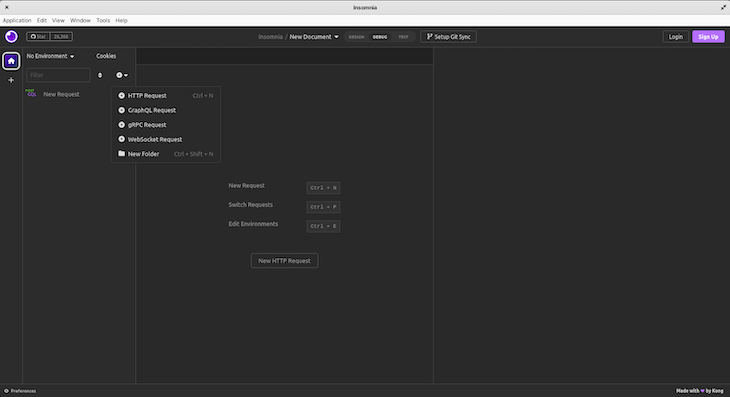
You can build, design, and test different APIs from a single API client. And to work with a specific API, select the appropriate request type as seen below:
In this article, you will select the GraphQL Request to work with GraphQL. Although Insomnia supports other APIs in this article, we’ll learn how to debug GraphQL APIs using Insomnia.
Debugging is one of the most important skills set a developer can acquire. It involves identifying the root cause of a problem and fixing it. Some debugging strategies used include:
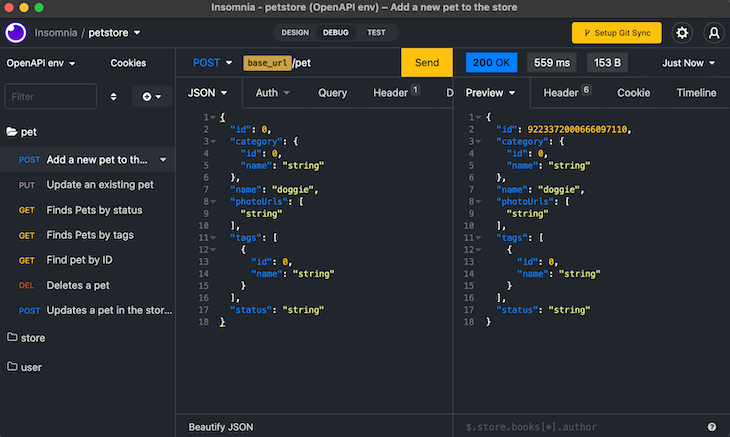
Insomnia features a debugging tab, which is the second of the three top-level tabs in Documents, as seen in the image below:
In the article below, we will work extensively with this tab, so let’s start debugging GraphQL APIs with Insomnia.
To debug GraphQL APIs, we need a GraphQL project. You can clone the GraphQL project for this article from this GitHub link. The application above is a Node.js application that resolves our GraphQL query and returns the following data:
export default {
 users: [
 { id: 1, username: 'John Doe', email: '[email protected]', password: '12345', role: 'admin' },
 { id: 2, username: 'Jane Doe', email: '[email protected]', password: '12345', role: 'user' },
 { id: 3, username: 'Jenny Doe', email: '[email protected]', password: '12345', role: 'user' }
 ]
};
The user and users fields are protected and require admin-level permission to access them. However, the login query is not protected. We aim to learn how to debug GraphQL APIs using this application. But first, we need to set up the application. To do this, follow the steps below.
First, clone the project with the following code:
// clone project
git clone https://github.com/lawrenceagles/fastify-graphQL-Altair
Then, from the project directory, install dependencies:
// install dependencies
npm install
Now, start the server by running:
npm start
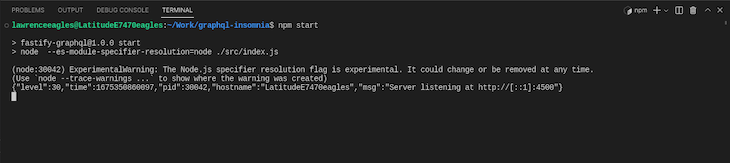
If everything is successful, you will see the following:
👁 Example of GraphQL Running Successfully
Now, the dev-server is running at localhost:4500. To work with this in Insomnia, select GraphQL request and enter the following URL: localhost:4500/graphql. In this article, we will learn how to debug different API errors. We will differentiate these errors using REST API code. So, although Graphql will return 200 in most cases and 500 for Internal Server Error, API clients like Insomnia still return HTTP code to specify errors even if you are working with a GraphQL API.
In this article, we will learn how to debug the following errors: 400 Bad Requests, 401 Unauthorized, 403 Forbidden, and 404 Not Found. However, you can get a complete list of these error codes here.
The 400 Bad Request is one of the most common errors and occurs when the server cannot parse the request. Errors like this can be caused by a syntax error in the query or a problem with the app. Although the GraphQL type-checking feature helps to prevent this error, Insomnia also underlines errors in our queries with red squiggles.
Consider the query below:
query{
 login(email: "[email protected]", password: "12345") {
 role
 token
 }
}
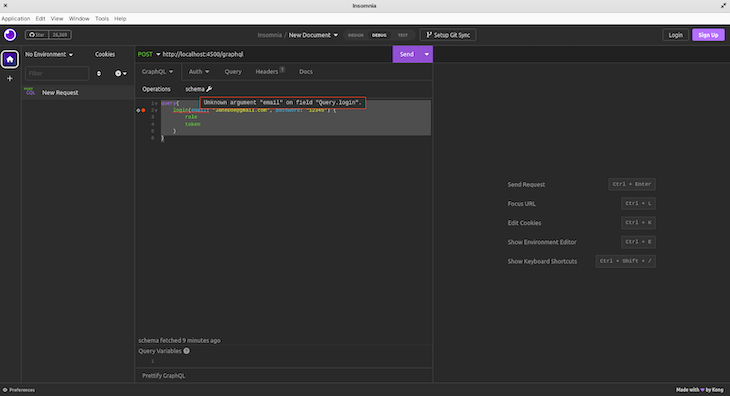
The query above contains a syntax error because, in our GraphQL schema, the login query requires a username and a password, as seen below:
type Query {
 ...
 login(username:String!, password:String!): User!
}
Insomnia also provides useful tips by underlining the error with red squiggles, which pop up using full debugging information when you hover over them, as seen below:
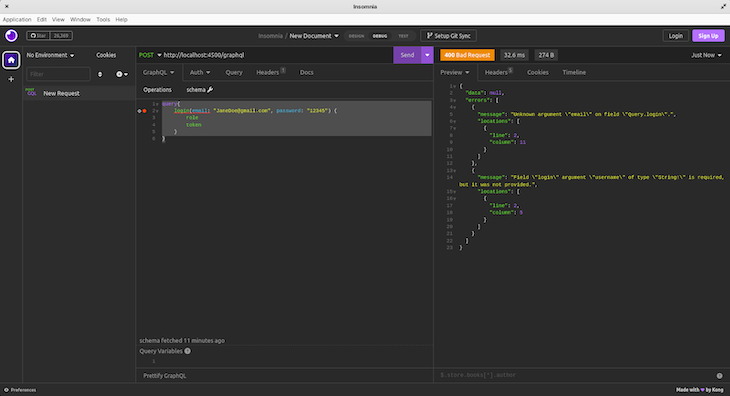
But, if you ignore the warning and run this query, you will get a 400 Bad Request error, as seen below:
To resolve this error, update the query like this:
query{
 login(username: "Jane Doe", password: "12345") {
 role
 token
 }
}
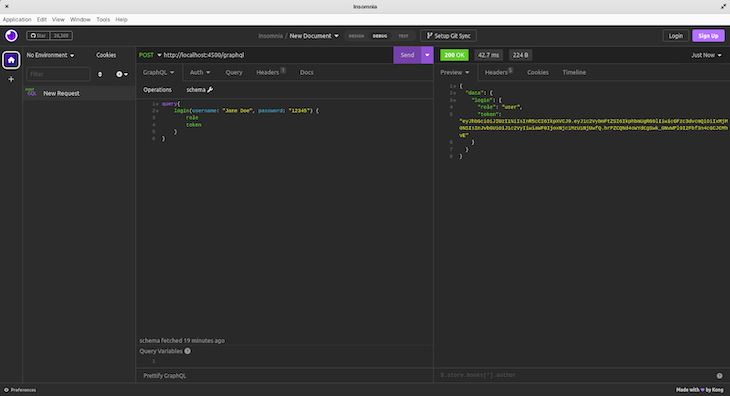
Now, if you run this query, you will get:
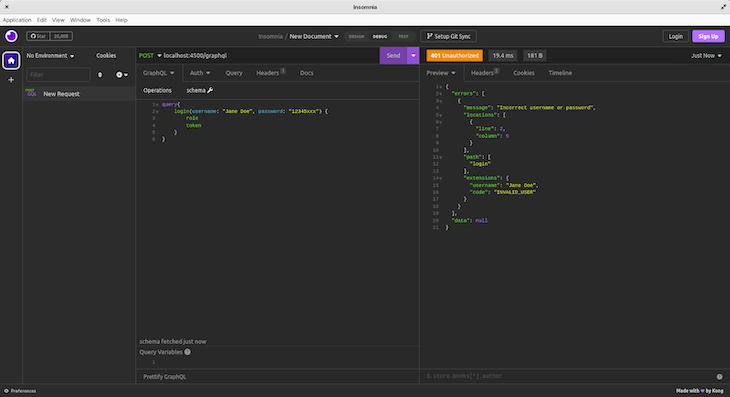
This error occurs when a server cannot authenticate a user based on their credentials. Also, this failed authentication can result from either incorrect user credentials — username or password — an invalid token, or thrown from a provider. To produce this error, run the following query on Insomnia:
query{
 login(username: "Jane Doe", password: "12345xxx") {
 role
 token
 }
}
In the code above, the user’s password is incorrect, so if we run this query, we should get a 401 error from Insomnia, as seen below:
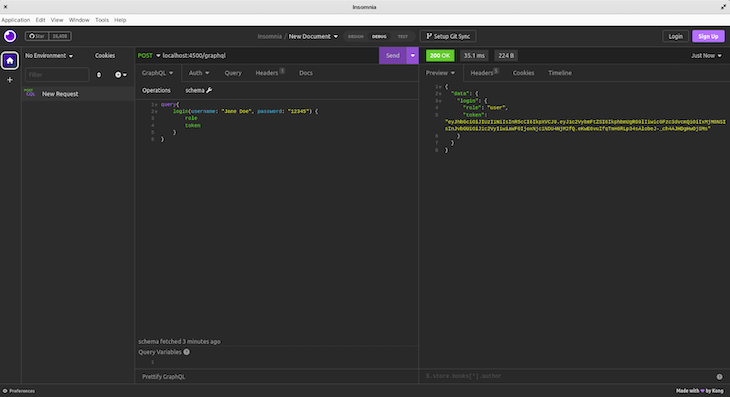
Now, to resolve this error, we need to run the query with the correct credentials given below:
query{
 login(username: "Jane Doe", password: "12345") {
 role
 token
 }
}
When this is done, you will see the following:
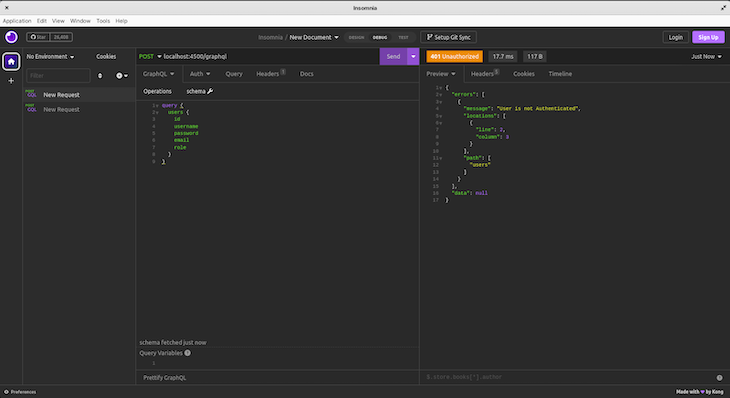
Before we move to another error type, 401 Unauthenticated error also occurs if we visit a protected API without passing a valid token. In our Node.js application, the users’ type is protected, so to demonstrate this, open a new GraphQL Request tab in Insomnia and query this type using the code below:
query {
 users {
 id
 username
 password
 email
 role
 }
}
You will see the error below:
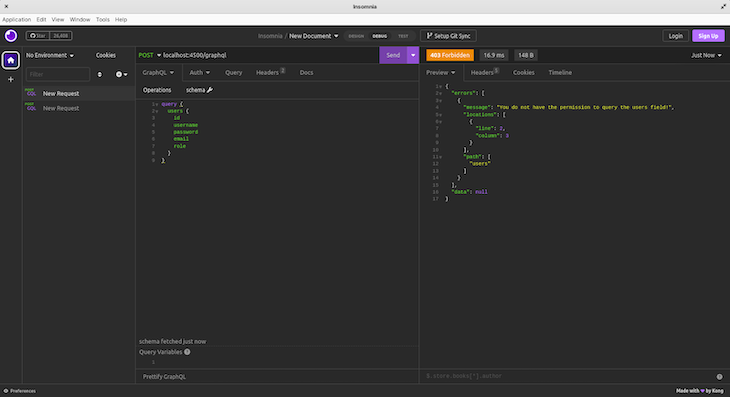
To resolve this, we need to pass a valid token in the header using the x-user as the key and the token as the value. Click the Header tab and use the token generated in the 401 Unauthenticated. Now, if you run the query, you will see the following:
The error above is a 403 Forbidden error which tells us that the user has been authenticated but does not have permission to run this query. We will resolve this as we learn about the 403 Forbidden error below.
This error occurs when you do not have permission to run a query, as seen in the example above. To query the users type, we need admin role permission. So, to resolve this error, we need to log in with an admin user, copy the generated token, and run the users query with the token from the admin user.
To log in with an admin user, open a new GraphQL Request tab on Insomnia and run the query below:
query{
 login(username: "John Doe", password: "12345") {
 role
 token
 }
}
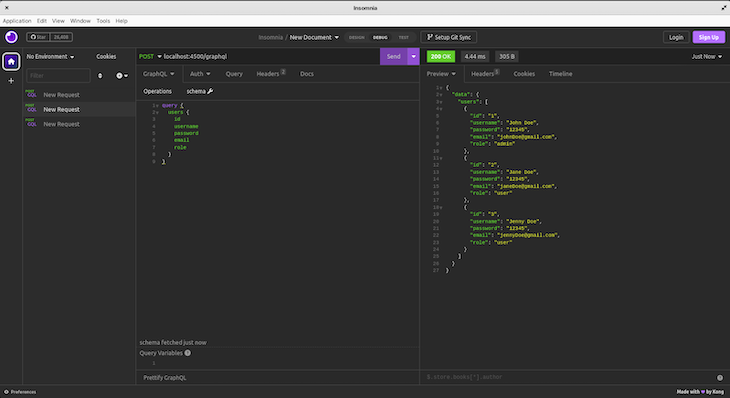
Now, copy the generated token and query the user type, and you will see:
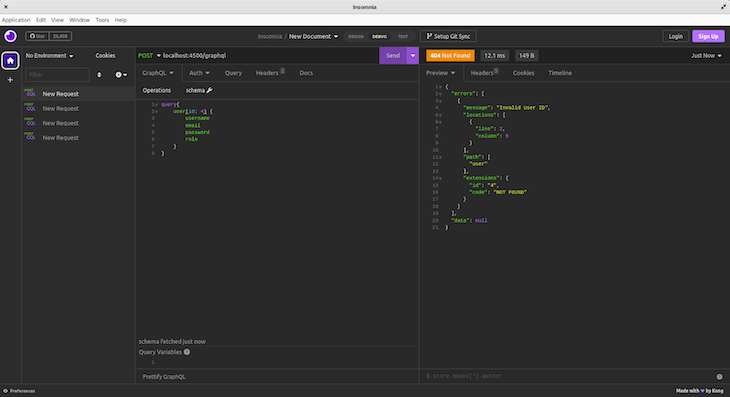
This error occurs when the server cannot find the resource we queried resource. Our Node.js application has three users with IDs 1, 2, and 3. So, if we query for a user with ID 4, this error is thrown when the server cannot find the resource we query for. To do this, run the query below:
query{
 user(id: 4) {
 username
 email
 password
 role
 }
}
Note: This is a protected query, so provide an
admin token.
Now, you will see the following:
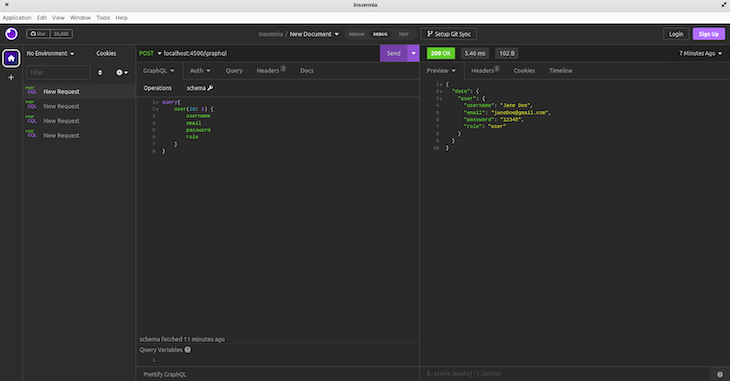
To resolve this, we need to update the user ID to that of an existing user. You can change the ID to 2 and run the query again, and you will see:
In this article, we learned how to debug GraphQL APIs using Insomnia. However, this is client-side GraphQL, so Insomnia cannot debug GrapqhQL resolvers. To debug server-side GraphQL, you will need a tool like VS Code. Finally, to learn more about Insomnia and GraphQL, visit this doc. I hope you learned enough to start debugging client-side GraphQL with Insomnia.
While GraphQL has some features for debugging requests and responses, making sure GraphQL reliably serves resources to your production app is where things get tougher. If you’re interested in ensuring network requests to the backend or third party services are successful, try LogRocket.
👁 LogRocket Dashboard Free Trial BannerLogRocket lets you replay user sessions, eliminating guesswork around why bugs happen by showing exactly what users experienced. It captures console logs, errors, network requests, and pixel-perfect DOM recordings — compatible with all frameworks.
LogRocket's Galileo AI watches sessions for you, instantly aggregating and reporting on problematic GraphQL requests to quickly understand the root cause. In addition, you can track Apollo client state and inspect GraphQL queries' key-value pairs.
We built the same app in TanStack Start RSC and Next.js RSC. TanStack shipped 40% less JS and built 4x faster — but Next.js is still the safer production bet.
From RSC vulnerabilities and the Vercel breach to TypeScript 7.0 Beta and AI agents — the nine frontend storylines that defined H1 2026, ranked.
AI tools generate working React code fast, but miss race conditions, empty states, debouncing, and accessibility. Here’s how to catch bugs before production.
Learn how to use Gemini CLI subagents to delegate frontend, backend, testing, and docs tasks to specialized agents with guardrails and clear ownership.
Would you be interested in joining LogRocket's developer community?
Join LogRocket’s Content Advisory Board. You’ll help inform the type of content we create and get access to exclusive meetups, social accreditation, and swag.
Sign up now