|
VOOZH | about |
|
VOOZH | about |
It’s important to take component structure into account when using JavaScript frameworks to create large scale applications.
👁 ImageBy considering component structure, you can avoid loading every single component at runtime and slowing your application. You can also keep from returning unnecessary data to users or creating an overall poor user experience as you build your application.
Frameworks such as React and Angular use React.lazy() and routing models, respectively, to factor in component structure.
In this blog post, we’ll implement a couple of demos to see how Vue uses async components to decrease our application’s loading times by employing lazy loading and code splitting techniques.
To understand how this works, let’s begin by creating a basic component.
Navigate to your terminal, install Vue’s CLI, and create a project:
npm install -g vue/cli
vue create book-project
#choose the default setting when prompted
In our new project folder, let’s replace the contents of the default files, which include HelloWorld.vue and App.vue. We’ll start by creating a book donation page. Rename HelloWorld.vue to Book.vue and replace its content with the following:
<!--Book.vue-->
<template>
 <h1>Donate Books</h1>
</template>
Then replace the contents of App.vue with this:
<!--App.vue-->
<template>
 <div>
 <book></book>
 </div>
</template>

<script>
 Import Book from "./components/Book"
 export default {
 components: {
 Book
 }
 }
</script>

<style>
#app {
 font-family: 'Avenir', Helvetica, Arial, sans-serif;
 -webkit-font-smoothing: antialiased;
 -moz-osx-font-smoothing: grayscale;
 text-align: center;
 color: #2c3e50;
 margin-top: 60px;
}
</style>
In the code block above, you’ll notice that the Book component was statically imported. This means the Book component loads every time we load our application.
Next, run npm run serve in your terminal, navigate to localhost:8080, and look at your basic component:
👁 An example of how to use async components to optimize performance in Vue.
For now, loading the Book component every time you load the app may not seem like a significant performance issue. However, as your app gets larger, loading every single component at runtime will become burdensome.
Your users won’t interact with every piece of functionality in your application, so it makes sense to only serve them what they need. The question is, how can you load only what your users need?
This is where lazy loading and code splitting techniques come into play. Lazy loading delays the initial load of a component, preventing resources such as images from loading until users navigate to where they are located on the page.
Code splitting is a feature originally provided by webpack. Webpack lets you split your code into various bundles that can be used only when needed.
Vue performs code splitting via a feature known as dynamic imports.
This import uses webpack — or any module bundler, such as Parcel — to asynchronously load your component. It is written with a syntax that involves a promise and is wrapped in an arrow function:
// dynamic import
import("./components/Book").then(Book => {
 // Insert the Book module here
});
Let’s implement this on our App.vue component:
<template>
 <div>
 <book></book>
 </div>
</template>

<script>
export default {
 components: {
 Book: () => import("./components/Book")
 }
};
</script>
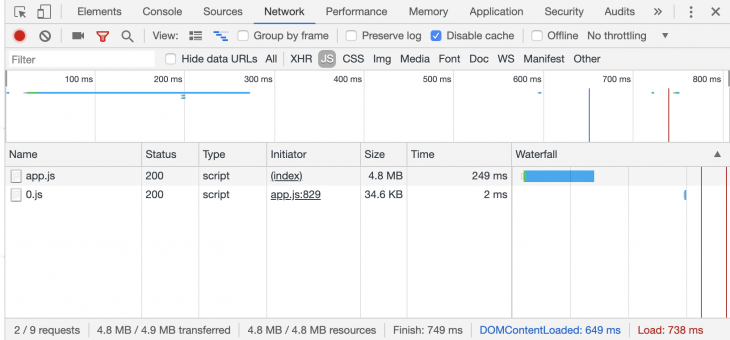
In the code sample above, the import() function returns the Book component, which enables us to load it asynchronously. If we take a look at the Network tab in our browser devtools, there’s a file named 0.js initiated by App.js. That file contains our asynchronous component:
Let’s proceed to build a basic book donation app to show how async components can be leveraged. Ultimately, we only want to load our Donate component when the user clicks the donate button.
The Replay is a weekly newsletter for dev and engineering leaders.
Delivered once a week, it's your curated guide to the most important conversations around frontend dev, emerging AI tools, and the state of modern software.
To begin, let’s navigate to the terminal and install vue-material in our project folder. We’ll use this to style the app:
cd book-project
npm i vue-material
We’ll include vue-material in the app by importing it in src/main.js:
import Vue from 'vue'
import App from './App.vue'
Vue.config.productionTip = false
import VueMaterial from 'vue-material'
import 'vue-material/dist/vue-material.min.css'
import 'vue-material/dist/theme/default.css'
Vue.use(VueMaterial)
new Vue({
 render: h => h(App),
}).$mount('#app')
Now, let’s structure the Book component we previously created:
<!--Book.vue-->
 <template>
 <div id="app">
 <md-card md-with-hover v-for="(book, key) in books" v-bind:key="key">
 <md-ripple>
 <md-card-header>
 <div class="md-title">{{book.name}}</div>
 <div class="md-subhead">{{book.genre}}</div>
 </md-card-header>
 <md-card-actions>
 <md-button type="primary" @click="addBook(key)">Donate to improve {{book.genre}}</md-button>
 </md-card-actions>
 </md-ripple>
 </md-card>
 <div v-if="show">
 <md-card-content>
 <donate v-bind:selectList="selectList"></donate>
 </md-card-content>
 </div>
 <md-button @click="show = true" id="donate">Donate {{selectList.length}} book(s)</md-button>
 </div>
 </template>

 <script>
 export default {
 name: 'RegularButtons',
 methods: {
 addBook (key) {
 if(!this.selectList.includes(key)) {
 this.selectList.push(key);
 }
 }
 },
 components: {
 donate: () => import('./Donate')
 },
 data: () => ({
 books: [
 { name: 'Using Creatine', genre: 'Workouts' },
 { name: 'Learn Parkour', genre: 'Sports' },
 { name: 'Snorkelling', genre: 'Diving' },
 ],
 selectList: [],
 show: false
 })
 }
 </script>
In the code block above, a list of books is retrieved from a Book array and displayed. If the user clicks the buttons attached to each book, the addBook() method pushes the selected book to a selectList array and shows the total number of donated books.
There’s also a separate button created solely for the purpose of loading our asynchronous component. It has a parameter show set to true. This enables the v-if statement to display the donate component, which contains the number of books selected for donations.
The donate component has already been dynamically imported via the components property in the <script> tag.
Let’s create our donate component. In the src/components folder, create a new file called Donate.vue and input the code sample below:
<template>
 <div title="Donate Books" key="donate">
 <p v-for="(x, y) in this.selectList" :key="y">
 Tip: {{books[Number(x)].name}} is about {{books[Number(x)].genre}}
 </p>
 </div>
</template>
<script>
export default {
 props: ['selectList'],
 data: () => ({
 books: [
 { name: 'Using Creatine', genre: 'Workouts' },
 { name: 'Learn Parkour', genre: 'Sports' },
 { name: 'Snorkelling', genre: 'Underwater' },
 ]
 })
}
</script>
Navigate to your terminal and run npm run serve.
If the app compiles successfully, open localhost:8080 in your browser. When you click around the app while viewing the network tab in Devtools, the Donate component will only load when you click the Donate button.
vue-async-component-demo-1
Uploaded by Raphael Ugwu on 2019-08-31.
You’ll see in the above video that the donate component is represented by 1.js and doesn’t load in the initial app render.
Async components need to be as simple as possible to load quickly. However, it can be helpful to define loading and error components in our async components to handle loading status and display error messages when needed.
Insrc/components, let's create two components:LoadingState.vueandErrorState.vue:
<!--LoadingState.vue-->
 <template>
 <p><em>Loading...</em></p>
 </template>
<!--ErrorState.vue-->
 <template>
 <p>Could not display books. Kindly check your internet conection.</p>
 </template>
Now, in App.vue, we’ll import both components and add them to our Book component:
<!--App.vue-->
<script>
import LoadingState from "./components/LoadingState"
import ErrorState from "./components/ErrorState"
const Book = import("./components/Book")
export default {
 components: {
 Book: () => ({
// Book is our default component
 component: Book,
// LoadingState is the component that is displayed while our default component
// is loading
 loading: LoadingState,
// ErrorState is the component that is displayed should our default component have an // error while loading
 error: ErrorState,
// A delay is set up before the loading component is shown
 delay: 100,
// Should this timeout be reached, the default component is considered to have failed // to load
 timeout: 2000
 })
 }
};
</script>
The loading and error states won’t come up unless you have a very slow or faulty internet connection. To test if they work properly, let’s set the timeout property to 0 and attempt to load the app:
async-components-vue-demo-2
Uploaded by Raphael Ugwu on 2019-08-31.
Using async components to build large scale apps is key to maintaining optimal performance. Async components not only ensure your retention rate will be higher due to quicker load times, but they can also help you detect errors more efficiently since your components are scoped and passed around as functions. Should you want to take a look at the source code of this demo, you can find it here on GitHub.
Debugging Vue.js applications can be difficult, especially when users experience issues that are difficult to reproduce. If you’re interested in monitoring and tracking Vue mutations and actions for all of your users in production, try LogRocket.
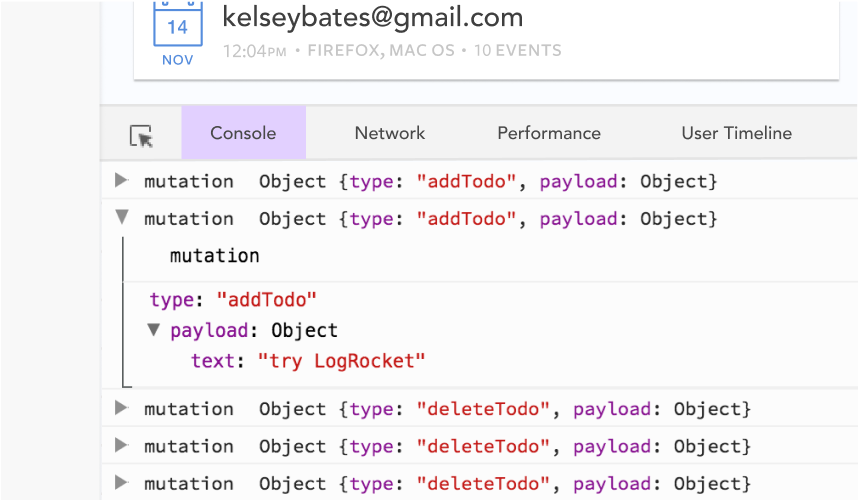
👁 LogRocket Dashboard Free Trial BannerLogRocket lets you replay user sessions, eliminating guesswork by showing exactly what users experienced. It captures console logs, errors, network requests, and pixel-perfect DOM recordings — compatible with all frameworks.
With Galileo AI, you can instantly identify and explain user struggles with automated monitoring of your entire product experience.
Modernize how you debug your Vue apps — start monitoring for free.
Learn how to use Gemini CLI subagents to delegate frontend, backend, testing, and docs tasks to specialized agents with guardrails and clear ownership.
Learn how next-browser gives AI agents runtime context for debugging Next.js apps, including React props, hydration, PPR, forms, and performance.
Build dynamic LLM routing in Next.js with OpenRouter, TanStack AI, task classification, model fallbacks, and cost-aware routing.
TSRX adds first-class control flow, conditional hooks, and scoped styles to React via a TypeScript compiler extension — no new framework required.
Would you be interested in joining LogRocket's developer community?
Join LogRocket’s Content Advisory Board. You’ll help inform the type of content we create and get access to exclusive meetups, social accreditation, and swag.
Sign up now